Jim Coyne
Kilo Patron
Options
- Subscribe to RSS Feed
- Mark as New
- Mark as Read
- Bookmark
- Subscribe
- Printer Friendly Page
- Report Inappropriate Content
06-10-2016
02:23 PM
I previously wrote a helpful little tool called "Preview GlideRecord Script" which would popup a window with the current list view's filter within a block of code:
This would allow you to copy and paste the code wherever you needed it and use it as a starting point. I thought I'd do the same thing for James.Neale's excellent Xplore tool. All you need to do is create a new Context Menu record with the following details:
Table: Global
Menu: List Header
Type: Action
Name: Xplore GlideRecord Script
Order: 116,000
Condition: gs.hasRole("admin")
Action script:
(function u_previewGlideRecordScript(){
var fixedQuery = ("" + g_list.getFixedQuery()).replace("null", "");
if (fixedQuery == "") {
fixedQuery = ("" + g_list.getRelatedQuery()).replace("null", "");
}
var query = fixedQuery;
var listQuery = g_list.getQuery();
if (listQuery != "") {
if (query == "") {
query = listQuery;
} else {
query += "^" + listQuery;
}
}
var newLine = "\n";
var script = "(function() {" + newLine;
script += " var gr = new GlideRecord('" + g_list.tableName + "');" + newLine;
if (query != "") {
script += " gr.addEncodedQuery('" + query + "');" + newLine;
}
script += " //gr.setLimit(100);" + newLine;
script += " //gr.setWorkflow(false);" + newLine;
script += " //gr.autoSysFields(false);" + newLine;
script += " gr.query();" + newLine;
script += " while (gr.next()) {" + newLine;
script += " " + newLine;
script += " }" + newLine;
script += "})();";
//open the Xplore tool in a new window
var win = window.open('/snd_xplore.do');
//when Xplore has loaded, set the script
jQuery(win).bind('load', function(){
win.snd_xplore_editor.setValue(script);
});
})();
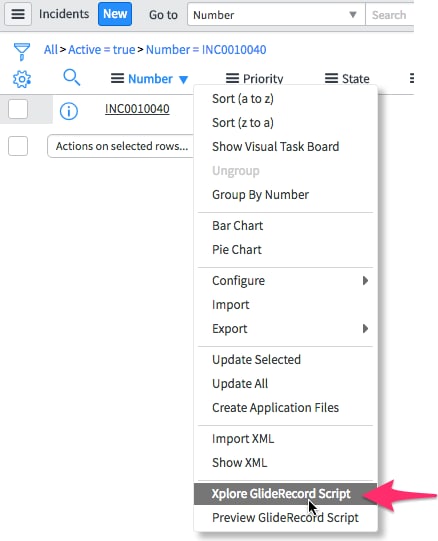
This now adds a new context menu when you right-click a list view header:
When you select it, a new Xplore window is opened and populated with the block of code containing the list view's query:
You obviously need to install the Xplore tool itself in order for this to work and it can be found on the Share site - https://share.servicenow.com/app.do#/detailV2/bbe5dd7213e7de004e8cd4a76144b0ef/overview
Have a good weekend!
Related posts:
12 Comments
You must be a registered user to add a comment. If you've already registered, sign in. Otherwise, register and sign in.