Jim Coyne
Kilo Patron
Options
- Subscribe to RSS Feed
- Mark as New
- Mark as Read
- Bookmark
- Subscribe
- Printer Friendly Page
- Report Inappropriate Content
05-05-2017
11:27 AM
I don't like using a real user's credentials when setting up a new Remote Instance (or Update Source) record:
This can become a problem when the user changes their password or changes positions internally or even leaves the company entirely. You would then have to change the Remote Instance record for each of your instances. Usually the person who creates the record ends up using their own credentials because it's easier and faster to do so, but it's not the best way. Creating a new user and assigning them the "admin" or "teamdev_user" roles just gives them more access than what is needed. Creating a service account with just the right access will save you from future headaches. For more information about service accounts, see this post - User account or service account? What to use for web service tasks.
Spoiler alert - I've attached an Update Set XML export to save you from creating the records manually, but wanted to describe what needs to be done anyways.
I create a new User record with the following details:
User ID - #update.sets.integration
First name - Update Sets
Last name - Integration
Password - follow your established security rules to create a secure password
Active - checked
Web service access only - checked (important)
Checking the "Web service access only" check box will only allow that "user" to login to the instance using API calls and not into the regular user interface.
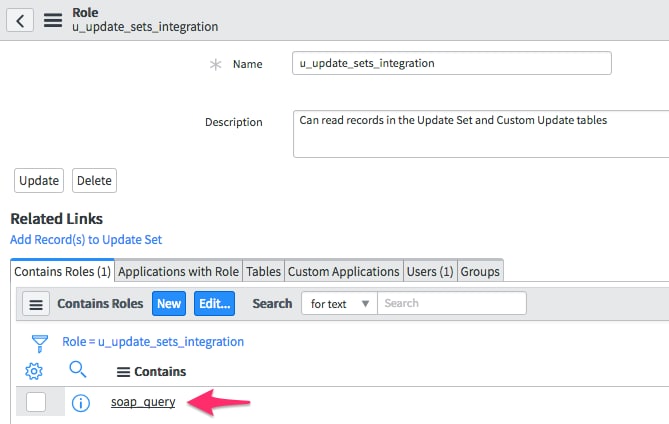
The next thing to do is create a new Role called "u_update_sets_integration". Once you save the new record, add the "soap_query" Role as a Contained Role so that users with the new Role will inherit the "soap_query" Role as well:
Once you do that, assign the new Role to the "Update Sets Integration" user:
Next, you need to assign the "u_update_sets_integration" Role to two different Access Control records, one each for the "sys_update_set" and "sys_update_xml" tables. You can use the following URL to find the appropriate ones (change "instancename" to your own name of course):
You need to add the "u_update_sets_integration" Role to the Requires Role Related List for both of the Access Control records:
The last thing you need to do is update the Remote Instance record with the new credentials. There will, however, be an issue when you try to save it:
ServiceNow will validate the credentials are correct and will verify what roles the user has in the remote instance instead of verifying if it can perform the required operations. So you will have to temporarily give the Update Sets Integration User the "teamdev_user" role. You can remove it once the Remote Instance record has been updated.
So now you have a user with just the right amount of access to import your Update Sets and it should not count as a licensed user (always check with your ServiceNow sales rep). Obviously performing all these steps manually does not make sense and would negate any gains this would give you so you should use the attached Update Set XML file instead. Import it into your personal dev instance to see all the records that are created and feel comfortable with the changes before adding it to your instances.
And don't forget to change the password for the new User record if you import the attached XML file (it is blank in the Update Set).
- 8,238 Views
3 Comments
You must be a registered user to add a comment. If you've already registered, sign in. Otherwise, register and sign in.