REQ approvals not RITM approvals

- Mark as New
- Bookmark
- Subscribe
- Mute
- Subscribe to RSS Feed
- Permalink
- Report Inappropriate Content
10-19-2020 08:50 AM
Can anyone clarify the following please:
I have created an Order Guide for new joiners that contains 6 catalog items. I need to generate a single approval at the REQ level rather than generate 6 approvals at the RITM level.
My approval engines settings for sc_req states: Workflows are managing approvals on this table. I have disabled the default 'Service Catalog Request' workflow (the one which auto approves if the req is <$1000) and have checked for any other workflows on the sc_req table and can find none.
The option to change workflow engine settings is greyed out. I have read that if there are no workflows on the table, then Approval Rules should apply to the REQ. There seems to be the same default Approval Rule set (<$1000 then set to approve) but when I deactivate the default workflow (<$1000 then auto approve) the Approval rule doesn't run and I get a message to say the rule won't run because Approval Engines aren't configured on sc_req table.
I'm finding this functionality very confusing and simply want to generate a single REQ level approval for an Order Guide that contains multiple items so that the RC manager can approve, then the RITM's can move to fulfillment.
Can anyone help with this?
- Labels:
-
Service Portal Development
- Mark as New
- Bookmark
- Subscribe
- Mute
- Subscribe to RSS Feed
- Permalink
- Report Inappropriate Content
10-20-2020 05:04 AM
So at the moment I'm using a workaround. I am using the default <$1000 workflow to kick off the workflow process and have amended that so it sets state to 'requested'
I then have a second workflow that has a condition of Assignment Group is x and have set up a business rule to set assignment group as x based on the word Trigger being entered in the 'Special Instructions' field at checkout.
I would like to trigger the second workflow based on the 'Order Guide name' is x.
A second requirement is to display two cascaded variable fields 'First Name' and 'Last Name' next to the REQ number in list view. Again these need to come from the sc_req_item table to the sc_req table. These fields are manually updated by the requestor (hiring manager) for a new starter who doesn't exist in AD yet, so is neither the requestor or requested for field. Use case for this is when a hiring manager or department head needs to see open new joiner requests we need to be able to see the name of the new joiner displayed.

- Mark as New
- Bookmark
- Subscribe
- Mute
- Subscribe to RSS Feed
- Permalink
- Report Inappropriate Content
10-20-2020 08:54 AM
To show first/last name in a list view based on the variables your users enter when ordering, you would probably need to add two custom fields to the Request table. Then they can be populated with the respective values based on some logic (e.g. a BR on after insert for the REQ which queries RITMs and grabs this info).
Regarding the workflow part, you could set the condition to "None" in your second workflow so that it does not automatically run and then run it from you rscript (e.g. the BR you mentioned) whenever your conditions evaluate to true.
Use the startFlow() API to trigger the WF from script.
Another apprach would be to just modify the OOB WF for REQ, add a scripted Condition block which checks for the child RITM Order Guide field and if the value matches e.g. a sys_property with the Order Guide, use your custom approval path instead of the OOB one.
Both should work I think...
- Mark as New
- Bookmark
- Subscribe
- Mute
- Subscribe to RSS Feed
- Permalink
- Report Inappropriate Content
04-03-2026 12:55 AM
To achieve this in the ServiceNow Workflow Editor, you need to add a conditional branch (If activity) and an Approval Group activity.
Since you are using an Order Guide, you can identify the source by checking the parent field or a specific variable on the Request Item (RITM).
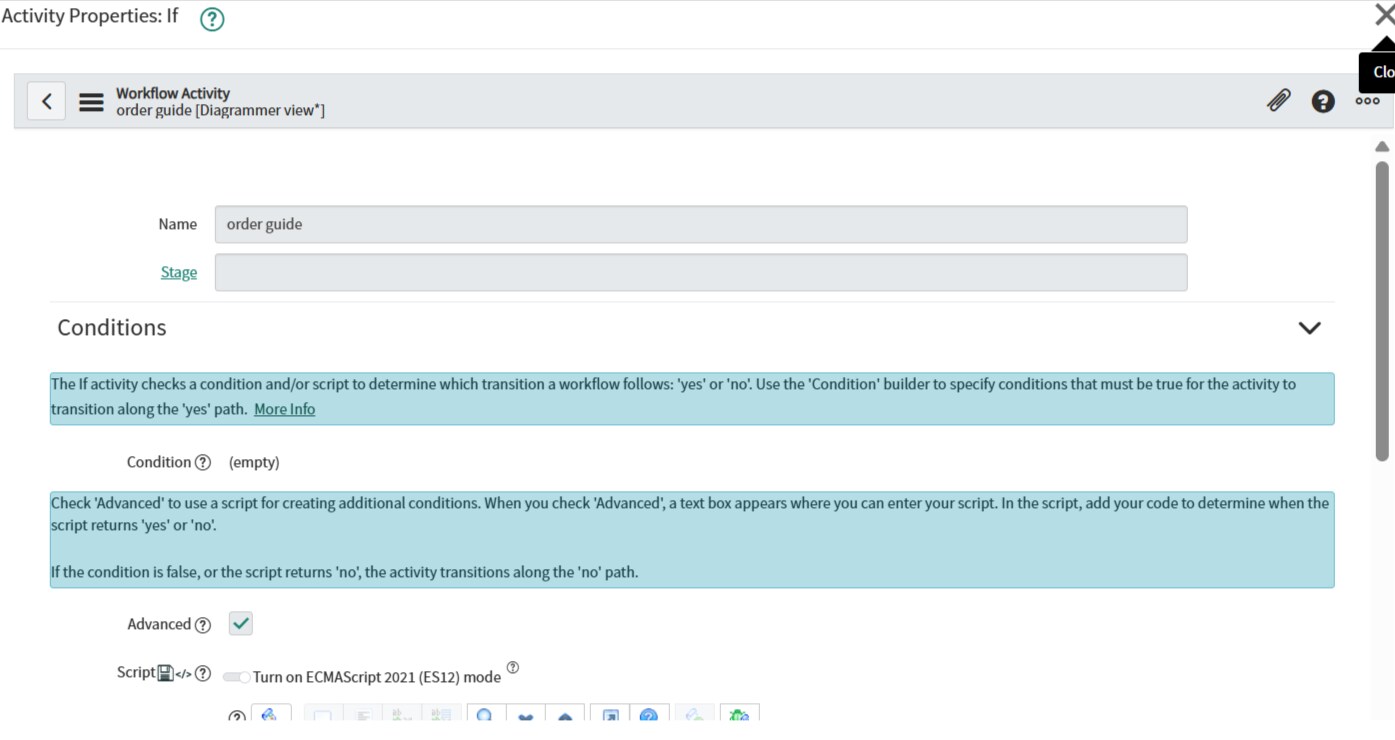
1. Add an "If" Condition
First, determine if the request is coming from the "Equipment" Order Guide.
- Activity: condition > if
Name: Is Equipment Order?
Advanced Script:
answer = ifScript();function ifScript() {var ritm = new GlideRecord('sc_req_item');ritm.addQuery('request', current.sys_id); // Look for RITMs under this Requestritm.addQuery('order_guide.name', 'IT Equipment Order'); // Replace 'Equipment' with your guide nameritm.query();if (ritm.hasNext()) {return 'yes'; // It came from the Equipment Order Guide}return 'no';}
If the condition is Yes, route it to your specific group.
Activity:
Approvals > Approval - GroupGroups: Select the specific group you want to notify.
Wait for: Anyone to approve (or your preferred policy).
State Management: This activity automatically sets the RITM state to "Requested" (which shows as Awaiting Approval in the default Choice list).
3. Update the Workflow Logic
You should insert these steps between your "Set Values" activities and the "End" node.
Suggested Flow Structure:
Begin
Set Values: Set RITM Stage to "Request Approved" or "Waiting for Approval".
If (Is Equipment Order?):
Yes: → Approval - Group
Approved: → Continue to fulfillment/End.
Rejected: → Set Values (State=Closed Rejected) → End.
No: → Connect directly to the next step or the "Approval Action" (Automatic approval) you already have in your screenshot.
Important Tip: State vs. Stage
In ServiceNow, the "State" field usually drives the backend process (e.g., Awaiting Approval), while the "Stage" field drives the visual progress bar for the user.
Note: If your "Approval Action" activity is set to "Mark Task as Approved", it will bypass manual approvals. Ensure that for the Equipment Order Guide path, the flow hits the Approval - Group activity instead of a "Set Values" that marks it as approved.
Do you want the "Automatic approval" you currently have to still apply to all other types of requests not coming from the Equipment guide?