Suzanne Smith
ServiceNow Employee

Many organizations spend a lot of time managing the contents of their service catalog, carefully editing the items and services available to their users. For a good experience with the service catalog, however, users also need an efficient shopping cart.

The Fuji release includes simple ways for administrators and catalog administrators to customize shopping cart layouts and functions. (In releases prior to Fuji, customizing cart layouts often meant creating scripts.) You can design an efficient and elegant shopping cart that makes ordering items easy for your users.

Migrating to cart layouts:

If you are upgrading to Fuji from an earlier release of ServiceNow, an upgrade script runs to determine if your current cart macros are customized. If they are, cart layout configuration is disabled and an administrator must migrate the system to use cart layouts. Before migrating, note the following:

  • UI macros: if you have customized a few specific UI macros, you'll need to migrate the customizations to cart layout widgets
  • service catalog properties: these global properties can be affected if you use cart layouts, so read about the effects of properties and make any necessary changes so your cart functions the way you want
  • item-specific settings: to keep any cart layout settings that are specific to a catalog item, clear the Use cart layout option on the catalog item form

For more information, see Migrating to Cart Layouts.

Editing shopping cart layout:

To change the cart layout and functionality, edit cart widgets.

  1. Navigate to Service Catalog > Catalog Definition > Maintain Cart Layouts.
  2. Select a widget.
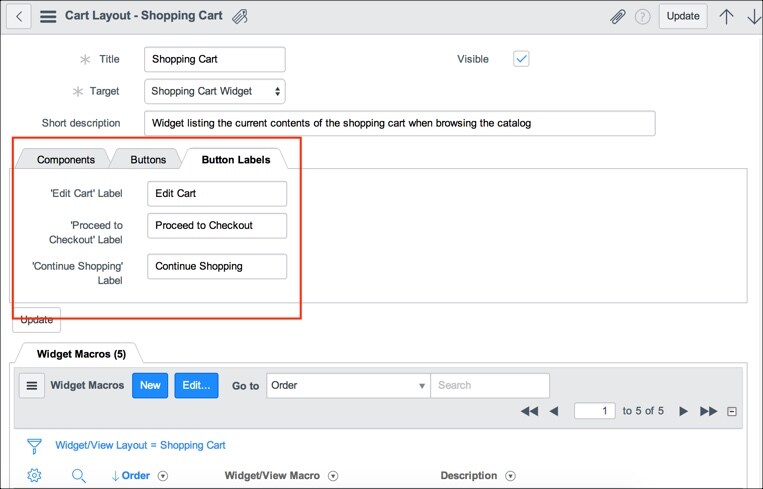
    For example, select Shopping Cart Widget.
    cart_layout1.jpg
  3. Edit the widget to customize the appearance and functionality.
    For example, if you selected the Shopping Cart Widget, edit the cart components, buttons, and button labels. On the Components tab, remove Price if you do not need to show prices in your cart. On the Button Labels tab, change the label Proceed to Checkout to Check Out Now.
    cart_layout2.jpg
  4. When you are finished, click Update.

Editing shopping cart screens:

The order preview screen displays the contents of the shopping cart before checkout so users can view the items they have selected and edit them if necessary. The screen appears if you are using one step checkout or two step checkout.

  1. Navigate to Service Catalog > Catalog Definition > Maintain Cart Layouts.
  2. Select a screen.
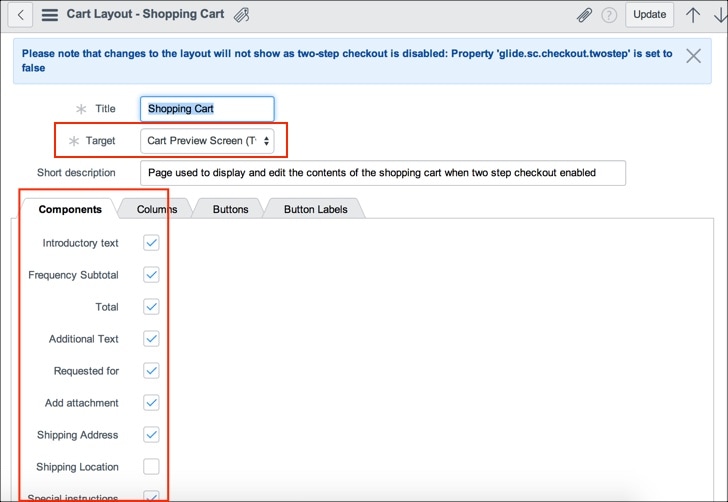
    For example, select Cart Preview Screen (Two Step).
  3. Edit the screen to customize the appearance.
    For example, on the Components tab, remove any options you do not need, such as Additional Text or Shipping Location.

    cart_layout3.jpg
  4. Click Update.

Additional tips and information:

30 Comments
navakanth
ServiceNow Employee

Hi Jon,


Not sure if I have understood your requirement entirely. We do have a Requested Item Description column in order status layout OOB. Screen Shot 2016-05-13 at 10.07.34 AM.JPG


jonmulherin
Giga Expert

Yes, however, using the system property, you can either show the cat_item short_description, or a cat_item field you specify in the system property glide.sc.ess.description. Instead of showing a field from the cat_item, I need to be able to show the short description from the requested_item. For example, if a requester were to fill out a catalog item requesting a new computer, and the short description of the Requested Item is "Order Hardware — User Name — Hardware ordered, that is what I need to show in the Description column on the Order Status page. I've played around with modifying the com.glideapp.servicecatalog_checkout_view UI Page but so far, without success. I should be able to "trick" it to display what I want by setting either the prop variable to another setting, or by setting smartdescription to the request_item short description, but thus far have had no luck.


Let's say the requester put in three requests all using the same catalog item. If I display the short_description from the cat_item, or anything from the cat_item, the requester must open all three to see which is which. By having the short description from the request item itself, I can control what is displayed and allow the requester to identify which requested item is which without having to open each.


I hope that clears up the confusion. I also hope you can provide some suggestions on how I can accomplish this.


Thanks so much for your response. I really appreciate you taking the time to do so.


Jon


Jon Mulherin


EA Process Architect


Off: +1 (914) 323-5775


Cell: +1 (214) 649-0738


jonmulherin
Giga Expert

Hi Pradeep.   I'm pretty sure, based on the posts I've seem from you, that you could help me out on this one.   Would you mind?


navakanth
ServiceNow Employee

Jon, Thanks for the clarification. Layouts are designed just to solve these use-cases.


Firstly, the page we shd be looking at if glide.sc.use_cart_layouts = true is com.glideapp.servicecatalog_checkout_view_v2. But with layouts, we should be rarely modifying it.


Please follow these steps achieve your functionality:


1. Add a new column macro to the "order_status" cart-layout. Click "New" form the column macro related list. Order it accordingly.


2. Please have this code inside the macro.


                ${jvar_sc_req_item.getGr().getValue('short_description')}


Here "jvar_sc_req_item.getGr()" will give you a GlideRecord object of sc_req_item for the corresponding item.


I just created a new column macro and added the following HTML code:


  <div>${jvar_sc_req_item.getGr().getValue('number')}</div>


This is what I get instead of cat-item description


Screen Shot 2016-05-13 at 11.24.02 AM.JPG


jonmulherin
Giga Expert

Perfect.   Exactly what I needed. Not familiar with Jelly at all.   Picking up bits and pieces as we go but not a lot of opportunity to work with it.   I appreciate your assistance so much.   Just so you see the outcome, this is what I was looking for.   Your solution is going to make an awful lot of people very happy.  


Thanks again; so much!!!


Jon


Capture.PNG


Suzanne Smith
ServiceNow Employee

Navakanth, thanks for providing Jon with such a great solution!


Suzanne


Inactive_Us2231
Giga Expert

Hello Pradeep, I need to know if it is possible to customize the buttons on the Cart layout, for instance 'continue shopping'. Right now when i click on continue shopping, i get an entire new page with app navigator, list of catalog items(content page) within my current page. is there anyway i can give a url on click of 'continue shopping' or may be set its target??


Thanks in advance


vijaywindward
Kilo Contributor

I want to populate the description from form variable value instead of short_description....Could you please help on this


rev3
Mega Expert

Hi Navakanth,


This is purely eye candy !! I also suggest that this solution should be on the wiki page. Can you also help me understand how you got the column name on top. I am missing with column label on top of approval not required.


orderstatus.PNG


Thanks a ton!


vinothkumar
Tera Guru

Thank you so much for the information and it is really helpful.


I have a query, if suppose use cart layout is selected as false for a particular catalog item, how it will display in the order status page. In our scenario order status page is not showing RITM number for any of the user in order status page, but for one particular user alone it is showing the RITM number.


I have checked the order status page by navigating to maintain cart layout and RITM number was not checked out there. Can you advise me what setting is overriding if use cart layout is not selected and whether the user will have an option to customize it?