ginesdoleratorm
ServiceNow Employee

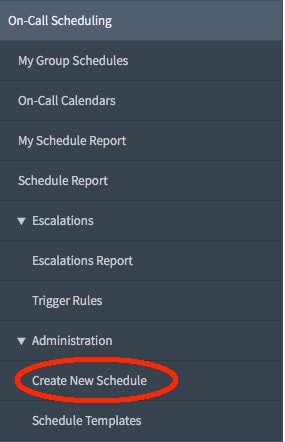
In order to define a new On-Call rota, we can make use of the wizard which opens when selecting the Create New Schedule in the menu, under the On-Call Scheduling block.

Screen Shot 2016-12-12 at 17.20.35v2.png

For this short tutorial we are going to create a 8:00am to 5:00pm rota for the group Application Development.

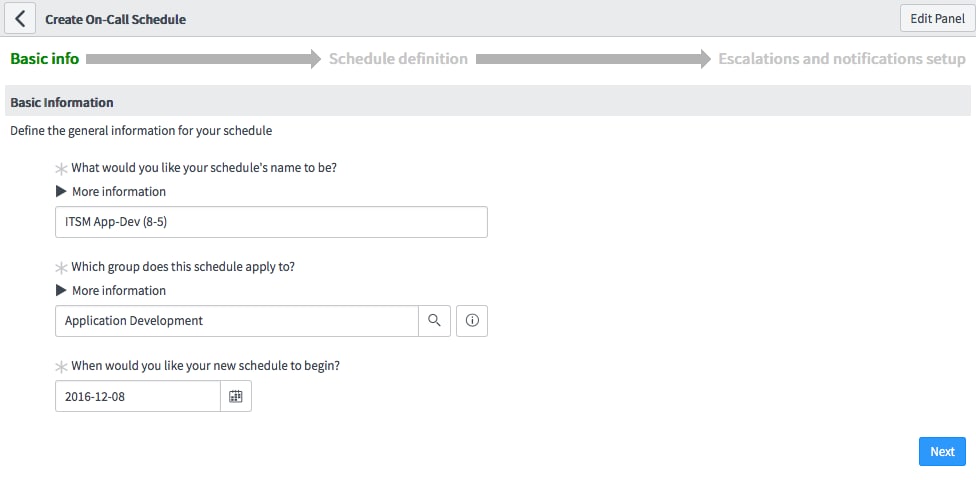
In the first step of the wizard we select the schedule name, the group the schedule applies to and when it begins.

Screen Shot 2016-12-08 at 17.01.27.png

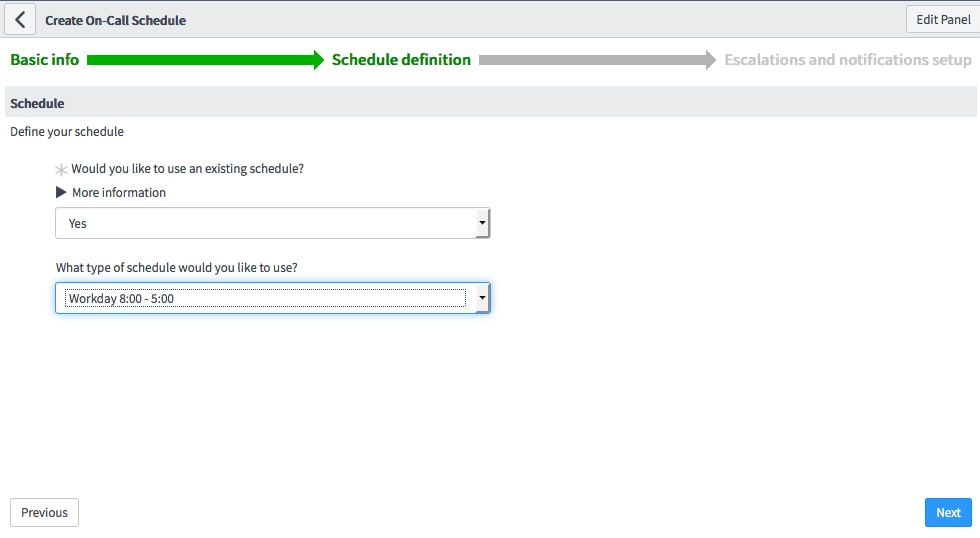
In the second step of the wizard we select the existing Workday 8:00 — 5:00 schedule type. This already defines the schedule to cover Monday to Friday from 8:00 to 17:00. If existing schedule templates would not fit our requirements, we would be able to define a custom schedule in this step if we select not to use existing schedule, or we can extend it or refine it once is created as shown in Use include/exclude Schedules to define comprehensible rosters.

Screen Shot 2016-12-09 at 11.01.43.png

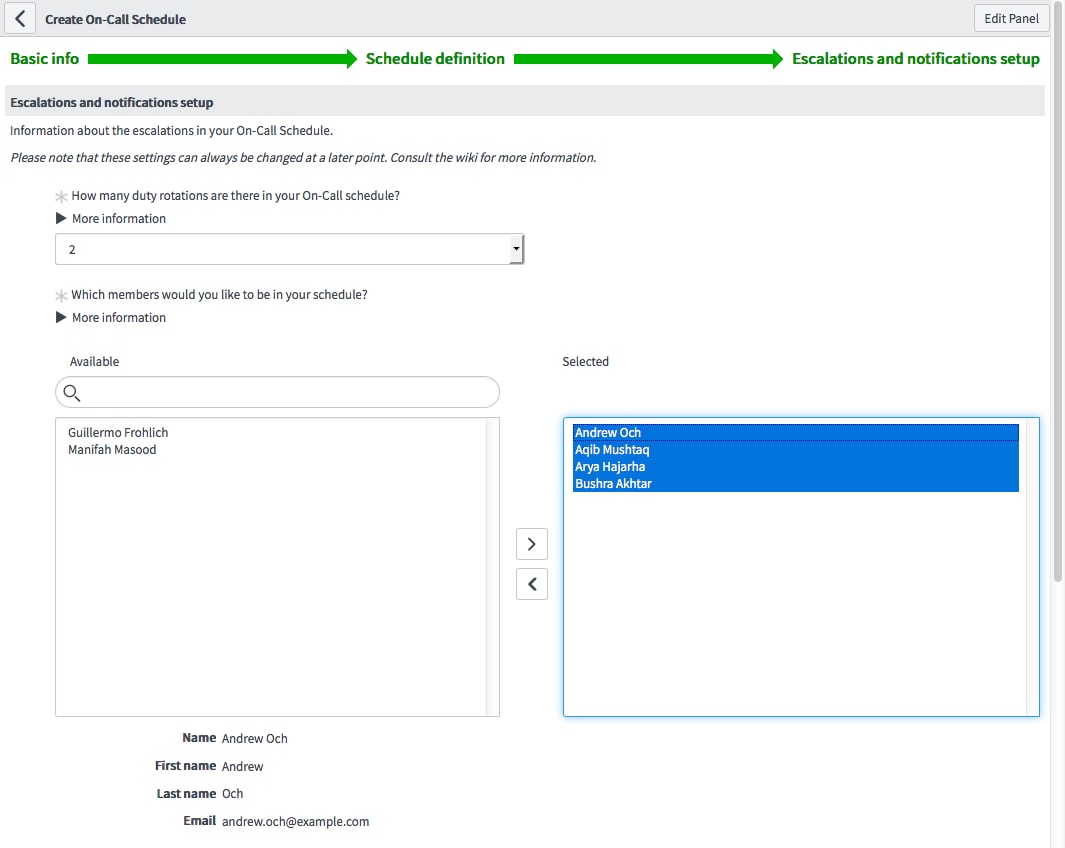
In the last step of the wizard we just need to select the number of duty rotation and pick the member of the Application Development team participating in the On-call rota.

Note that a roster will be created in the rota for each duty rotation.

In this step we can also configure the notification settings for this rota.

Screen Shot 2016-12-12 at 17.55.38.png

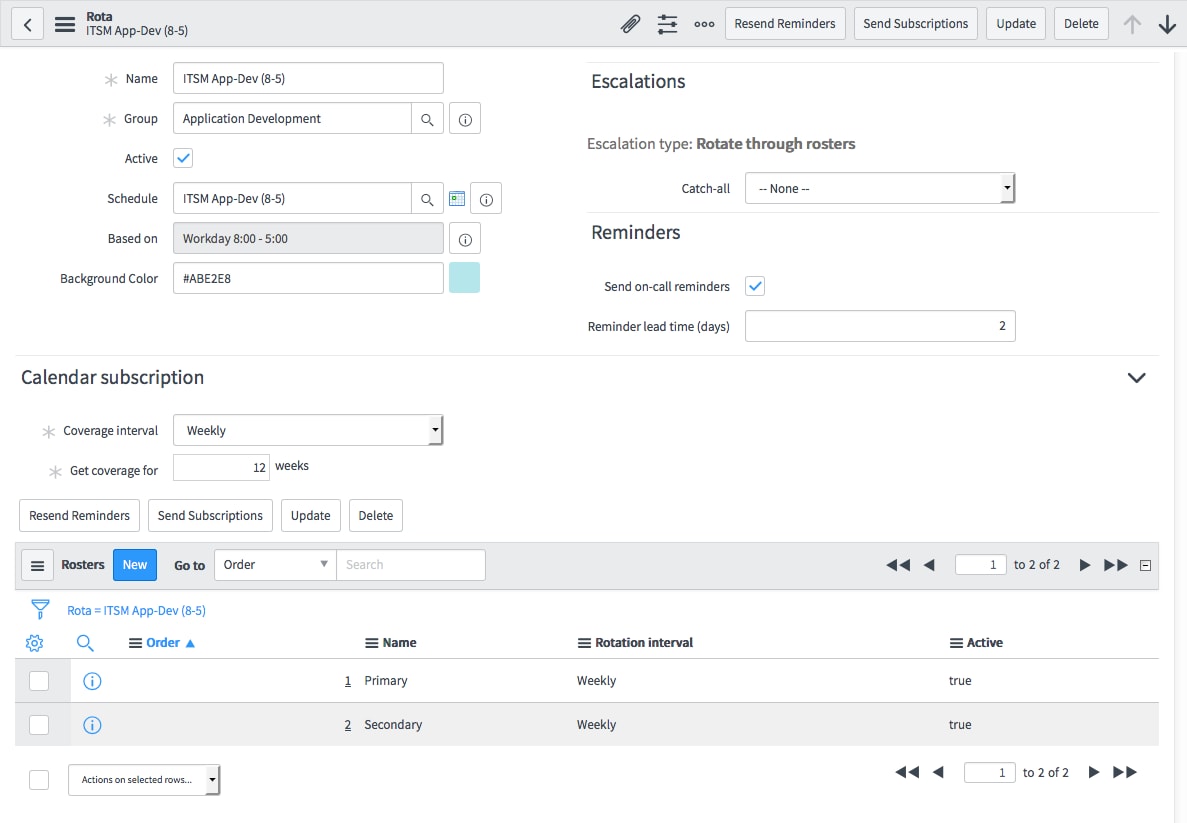
After submitting the form, a new rota is created attached to a new Schedule named Rota 8-5 weekdays, as shown in the image below.

Screen Shot 2016-12-12 at 17.44.10.png

Once the rota is created, the rosters can be modified, accessing them from the included list, for example, to change the rotation interval (e.g., members should rotate daily instead of weekly), change the order of the members, or to set availability period (e.g., to consider a maternity leave) as shown in On-Call Scheduling Members available from and to.

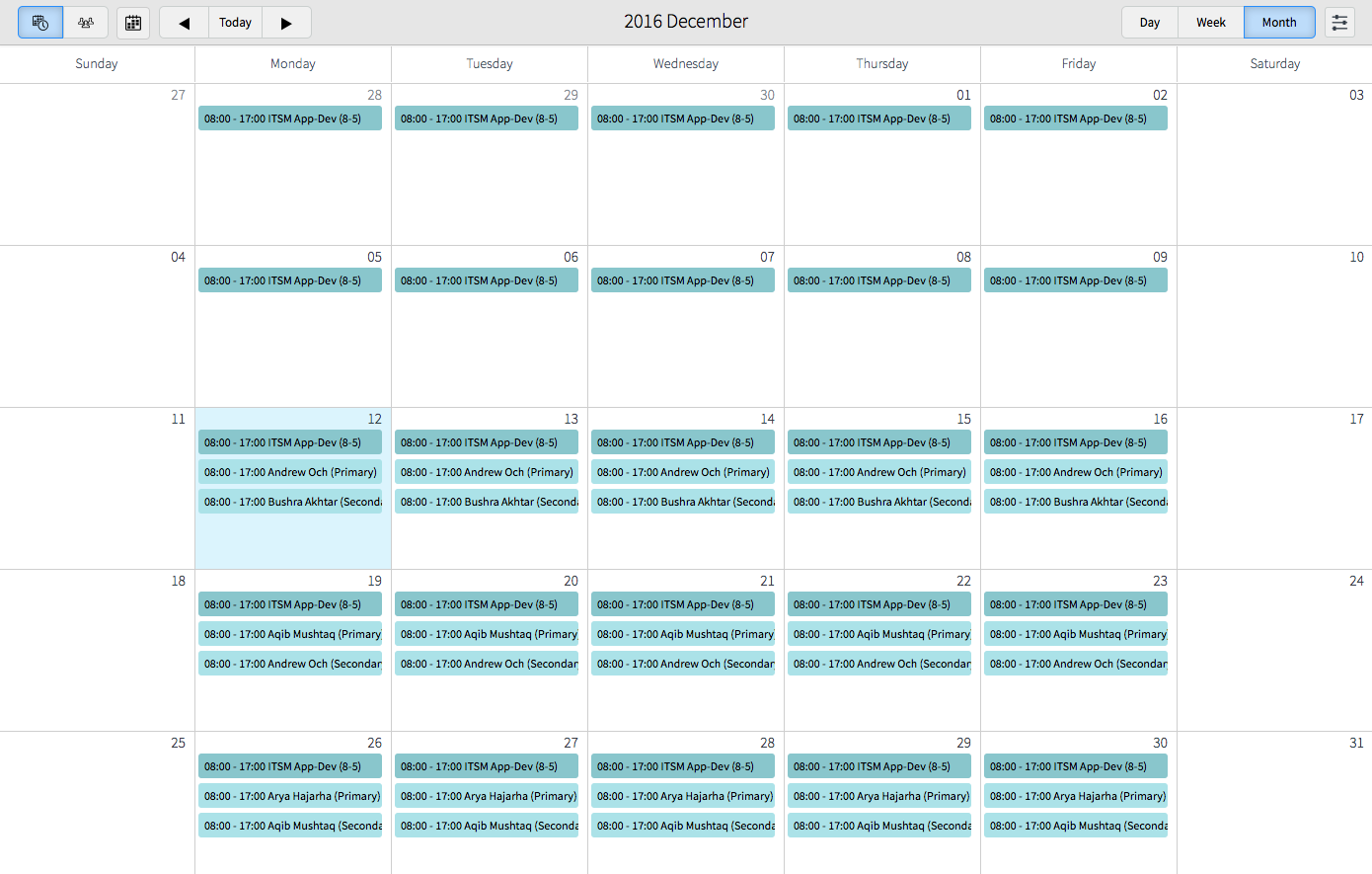
The On-Call Calendar gives us an interactive view of the rosters for each group.

Screen Shot 2016-12-12 at 17.52.32.png

7 Comments
Laurie Marlowe1
Kilo Sage

Hi Gines,


It is unclear how/when to create the notifications?   Can you provide more information?


Thanks,


Laurie


DChandlerKy
Tera Guru

I agree -- that's where I am stuck. Apparently we can either use a new workflow or via a script... and through triggers you set up.   However, I am not having luck with getting the trigger to kick off the workflow for the notifications. Oy.


saadit
Kilo Expert

There are multiple ways you can go about this. Here's one way that requires a few different things.


  1. new custom table to capture trigger rules (see summary for more details on this)
  2. Create a script include that holds logic to parse conditions specified in your trigger rules (in custom table) and that has the logic to trigger a workflow (also in your trigger rules)
  3. business rule on incidents that references the above mentioned script includes that holds that logic trigger parsing logic e.g.
    var scriptInclude = new ProcessOnCallTrigger(); //name of the script include
    scriptInclude.parseOnCall(current);   //where parseOnCall is a function you've defined in your script include
  4. workflow that is triggered by the rules defined in the custom table


Summary:


You'll have a custom table (e.g. u_on_call_notification_triggers) in which you have name, table (table_name), Conditions, and workflow (reference to wf_workflow). Now lets say we have a trigger rule defined that says if table = incident, and priority = 1 - Critical, and Assignment Group = Test Group THEN trigger workflow "On-Call Notification" (note: you'd have to have an existing workflow created that you can reference in the Workflow field on that trigger rule record). You'll have a workflow that has all the logic /steps for the notifications. All of this will be kicked off by a business rule that occurs on Insert / Update.


Flow:


P1 Incident > business rule that reference script include > script include functions that parse trigger conditions and triggers workflow specified in trigger rule


Example screenshot of the custom table form:


1.PNG


Hope this helps. I've sort've written it up in a hurry so apologies for any confusion.


Saadi Tahmid


Cognizant Technology Solutions


andrew_och
ServiceNow Employee

A Trigger Rule's primary functionality is to assign an Incident (or any record that extends task) to the group defined in the Trigger rule. Its Secondary functionality is to kick off a workflow or script as defined in the Trigger Rule. Hence if a Trigger Rule's condition matches an Incident BUT the Incident has already been assigned to a group OR a user, the Trigger Rule will not kick off a workflow or script.


This is because Trigger Rules are an extension of the Assignment Engine (whose purpose is to ensure a record has been assigned)


Hence if you expect a Trigger Rule to start a Workflow or Script and it is not doing so, check the following 3 things:


  1. The Incident (or task or extension of task) matches the Trigger Rule Conditions
  2. The Incident (or task or extension of task) assigned_to is empty
  3. The Incident (or task or extension of task) assignment_group is empty


Finally the Workflow/Script exists in a domain that is available to System, although this is specific to Domain separated instances with domained Workflows/Scripts.


nikitaporwal
Kilo Expert

Hi Saadi,


But why to create a new custom table when OOTB trigger rules are there for this purpose?


Thanks


Nikita


Christine A1
Mega Expert

my on call calendar will end this week. i am unable to find the setting to extend the calendar out another year. any ideas?

Seema Kanwar
Mega Explorer

Hi,


Is there any swapping functionality available to swap 2 resources between the shifts.

Thanks.