Advanced Redirection of Dashboards

- Mark as New
- Bookmark
- Subscribe
- Mute
- Subscribe to RSS Feed
- Permalink
- Report Inappropriate Content
03-12-2026 11:36 PM - edited 03-12-2026 11:46 PM
Advanced Redirection of Dashboards
This guide explains how to configure interactive redirection from a Platform Analytics dashboard visualization (e.g., Pie chart) to a record list in a workspace using UI Builder event handlers.
Navigate to Platform Analytics Dashboards
- In the Application Navigator, search for Dashboards.
- Open Platform Analytics → Dashboards.
1.Create a New Dashboard
- Click Create Dashboard.
- Select Technical Editor.
- Click Create New Dashboard.
This allows the dashboard to be edited using UI Builder.

2.Open the Dashboard in UI Builder
- Open the newly created dashboard.
- Click Edit in UI Builder.
You will now be redirected to UI Builder, where the dashboard layout and components can be configured.


3. Add a Layout
- Click Add Content.
- Select a Layout.
- Choose any Column Layout based on your requirement.

4. Add a Data Visualization Component
- In the component search bar, search for Data Visualization.
- Drag the Data Visualization component into the layout.
This component will be used to display charts like Pie, Bar, or Line charts.

5. Configure the Data Resource
- Select the visualization component.
- On the right-side configuration panel, go to Configure.
- Select a Data Resource based on the data you want to visualize.

6. Configure the Click Event
To enable redirection when a chart element is clicked:
- Go to the Events section.
- Find the event Visualization Clicked.
- Click Add Handler.

7. Add Advanced Dashboard Redirect Handler
- Search for Advanced Dashboard – Redirect.
- Select the handler.
- Switch to Script Mode.

8.Switch to script

9.Add the following in the script
Parameter | Description |
path | Defines the target workspace (example: now/sow for Service Operations Workspace). |
route | Determines the view type. simplelist opens a list of records. |
table | Dynamically retrieves the table name from the chart click event. |
query | Passes the filter/query based on the clicked visualization segment. |
title | Displays the title of the selected visualization. |
external | Used when redirecting outside the workspace (optional). |
Script:
return {
context: {
path: "now/sow"
},
route: "simplelist",
fields: {
table: event.payload.params.table
},
params: {
query: event.payload.params.query
},
title: event.payload.title,
external: null
};
Final Result
When a user clicks on a chart segment (e.g., a Pie chart slice):
- The event payload captures the selected filter values.
- The Advanced Redirect handler processes the event.
- The user is redirected to the workspace list view.
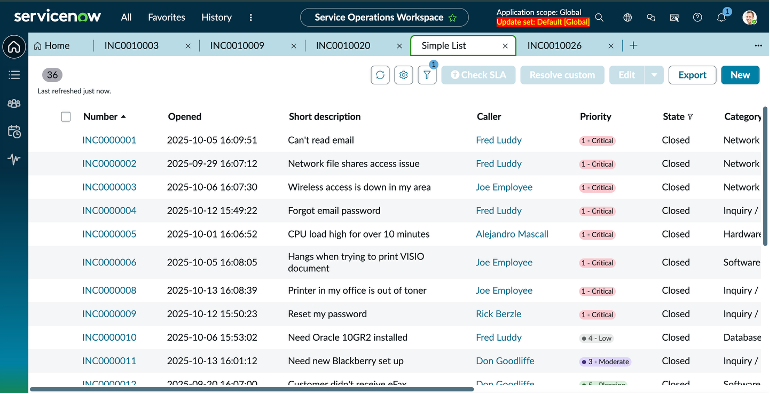
- The filtered records are displayed in the Simple List view in Service Operations Workspace.
- 3,628 Views
- Mark as New
- Bookmark
- Subscribe
- Mute
- Subscribe to RSS Feed
- Permalink
- Report Inappropriate Content
05-18-2026 04:00 PM
I am having trouble with this. I can see the ADVANCED_DASHBOARD#REDIRECT is triggering with the right payload but it doesn't seem to be handled at all.
I checked the page's event handlers and the "Advanced dashboards - Redirect" event shows under the Variant event mappings. However there is nothing handling the event. I am not sure if this is where it would normally be handled.
There doesn't seem to be any appropriate event handlers listed either for me to hook up.


Are you or anyone else aware if there is normally an event handler mapped to that event on the Variant event mappings or should something else be handling it?
Any other information as to why the redirection event isn't being handled/doing anything would be helpful!
- Mark as New
- Bookmark
- Subscribe
- Mute
- Subscribe to RSS Feed
- Permalink
- Report Inappropriate Content
05-18-2026 10:48 PM
The event "Advanced redirection - dashboard" is available starting from the Zurich release. If the instance is on a lower release, alternative events such as "Open in page URL" can be used by passing the required parameters accordingly.
Alternatively, the redirection logic can also be handled through the payload script based on the use case.
route: "simplelist",
fields: {
table: event.payload.params.table
},
params: {
query: event.payload.params.query
},
Hope that helps!
- Mark as New
- Bookmark
- Subscribe
- Mute
- Subscribe to RSS Feed
- Permalink
- Report Inappropriate Content
05-19-2026 06:55 AM - edited 05-19-2026 06:56 AM
Hey @PradeepReddyA ,
Appreciate the response!
We are on Zurich, and like I mentioned, the ADVANCED_DASHBOARD#REDIRECT event is triggering and I see it with the correct payload.
Also in the Advanced Dashboard experience, it looks like I can not use the "Open in page URL" event handler on the Data Visualization component's clicked event. I may not be able to specify it an
Let me better explain.
I have the Data visualization component added to a Technical (Advanced) Dashboard in Platform Analytics. I have the "Advanced redirection - dashboard" handler configured to respond to the Visualization Clicked event on the Data visualization component.
When I click on a data point on the visualization, such as a bar in the graph, nothing visually happens. The page is not redirected.
I was troubleshooting using the Next Experience Developer Tools and could see the redirection event triggered by the "Advanced redirection - dashboard" handler.
So in the developer tools, I can see the events triggered by the macroponent I clicked with the correct macroponent id and the event order goes:
- I click the column in the graph and the time series component (now-vis-timeseries) emits this internally:
- NOW_VIS_TIMESERIES#CLICK
This includes a payload with info around where I clicked, such as what series, which data point, the timestamp of the data point, etc.
- NOW_VIS_TIMESERIES#CLICK
- That then propagates up one level and gets handled by the now-vis-timeseries-wrapper component which then dispatches this event:
- NOW_VIS_WRAPPER_INTERNAL#CLICKED
This adds in extra data and reshapes the payload to include things like the associated query for drilldown and what table to perform the query on.
- NOW_VIS_WRAPPER_INTERNAL#CLICKED
- Then that gets propagates up and handled by the data visualization component itself. It is a wrapper around the sn-par-visualization-base component that is specific to the type of data visualization you chose. Such as column, line, area, etc.
This then emits this event:- NOW_VIS_WRAPPER#CLICKED
- NOW_VIS_WRAPPER#CLICKED
That then propagates up to the page's top macroponent, what you see as Body in the content tree in UI Builder, and gets handled by it. It then emits:
ADVANCED_DASHBOARD#REDIRECT
This has the payload for redirection configured. This payload looks correct and has the right information for the route and fields, etc.
Then nothing. The ADVANCED_DASHBOARD#REDIRECT event does not propagate up anymore and does not get handled by anything and nothing happens on screen.
I have the handler configured on the Data visualization's Visualization Clicked event.

I can see on the Body component for the page that it shows that the Advanced dashboards - Redirect event under the Variant event mappings, but there is no handler assigned and the image from my previous post was all the available handlers when clicking to add one. So nothing appropriate for redirection.
And Dispatched events section for the page shows the same event. Which is where that actual event gets dispatched.

I also find it weird that even though I have the handler for the Visualization clicked event setup on the Data visualization component, that the event actually gets handled on the page's body macroponent and dispatches the redirect event with the values from the configuration on the handler that is on the Data visualization component.
It is this way for me in each of our instances as well as a fresh PDI. So I was wondering what you might be seeing.
- Mark as New
- Bookmark
- Subscribe
- Mute
- Subscribe to RSS Feed
- Permalink
- Report Inappropriate Content
05-19-2026 10:18 PM
Just wanted to understand whether you are trying to troubleshoot this from the Dashboard level or from the Preview page in UI Builder.
In the Preview mode, the Redirect Event Handler does not work as expected. However, if you test it from the actual Dashboard, the navigation should work correctly.
Also, the Advanced Redirect Handler should be configured specifically for the visualization click event, which you have already done correctly. The Advanced Redirect Handler that you see under the Body in the Content Tree is meant for page-level handling, which is not required for this particular use case.
Please let me know whether you are trying to navigate from the Dashboard level or from the Preview mode.