Ask for Approval in Flow Designer has different Approval State Choices than OOTB Approval table

- Mark as New
- Bookmark
- Subscribe
- Mute
- Subscribe to RSS Feed
- Permalink
- Report Inappropriate Content
09-15-2023 03:02 PM
Hi All,
I am using Flow designer for approval for My Custom table record in scoped application.
The Ask For Approval action creates a sysapproval_approver record for us.
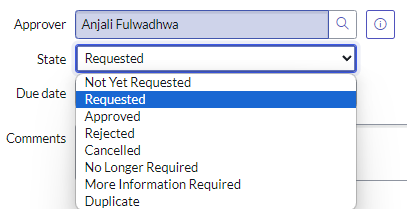
My Custom Table has only 3 choice options -> Requested, Approved and Rejected which are supposed to be mapped like this:
1. Requested ( sysapproval_approver ) -> Requested (x_custom_table)
2. Approved ( sysapproval_approver ) -> Approved (x_custom_table)
3. Rejected, Cancelled, No Longer Required, Duplicate ( sysapproval_approver ) -> Rejected (x_custom_table)
4. More Information Required ( sysapproval_approver ) -> Notification to the requestor and remain Requested (x_custom_table)
The problem is Flow Designer Approval State choices doesn't contain 'More Information Required' and 'Duplicate', instead contains an additional 'Skipped' choice.
I have attached The State Choices on Approval (sysapproval_approver) and the Approval state choices in Flow Designer’s Ask for Approval
Is this worth the HI ticket or Am I doing something wrong here?
I am pretty new to Flow designer. Appreciate any lead.

- Mark as New
- Bookmark
- Subscribe
- Mute
- Subscribe to RSS Feed
- Permalink
- Report Inappropriate Content
09-15-2023 04:15 PM
Hi @Community Alums , When testing with Skipped condition does it work same as it would for More information required and Duplicate?
Regards,
Badal Khojare
Community Rising Star 2023
- Mark as New
- Bookmark
- Subscribe
- Mute
- Subscribe to RSS Feed
- Permalink
- Report Inappropriate Content
09-18-2023 07:11 AM
No @Badal Khojare , It doesn't.

- Mark as New
- Bookmark
- Subscribe
- Mute
- Subscribe to RSS Feed
- Permalink
- Report Inappropriate Content
09-19-2023 04:31 AM
Hi @Community Alums,
To get approvals states in your ask my approval output you need to configure those states in following Tables.
var__m_sys_hub_action_output_bae0a1120b10030085c083eb37673a92
var__m_sys_hub_action_output_f8f2e9920b10030085c083eb37673abd
you can refer the link to open the filter https://YourInstance/now/nav/ui/classic/params/target/sys_choice_list.do%3Fsysparm_query%3DnameLIKEvar__m_sys_hub_action_output%255EGROUPBYelement%26sysparm_first_row%3D1%26sysparm_view%3D


Once this states are being configured you will be able to see the state in your flow designer.

Please mark the appropriate response as correct answer and helpful, This may help other community users to follow correct solution.
Thanks
Vijay Balotia
- Mark as New
- Bookmark
- Subscribe
- Mute
- Subscribe to RSS Feed
- Permalink
- Report Inappropriate Content
09-22-2023 12:29 PM
Hi @Community Alums,
If this solution work for you request you to please accept the solution this will help other community member to find the correct solution.