- Post History
- Subscribe to RSS Feed
- Mark as New
- Mark as Read
- Bookmark
- Subscribe
- Printer Friendly Page
- Report Inappropriate Content
08-22-2022 05:38 AM - edited 12-17-2025 03:07 PM
The process flow formatter.
| Image | Description |
 |
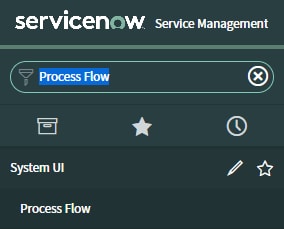
01. Navigate to System UI > Process Flow. |
 |
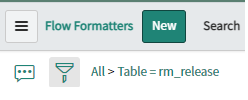
02. Search for Table
rm_release. |
 |
03.Click New |
|
04. Add two or more entries.
|
|
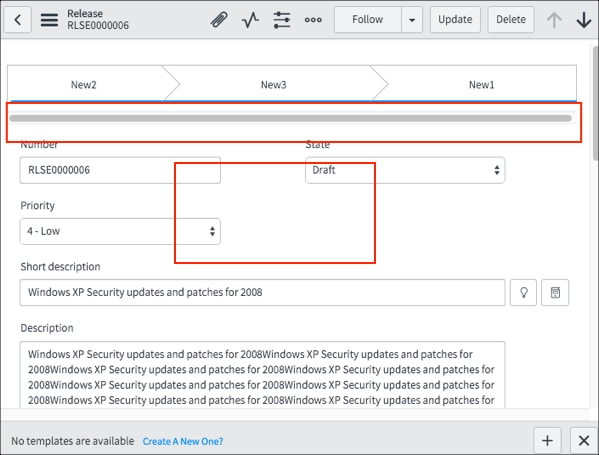
This configuration above it is the only thing that the ServiceNow developer/administrator do in ServiceNow, there are not design configuration therefore this point of solution use to be by ServiceNow in this specific case there are a workarround solution documented in kownledge base KB0596140 taht will be need to evaluted in your own instance.

pm_project sample without scroll

pm_project with scroll

dmn_demand sample with scroll

rm_sprint sample

flow formatter tables
- change_request
- cmdb_ci_business_process
- dmn_demand
- em_alert_management_rule
- idea
- pm_portfolio_project
- pm_project
- problem
- problem_task
- resource_plan
- rm_defect
- rm_doc
- rm_enhancement
- rm_epic
- rm_feature
- rm_release
- rm_release_phase
- rm_release_scrum
- rm_release_sdlc
- rm_sprint
- rm_story
- rm_task
- rm_test
- samp_sw_reclamation_candidate
- sa_dw_business_service
- sm_order
- sm_task
- sn_audit_activity
- sn_audit_advanced_engagement_project
- sn_audit_advanced_milestone
- sn_audit_advanced_observation
- sn_audit_advanced_plan
- sn_audit_control_test
- sn_audit_engagement
- sn_audit_interview
- sn_audit_walkthrough
- sn_compliance_control
- sn_compliance_policy
- sn_compliance_policy_acknowledgement
- sn_compliance_policy_exception
- sn_customerservice_case
- sn_grc_advanced_evidence_request
- sn_grc_advanced_evidence_response
- sn_grc_advanced_issue_triage
- sn_grc_issue
- sn_grc_reg_change_import_document_task
- sn_grc_reg_change_regulatory_action_task
- sn_grc_reg_change_regulatory_change_task
- sn_grc_reg_change_regulatory_feed
- sn_grc_task
- sn_irm_cont_auth_acceptance_task
- sn_irm_cont_auth_milestone_task
- sn_irm_cont_auth_pack
- sn_oper_res_service_impact_analysis
- sn_publications_publication
- sn_risk_acceptance_task
- sn_risk_advanced_assessment_scheduler
- sn_risk_advanced_event
- sn_risk_advanced_mitigation_task
- sn_risk_advanced_risk_assessment_instance
- sn_risk_advanced_risk_identification
- sn_risk_avoidance_task
- sn_risk_mitigation_task
- sn_risk_risk
- sn_risk_transfer_task
- wm_order
- wm_task
Workaround (KB0596140)
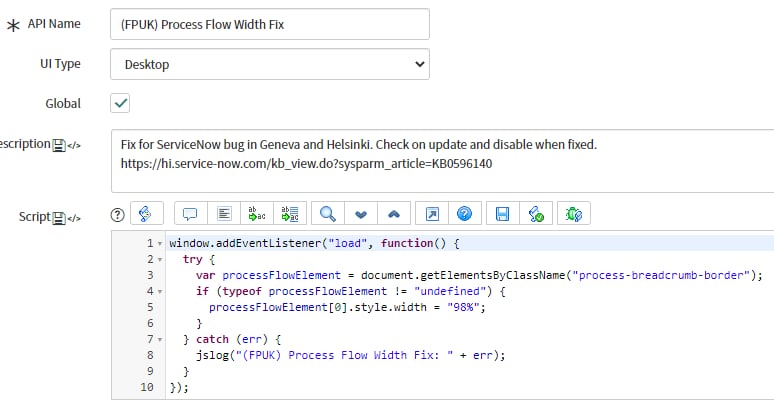
As a cosmetic issue, the scroll bar appearance is not necessarily affecting the instance functionality. There will be no code fix for this issue, but the applicable solution is to import and activate the attached UI Script.
<?xml version="1.0" encoding="UTF-8"?>
<unload unload_date="2016-10-19 14:16:29">
<sys_ui_script action="INSERT_OR_UPDATE">
<active>true</active>
<description>Fix for ServiceNow bug in Geneva and Helsinki. Check on update and disable when fixed.
https://hi.service-now.com/kb_view.do?sysparm_article=KB0596140</description>
<global>true</global>
<name>(FPUK) Process Flow Width Fix</name>
<script><![CDATA[window.addEventListener("load", function() {
  try {
    var processFlowElement = document.getElementsByClassName("process-breadcrumb-border");
    if (typeof processFlowElement != "undefined") {
      processFlowElement[0].style.width = "98%";
    }
  } catch (err) {
    jslog("(FPUK) Process Flow Width Fix: " + err);
  }
});]]></script>
<script_name/>
<sys_class_name>sys_ui_script</sys_class_name>
<sys_created_by>admin</sys_created_by>
<sys_created_on>2016-10-19 11:36:53</sys_created_on>
<sys_customer_update>true</sys_customer_update>
<sys_id>ca1539bd4f22220043c80ab18110c7c0</sys_id>
<sys_mod_count>9</sys_mod_count>
<sys_name>(FPUK) Process Flow Width Fix</sys_name>
<sys_package display_value="Global">global</sys_package>
<sys_policy/>
<sys_replace_on_upgrade>false</sys_replace_on_upgrade>
<sys_scope display_value="Global">global</sys_scope>
<sys_update_name>sys_ui_script_ca1539bd4f22220043c80ab18110c7c0</sys_update_name>
<sys_updated_by>admin</sys_updated_by>
<sys_updated_on>2016-10-19 14:04:47</sys_updated_on>
<use_scoped_format>false</use_scoped_format>
</sys_ui_script>
</unload>
How to apply?
| Image | Description |
 |
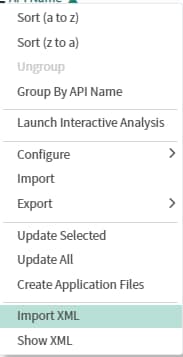
01. Navigate to some list, for example sys_ui_script, use the right click on the column name |
 |
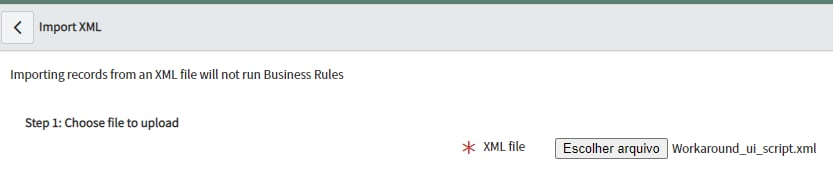
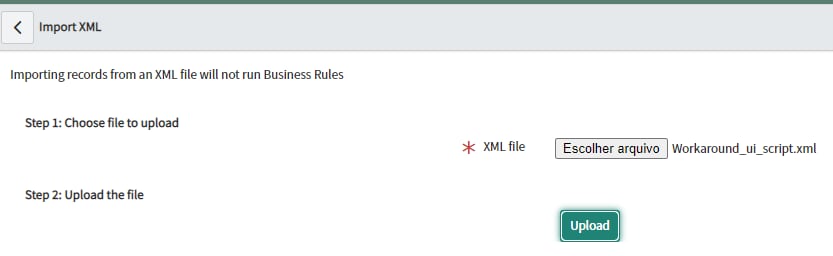
02. Choose the file |
 |
03. Click Upload |
 |
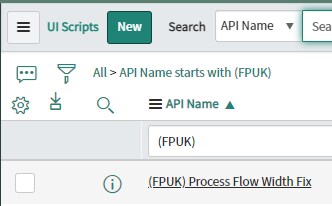
04. Check the script |
 |
05.Open it |
| 06. Check your flow |
BEFORE Script

AFTER Script


- 6,546 Views
- Mark as Read
- Mark as New
- Bookmark
- Permalink
- Report Inappropriate Content