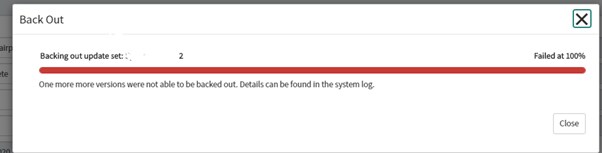
Unable to back out Update Set and receiving an error : One more more versions were not able to be backed out. Details can be found in the system log.

- Mark as New
- Bookmark
- Subscribe
- Mute
- Subscribe to RSS Feed
- Permalink
- Report Inappropriate Content
08-27-2020 10:52 PM
I am facing a strange issue while backing out an update set as shown in image

Initially we had 20 update sets which have child-parent hierarchy defined in a batch base. So i did try to back out batch base directly which caused some errors. Then i opened all 18 update sets and tried to back out individually , and i was able to back out many . But 2 update sets are showing this error continuously and are not getting backed out.
Also, the update sets include portal related changes (widgets , images etc. ). I checked in system logs as well but didn't help much .Please suggest how to back out so that I can re-migrate new update set with correct changes.
- Labels:
-
Search
-
Service Portal

- Mark as New
- Bookmark
- Subscribe
- Mute
- Subscribe to RSS Feed
- Permalink
- Report Inappropriate Content
08-27-2020 11:30 PM
Since you have tried both now backing out parent batch as well as individuals, something might have gone wrong in terms of sequence etc. For now you can just recapture the parent batch again and move it to the same instance, then check if there anything missing so that you can capture it for your higher instance move.
Hope this helps!
Please Mark as ✅ Correct if this solves your issue and also mark ???? Helpful if it helps resolve your problem.
Thanks,
Saji

- Mark as New
- Bookmark
- Subscribe
- Mute
- Subscribe to RSS Feed
- Permalink
- Report Inappropriate Content
09-27-2024 12:23 AM
When I create a new table and then back out of this update set, this issue occurs. Have you resolved it?

- Mark as New
- Bookmark
- Subscribe
- Mute
- Subscribe to RSS Feed
- Permalink
- Report Inappropriate Content
07-10-2026 12:10 PM
Hi @Navneet Arora
I recently encountered the same error message during a backout process. In my case, there were two update sets with the exact same name in the sys_update_set table. To resolve it, I had to back them out one after the other.
This helps other users find accurate and useful information more easily
- Mark as New
- Bookmark
- Subscribe
- Mute
- Subscribe to RSS Feed
- Permalink
- Report Inappropriate Content
07-10-2026 12:22 PM
“One or more versions were not able to be backed out. Details can be found in the system logs.”
is a summary message rather than the actual root cause. It usually means that ServiceNow could not safely restore one or more customer-update versions contained in the update set.
This commonly happens when:
The same configuration record was modified by another update set after the original update set was committed.
The update set created a new record, table, or field and there is no previous version to restore.
The update sets were committed or backed out in an inconsistent sequence.
A parent or child update set was already partially backed out.
The update set contains dependencies on another update set in the batch.
ServiceNow generates a Backout Problem for each affected record. Each problem must be reviewed and resolved before the backout can finish. For a conflict caused by a newer version, ServiceNow provides Decide to Keep Current and Decide to Use Previous options.
Follow the below
Procedure
Navigate to All > System Update Sets > Local Update Sets.
Open the update set record to back out.
Make sure it’s complete and a date is set on the Release date field.
Note:
The application you select determines the available update set options. Ensure your chosen application matches the update set contents, for example Global.
Review the update set and determine if backing it out can cause issues.
If backing out an update set can cause problems, create and commit a new update set to undo the changes instead.
Select Back Out.
The page displays actions, progress, and problems. Problems are changes in more recent update sets that affect the update set that is being backed out.
Resolve each problem before proceeding with the back out.
The back-out preview process generates a warning for each problem.
To keep the latest version, select Decide to Keep Current.
To back out to the previous version, select Decide to Use Previous.
The update set and all associated update records are deleted. If needed, you can still navigate to the retrieved update set, preview it, and commit it again.