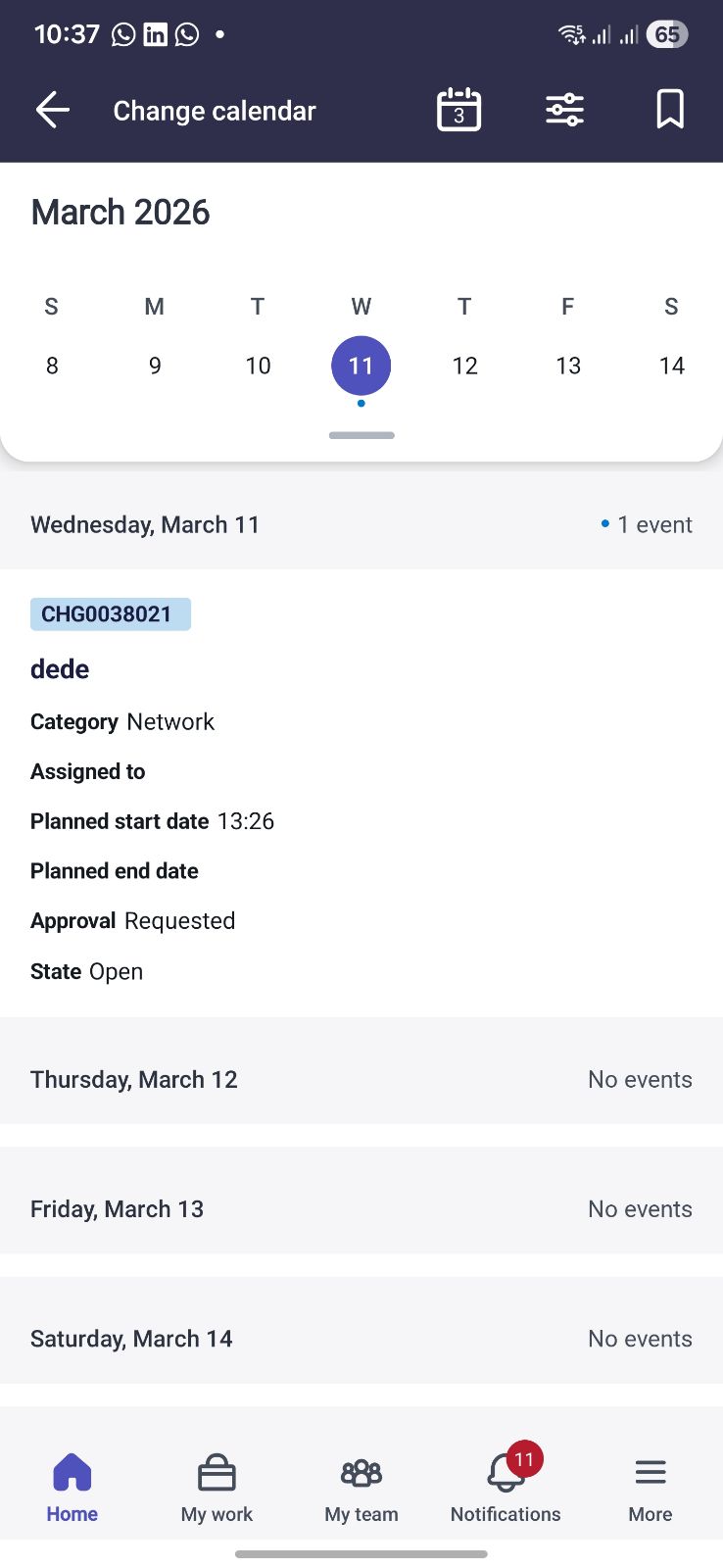
Planned start date and End date not showing Properly when card is attached to the Calender screen

- Mark as New
- Bookmark
- Subscribe
- Mute
- Subscribe to RSS Feed
- Permalink
- Report Inappropriate Content
03-02-2026 11:36 PM
I have customized the card for the Change Request calendar view to include the 'Planned Start Date' and 'Planned End Date.' However, the card only displays the time portion of these fields. Interestingly, the full date and time populate correctly on standard list and record screens. How can I ensure the full date is visible in the calendar view as well?
- 839 Views

- Mark as New
- Bookmark
- Subscribe
- Mute
- Subscribe to RSS Feed
- Permalink
- Report Inappropriate Content
03-03-2026 12:02 AM
It sounds like you're running into a classic "space-saving" quirk of the ServiceNow Mobile Platform. When you're in a Calendar View, the system often assumes that since you are already looking at a specific day on the calendar, showing the date again on the card is redundant. It defaults to the time to keep the UI clean.However, if you need that date visible for clarity—especially for multi-day changes—here is how you can fix it.1. Check the Field Type in Mobile Card BuilderThe most common culprit is that the card is using a "Time" formatter or a specific "Compact" template.Open the Mobile Card Builder.Select the card used by your Change Request Calendar.Click on the Planned Start Date element.Look at the Field Type or Format in the properties pane on the right.Ensure it is not set to a "Time-only" display. If it's mapped to a Date/Time field but only showing time, the template itself might be restricting the characters.2. Use a "Text" Element with MappingSometimes, the predefined "Date" elements in the card builder try to be "smart" based on the view they are in. You can bypass this by:Replacing the Date element with a standard Text element.Mapping that Text element to the planned_start_date field.This often forces the system to treat the data as a string, displaying the full value (Date + Time) as stored in the database rather than letting the Calendar UI format it.3. The Pattern Setter (Advanced)If you are comfortable with the ServiceNow Hierarchy, check the View Config:Navigate to System Mobile > Applets.Find your Change Calendar applet.Check the Item Config and the associated View.Under the UI Styles or Attributes, ensure there isn't a "Date Display" attribute forcing a specific pattern (like HH:mm).Why is it happening?ServiceNow's mobile architecture uses View Templates. The Calendar view specifically utilizes a "Timeline" logic where the Y-axis (or the header) represents the date. To prevent the card from looking cluttered, the mobile client is programmed to "trim" the date part of any Date/Time field displayed on a card within that specific view.Pro Tip: If you have a very long date/time string, it might be getting truncated by the container width. In Mobile Card Builder, ensure the "Max Lines" property for that field is set to 2 instead of 1.