Analyses des dépenses
La page Analyse des dépenses vous aide à obtenir une meilleure visibilité de vos coûts dans le cloud en affichant vos dépenses dans le cloud Kubernetes et les ressources partagées sur une période ou un type de coût que vous spécifiez.
Important :
Si vous disposez du rôle insights_owner, seuls les comptes qui vous sont affectés apparaissent dans les filtres et les données.
Utilisez la page Analyse des dépenses pour afficher les éléments suivants :
- Analyse des dépenses dans le cloud
- Kubernetes Analyses des dépenses
- Analyse du coût partagé
Remarque :
Vous ne pouvez pas voir les dépenses de vos ressources pour les valeurs de balises imbriquées. Par exemple, {"name":"test","created-by":"xyz","prod":"false","shared_resource":"false"}.
Analyse des dépenses dans le cloud
Sélectionnez l’onglet Analyse des dépenses dans le cloud pour effectuer les tâches suivantes :
- Comprenez comment vous dépensez actuellement en ressources dans le cloud pour une période que vous pouvez sélectionner dans le champ Plage horaire .
- Regroupez l’analyse des dépenses dans le cloud à l’aide de l’une des valeurs suivantes :
- Fournisseur
- Option d'achat
- Région
- Compte de service
- Catégorie de service
- Service dans le cloud
- Groupe de ressources
- Catégorie des balises
- Triez vos résultats de dépenses cloud par mois en cours ou sélectionnez une plage de temps telle que 3, 6, 9 ou 12 mois.
- Obtenez une meilleure image de vos résultats en recherchant et en sélectionnant des valeurs via les filtres suivants :
- Fournisseur
- Compte de service principal
- Compte de service
- Région
- Catégorie de service
- Service dans le cloud
- Option d'achat
- Groupe de ressources
- Catégorie des balisesRemarque :Pour plus d’informations sur les catégories de balises et la liste des catégories de balises par défaut, consultez Balises et catégories de balises et Liste des catégories de balises par défaut.
- Valeurs des balises
- Catégories de balises sélectionnées
Kubernetes Analyses des dépenses
Sélectionnez l’onglet Analyse des dépenses Kubernetes pour effectuer les tâches suivantes :
- Comprenez comment vous dépensez Kubernetes dans le cloud pendant une période que vous pouvez sélectionner dans le champ Plage horaire .
- Regroupez les Kubernetes analyses des dépenses à l’aide de l’une des valeurs suivantes :
- Kubernetes Grappe de
- Kubernetes espace de noms
- Catégorie des balises
- Sélectionnez le type de coût en tant que Coût réel ou Coût amorti.
- Coût réel : à chaque période de facturation, votre organisation paie pour des services cloud directs.
- Coût amorti : votre organisation paie le coût effectif des frais de réservation initiaux et mensuels répartis sur la période de facturation. Le type de coût amorti est décrit en détail sur le site du fournisseur.
- Triez vos Kubernetes résultats de dépenses par mois en cours ou sélectionnez une plage de temps telle que 3, 6, 9 ou 12 mois.
- Obtenez une meilleure image de vos résultats en recherchant et en sélectionnant des valeurs via les filtres suivants :
- Fournisseur
- Compte de service principal
- Compte de service
- Région
- Kubernetes Grappe de
- Kubernetes espace de noms
- Option d'achat
- Groupe de ressources
- Catégorie des balisesRemarque :Pour plus d’informations sur les catégories de balises et la liste des catégories de balises par défaut, consultez Balises et catégories de balises et Liste des catégories de balises par défaut.
- Valeur de la balise
- Catégories de balises sélectionnées
- Affichez les détails du coût par Kubernetes grappe et du coût par Kubernetes espace de noms.
Analyse du coût partagé
Sélectionnez l’onglet Analyse du coût partagé pour effectuer les tâches suivantes :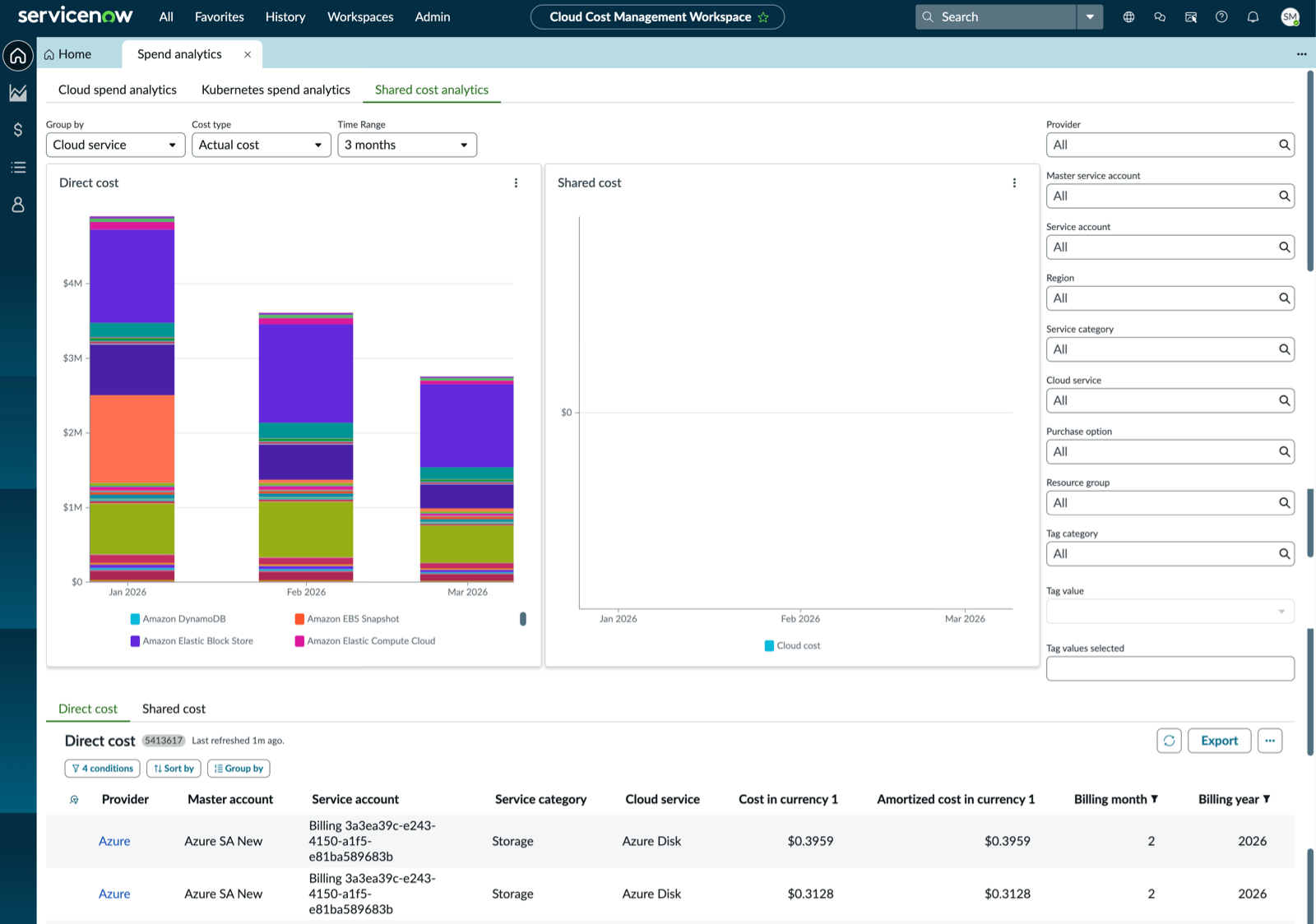
- Comprenez comment vous dépensez actuellement en ressources cloud partagées pour une période que vous pouvez sélectionner dans le champ Plage horaire .
- Regroupez l’analyse du coût partagé à l’aide de l’une des valeurs suivantes :
- Fournisseur
- Option d'achat
- Région
- Compte de service
- Catégorie de service
- Service dans le cloud
- Groupe de ressources
- Catégorie des balises
- Sélectionnez le type de coût Coût réel ou Coût amorti.
- Coût réel : à chaque période de facturation, votre organisation paie pour des services cloud directs.
- Coût amorti : votre organisation paie le coût effectif des frais de réservation initiaux et mensuels répartis sur la période de facturation. Le type de coût amorti est décrit en détail sur le site du fournisseur.
- Triez vos résultats de coûts des ressources partagées par mois en cours ou sélectionnez une plage de temps telle que 3, 6, 9 ou 12 mois.
- Obtenez une meilleure image de vos résultats en recherchant et en sélectionnant des valeurs via les filtres suivants :
- Fournisseur
- Compte de service principal
- Compte de service
- Région
- Catégorie de service
- Service dans le cloud
- Option d'achat
- Groupe de ressources
- Catégorie des balisesRemarque :Pour plus d’informations sur les catégories de balises et la liste des catégories de balises par défaut, consultez Balises et catégories de balises et Liste des catégories de balises par défaut.
- Valeur de la balise
- Catégories de balises sélectionnées
- Affichez les détails du coût direct et du coût partagé de vos ressources dans le cloud.