Discover the flexibility of the My security metrics dashboard, which can be customized with metrics from various sources like graphs and charts. Tailor the dashboard to suit your organization's specific
requirements.
Before you begin
To customize the Security Metrics dashboard, confirm you are within the Security Center application scope. To switch to this scope, select , and type security center.
Role required: admin
About this task
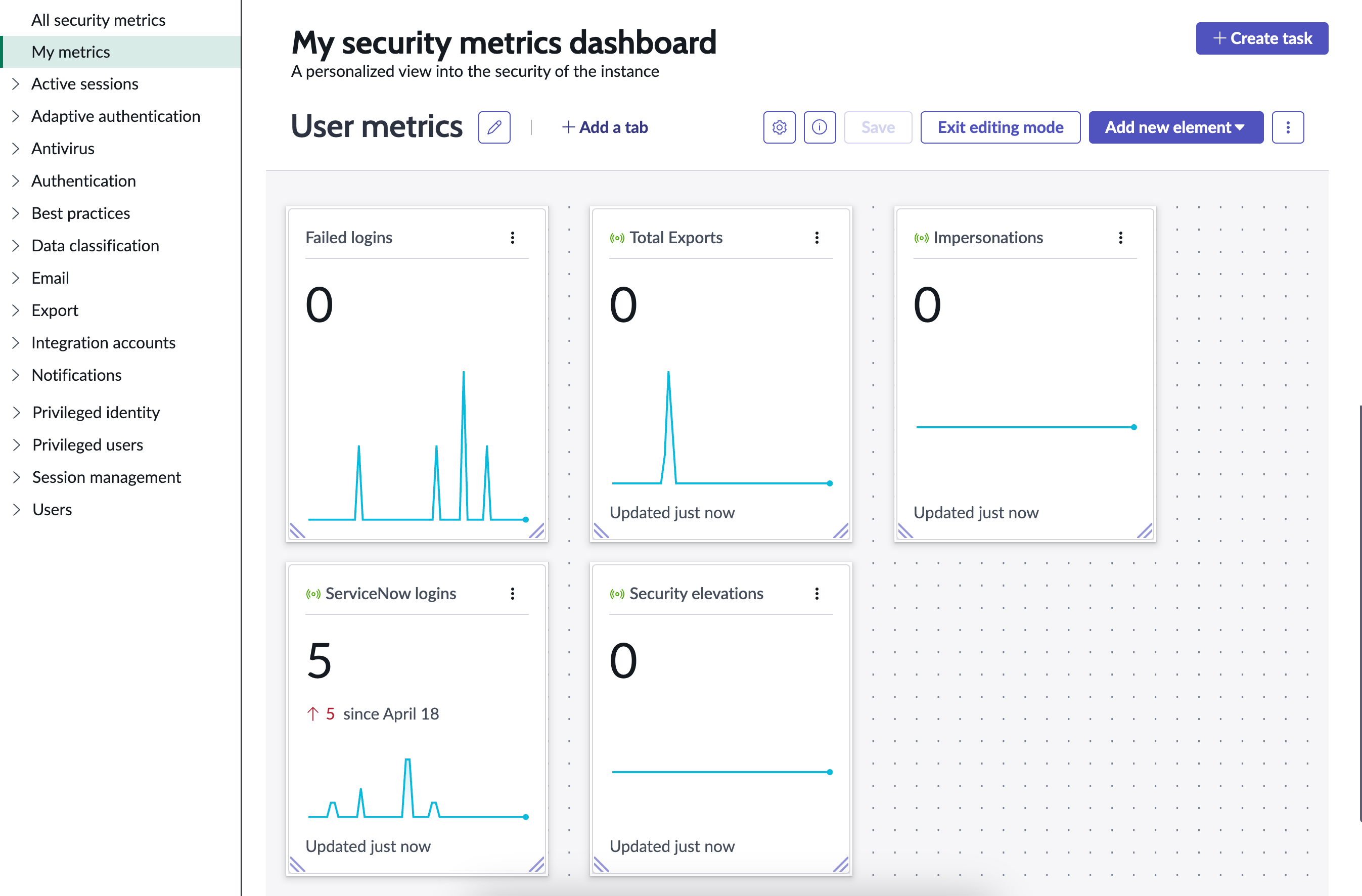
Implement and customize My security metrics dashboard. Add metrics and content to your dashboard from a variety of sources, such as graphs and charts generated from a report. Learn the steps required to add a tab to your
dashboard so that you can customize it to meet your organization's needs.
Procedure
-
Access Security Metrics within Security Center by selecting Security Monitoring in the tools section, and selecting the Security metrics card.
-
Enter edit mode by selecting Edit.
-
Create a tab by selecting +Add a tab.
Note: You can also add a new tab by selecting the plus (+) icon next to an existing tab.
-
Edit the title of your newly created tab by selecting the pencil icon and entering a name.
-
Add an element to your tab by selecting Add a new element.
-
Select Save.
- Optional:
To share the dashboard with users, groups, and roles in your organization, select .
-
Enter the name of a user to grant access to.
-
Select Confirm.