- Mark as New
- Bookmark
- Subscribe
- Mute
- Subscribe to RSS Feed
- Permalink
- Report Inappropriate Content
07-19-2026 04:51 PM
I have a catalog item in Service Portal with the following behaviour.
1. User enter a Customer Name
2. User selects an Account Number
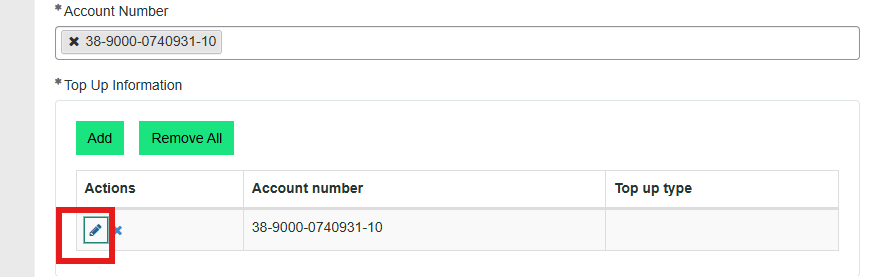
3. Based on selected Account Number, the system automatically creates a row in a Multi -Row - variable set called Top Up Information.
4. The MRYS row contains: Account Number (auto populated)
Top Up Type (Blank)
Business Requirement:
Before submitting the request, the user must:
1. Click the Edit(pencil) icon on the auto generated MRVS row
2. Select a value for "Top Up Type"
3. Save the record
4. Submit the request
If the Top Up Type is not populated, the request cannot be submitted.
ATF Challenge:
What I need is a way to automate below steps
1. Click the Edit(Pencil) icon via ATF
2. Update the Top Up Type value
3. Save the Edited row.
Solved! Go to Solution.


- Mark as New
- Bookmark
- Subscribe
- Mute
- Subscribe to RSS Feed
- Permalink
- Report Inappropriate Content
07-19-2026 08:14 PM
there is no out of the box step to edit the MRVS row
You can try to use custom UI step and try to find the pencil HTML and then click it
💡 If my response helped, please mark it as correct ✅ and close the thread 🔒— this helps future readers find the solution faster! 🙏
Ankur
✨ Certified Technical Architect || ✨ 10x ServiceNow MVP || ✨ ServiceNow Community Leader
- Mark as New
- Bookmark
- Subscribe
- Mute
- Subscribe to RSS Feed
- Permalink
- Report Inappropriate Content
07-20-2026 07:08 PM
- Mark as New
- Bookmark
- Subscribe
- Mute
- Subscribe to RSS Feed
- Permalink
- Report Inappropriate Content
07-19-2026 08:14 PM
there is no out of the box step to edit the MRVS row
You can try to use custom UI step and try to find the pencil HTML and then click it
💡 If my response helped, please mark it as correct ✅ and close the thread 🔒— this helps future readers find the solution faster! 🙏
Ankur
✨ Certified Technical Architect || ✨ 10x ServiceNow MVP || ✨ ServiceNow Community Leader

- Mark as New
- Bookmark
- Subscribe
- Mute
- Subscribe to RSS Feed
- Permalink
- Report Inappropriate Content
07-20-2026 10:34 AM
Hi @IsurikaPere,
Don't try to script the pencil icon itself. There's no ATF step that simulates "click the edit icon on row 1" for an MRVS, but you don't need one, the three dedicated Service Portal MRVS steps get you to the same end state (a saved row with Top Up Type populated) without touching the icon at all. The catch in your specific case: since the row is already auto-created by your item's own logic when Account Number is selected, you want to skip the "add a row" step, not use it, otherwise ATF will append a second row instead of editing the one in your first screenshot.
Here's the sequence that ServiceNow's own MVPs point to for MRVS testing in Service Portal:
- Open a Catalog Item (SP) to navigate to your item.
- Use Set Variable Values (SP) to populate Customer Name and then Account Number, in that order. This fires the same onChange/auto-populate logic that creates the row shown in your first screenshot.
- Add a short wait between that step and the next one. Several people running MRVS tests hit timing issues where the row hasn't finished rendering before the next step fires, a 10 to 30 second buffer on the following step is the common workaround reported on Community.
- Use Set Variable Values (SP) again, this time targeting the Top Up Information variable set and the Top Up Type variable, with your value. This is functionally the same as opening the Edit Row modal in your second screenshot and picking from the dropdown, ATF drives the same modal, it just doesn't need you to click the pencil to get there.
- Follow it with Save current row of multi-row variable set (SP), this is the equivalent of clicking Save in that modal.
- Continue with your normal Submit Catalog Item (SP) step.
Do not add an Add row to multi-row variable set (SP) step anywhere in this flow. That step is for rows the tester creates, and since your row already exists on the form the moment Account Number is set, adding one just gives you two rows in the table, the second one blank, and your submit will likely still fail on the same missing Top Up Type in row one.
One thing worth confirming before you build this out: what field type is Top Up Type? If it's a simple choice or reference variable, the flow above should work cleanly. If it's a List Collector inside the MRVS, other Community threads report Set Variable Values (SP) not reliably populating those, so you'd be looking at a different workaround. Also worth noting, and this trips people up every time, ATF's built-in MRVS steps only exist for Service Portal. If anyone on your team ever tries to replicate this same test against the item rendered in the native/Now UI, there's currently no equivalent step for that at all.
References
- ATF - Add rows to multi row variable set (MVRS) in Service Catalog
- ATF step to set multi row variable set value for catalog item
- How to add Multi-row Variable Set to ATF for auto populated values?
- How to populate Multi-Row Variable Sets (MRVS) with ATF in the native UI?
Thank you,
Vikram Karety
Octigo Solutions INC
- Mark as New
- Bookmark
- Subscribe
- Mute
- Subscribe to RSS Feed
- Permalink
- Report Inappropriate Content
07-20-2026 07:08 PM