Michael Ritchie

ServiceNow Employee
Options
- Subscribe to RSS Feed
- Mark as New
- Mark as Read
- Bookmark
- Subscribe
- Printer Friendly Page
- Report Inappropriate Content
08-09-2017
08:01 AM
Ever since the "Genius Lounge" concept was created by Apple many years ago many companies, including ServiceNow internally, have created walk up style technical support, especially as BYOD has gotten popular. While ServiceNow is a powerful platform to schedule and capture the details of a task/request, it lacks a nice feature rich UI that allows users to easily schedule an appointment similar to OpenTable's view of making a restaurant reservation. That is until now!
This provides a "no-code" solution of defining how appointments should be scheduled and Service Portal widgets to allow users to schedule new appointments and view their existing appointments.

The ServiceNow platform offers several features that make this solution possible:
- Feature Rich Task Table:
- The task table is the base table for most applications within ServiceNow. Incident, Problem, Change, Case, etc all extend Task. This table includes common attributes for any type of task/case and extending it speeds up development time and it brings many features along with it such as SLAs, On-Call Scheduling, etc.
- The task table includes Start and End attributes that various applications leverage for the scheduling of work. Because of this, this Task Appointment Scheduling solution can be applied to any application within your instance that extends the task table.
- Service Portal:
- The Service Portal, introduced in the Helsinki release, has brought a whole new dynamic of creating responsive and feature rich UI's that improves the usability of ServiceNow.
- Using AnjularJS and Bootstrap, reusable widgets can be created that can be easily leveraged on any page within your Service Portals.
- The Service Portal widget is reusable in that each instance of the widget is tied to Task Appointment Definition record. So you could have two widgets on a page where one creates an Incident appointment while another one creates a Change appointment.
Sush Chandrashekar(sush_c) and I partnered up to come up with a Task based solution that allows you to:
- Define a schedule for accepting appointments and a duration of time for each appointment
- Set which Task table to use to store the appointments. This can be any table that extends task, including out of the box tables like Incident, Problem, Change, Case, etc, or any custom table that extends task.
- Set how many concurrent appointments that can be scheduled before marking an appointment time unavailable. Default is 1.
- Set template values that will be applied when the appointment record is created.
- Set a date and time format to utilize in the Service Portal.
- Set the style of how you want the available appointments to be presented within the Service Portal:
- Timecards
- Chiclet Style Buttons
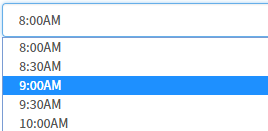
- Dropdown
- Timecards
The Code:
The solution involves several components that is available for download from ServiceNow Share: Task Appointment Scheduling. Download the update set from Share, load/preview/Commit it, and then you can leverage it in your instance.
The Setup:
- After committing the update set from Share, Navigate to Task Appointments\Task Appointments and click New.
-
- Give it a name
- Set the schedule for the time frame that you wish to accept appointments and the duration of the appointments. You may need to create a new schedule if you don't already have one defined that matches the appointment schedule.
- Optionally set the New Appointment Lead Time if you prefer to set a buffer on when the next available appointment can be scheduled. For example if you set this value to 1 hour, the next available slot will be one hour from the current time assuming it is available.
- Optionally set a group you wish to route the appointments to and set the number of concurrent appointments this group can accept. You can also set the group in the Task Values instead. The task values will override the value set in the Group field.
- Set the Task Type to the table used to store the appointment records.
- Set the date and time format to be utilized by the Service Portal Widgets. With this setting being at the Task Appointment configuration level you have the ability to have regionalized task appointment scheduling.
- In the New Appointment Section:
-
- Task User Field: Use this field to set which User reference field will get populated on the task record for the appointment. By default it is set to Opened By, however you can override it to another field. For example if your task table is Incident you can set the Caller field or if your task table is Request you can set the Requested For. In the Appointment Scheduling widget options you can enable an Appointment For selection field allowing the user to designate who the appointment is for. The value from that selection will populate into the task field designated.
- Task Values: Use this template field to set any other fields in the task record such as short description, assignment group, category, etc which is applied as an appointment is created.
- In the Remove Appointment Section, designate the behavior when a user removes an appointment.
-
- If Delete Task is checked, the task record will be deleted when a user removes an appointment.
- If Delete Task is unchecked, the Remove Task Values will be applied to the task. It is important to set values for all fields that are required when closing/cancelling a task otherwise the appointment will not be deleted.
- Click Submit.
- Navigate to Service Portal\Service Portal Configuration and choose Designer to add the widgets to a page.
- Search for the page that you wish to add this solution to or create a new page if necessary.
- On the left under Widgets, you should find Appointment Scheduling and Appointments List, drag them onto to your page.
- Once added, click the Pencil to edit the properties of the Appointment Scheduling widget.
- Give the widget a Title that will appear above the widget.
- Set the Task Appointment record to use from step 1.
- Choose the layout of how you want to display the available appointments. See a screenshot of the options above.
- Set whether you wish to allow reminders to be sent prior to an appointment. This utilizes a little known feature covered by ctomasi in TechNow Episode 39.
- Set the maximum number of days out that you wish to allow appointments. Default is 30 days.
- Optionally you can allow a user to designate who the appointment is for. You can also set the label for this prompt as well. The logged in user will be the default value for this field.
- If you would like to collect Short Description, Description, and Location when creating appointments, check the applicable box(s).
- Click Save.
- Click the Pencil to edit the properties of the Appointments List widget.
- Give the widget a name and set the Task Appointment record to use from step 1.
- If you would like to show Short Description and Location in the list, check the applicable box(s).
- Click Save.
- Enjoy!
Other Important Notes:
- The update set adds a new field to the out of the box Task table called Task Appointment (u_task_appointment) which is a reference to the Task Appointment (u_task_appointment) table.
- This reference is utilized to link appointments back to the defined configuration record. It is also leveraged when displaying a user's scheduled appointments.
- This field is also why the update set takes longer than usual to commit.
- The work_start and work_end fields on the Task table are leveraged to store the appointment start and end time. The out of the box labels for these fields are Actual Start and Actual End, but this could vary by instance and table.
- A business rule called "Enforce Task Appointment Schedule" is included to:
- Zero out the seconds associated to an appointment. This is important to track reserved time slots.
- Ensure that the work_start and work_end values are valid for the schedule within the Task Appointment definition record
- The work_end of a task can be extended beyond the Appointment Duration defined within the Task Appointment record, however it must conform to that duration time frame. In other words if the Task Appointment Duration is set to 30 minutes, a task can have a duration of 1 hour, 1.5 hours, 2 hours, etc in 30 minute increments.
- If the work_end date of a task is outside the duration time frame, the business rule will prevent the record from being saved and the following message will appear at the top of the screen to the user:
- End time must be in X minute intervals.
- This message can be modified in the TaskAppointmentUtils Script Include, checkTaskDates function.
- A link to this script is provided in the Task Appointment application navigator.
- The TaskAppointmentUtils Script Include defines all the API's leveraged by the Service Portal Widget.
- Each function is documented within the script include.
- This script can be edited to provide further detail in the widget or change data that gets set as appointments are created, updated, and deleted.
- A link to this script is provided in the Task Appointment application navigator.
- 133,041 Views
130 Comments
You must be a registered user to add a comment. If you've already registered, sign in. Otherwise, register and sign in.