Goran WitchDoc

ServiceNow Employee
Options
- Subscribe to RSS Feed
- Mark as New
- Mark as Read
- Bookmark
- Subscribe
- Printer Friendly Page
- Report Inappropriate Content
08-21-2016
07:54 AM
I promised a community user that I would help her with how to get information from a call record to the catalog item that they wanted to create.
There is a couple of ways to do this and what I personally prefer and by experience worked best is to take advantage of GlideAjax.
You could just put the info in the URL or use clientData, but there are limitations and possible user mishaps with those that can lead to errors.
Now, scenario would be this. From a call, I want to create a catalog item and populate the calls description into a variable on the item.
The short version would be like this:
- Put the sys_id of the call in the url that opens up the catalog item
- Use a GlideAjax in a catalog client script to get call description
- Use the result from GlideAjax to populate whatever variable you want.
Lets fix the URL:
Now this is all done in a OOB Business rule called "CallTypeChanged to Request". On line 8(if you haven't done any modifications earlier, you can find:
var url = 'com.glideapp.servicecatalog_cat_item_view.do?sysparm_id=' + reqItem + '&sysparm_user=' + reqFor + '&sysparm_location=' + location + '&sysparm_comments=' + comments;
This gives you to url for the catalog item and it also puts a few sysparm for you to pick up later as well. Since all of them points at the call record and you only need the sys_id of the call, you can just have a sysparm_call_id like this:
var url = 'com.glideapp.servicecatalog_cat_item_view.do?sysparm_id=' + reqItem + '&sysparm_call_sysid =' + current.sys_id;
This will send with the call id and then we can use that with a GlideAjax to get the whole call record and use what ever data we need.
Something like this:
Now we have the made so all parameters that we want comes along with the url, if you try it out. You will get a url like this when you see the item
when you are at this screen you can press Shift+Ctrl+Alt+J to get the JavaScript Executor. Not sure what to press on a Mac
This little popup will let you run client code, but you wont have access to the current object thou. You can also choose "browse vars" and see what variables you got available to you.
If you like, you can test here and see if you can get the sysparm_value. Paste in the following code in the executor:
var callSysID = getParmVal('sysparm_call_sysid');
alert(callSysID);
function getParmVal(name){
var url = document.URL.parseQuery();
if(url[name]){
return decodeURI(url[name]);
}
else{
return;
}
}
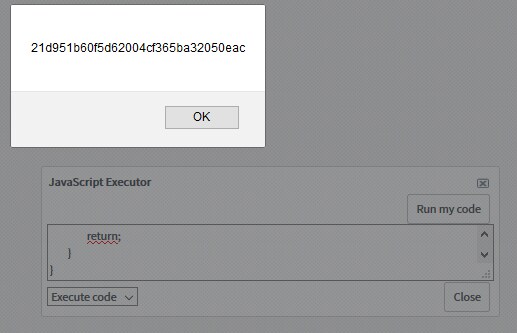
Press "Run my code" and you should get an alert like this:
So now we know that we got all the info we are at the item. Lets start doing the client script:
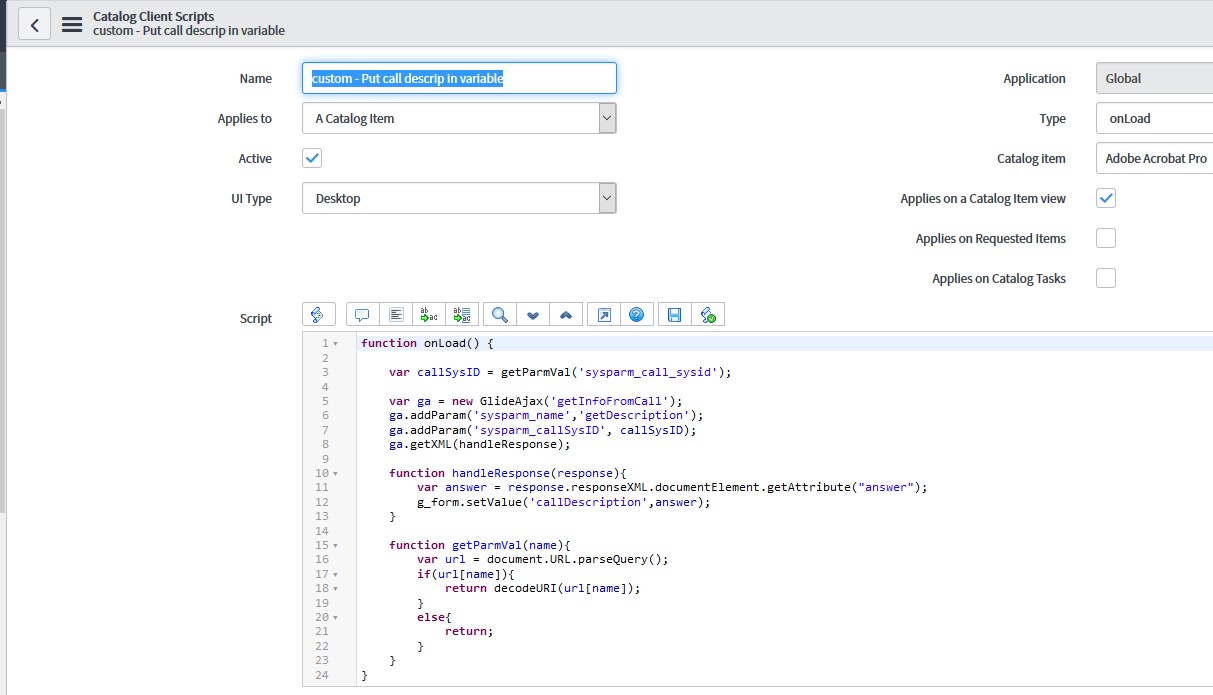
Making of the onLoad Catalog Client Script:
For this example I added a variable here that i named "callDescription" and this is where I want the magic to happen.
So, back to the client script. Here is the code that is going in there and remember this is a onLoad script.
And the code:
function onLoad() {
var callSysID = getParmVal('sysparm_call_sysid');
var ga = new GlideAjax('getInfoFromCall');
ga.addParam('sysparm_name','getDescription');
ga.addParam('sysparm_callSysID', callSysID);
ga.getXML(handleResponse);
function handleResponse(response){
var answer = response.responseXML.documentElement.getAttribute("answer");
g_form.setValue('callDescription',answer);
}
function getParmVal(name){
var url = document.URL.parseQuery();
if(url[name]){
return decodeURI(url[name]);
}
else{
return;
}
}
}
Lets take a look at the Script Include that is used:
Code:
var getInfoFromCall = Class.create();
getInfoFromCall.prototype = Object.extendsObject(AbstractAjaxProcessor, {
getDescription: function() {
//Get the sys_ID for the call
var callSysID = this.getParameter('sysparm_callSysID');
var gr = new GlideRecord('new_call');
gr.get(callSysID);
var description = gr.getDisplayValue('description');
return description;
},
type: 'getInfoFromCall'
});
That's it, not need to do more than this to have a functional GlideAjax working. In other cases a display Business rule might save the day, but sadly they don't work in the catalog. Then I would use the display rule to put stuff in the scratchpad and then fetch them with the client script. Then we don't need to do call the server with the GlideAjax to get the info.
This is a very simple way, but good enough if you just want a single field on the call record.
If you want more fields from the call, I would recommend reading this post I wrote earlier: Lets make GlideAjax a little more dynamic
- 13,179 Views
17 Comments
- « Previous
-
- 1
- 2
- Next »
You must be a registered user to add a comment. If you've already registered, sign in. Otherwise, register and sign in.