
- Mark as New
- Bookmark
- Subscribe
- Mute
- Subscribe to RSS Feed
- Permalink
- Report Inappropriate Content
3 weeks ago
Hello All,
We have created a new Workspace and a new table for it. We have also added Emails as a related list for the case.
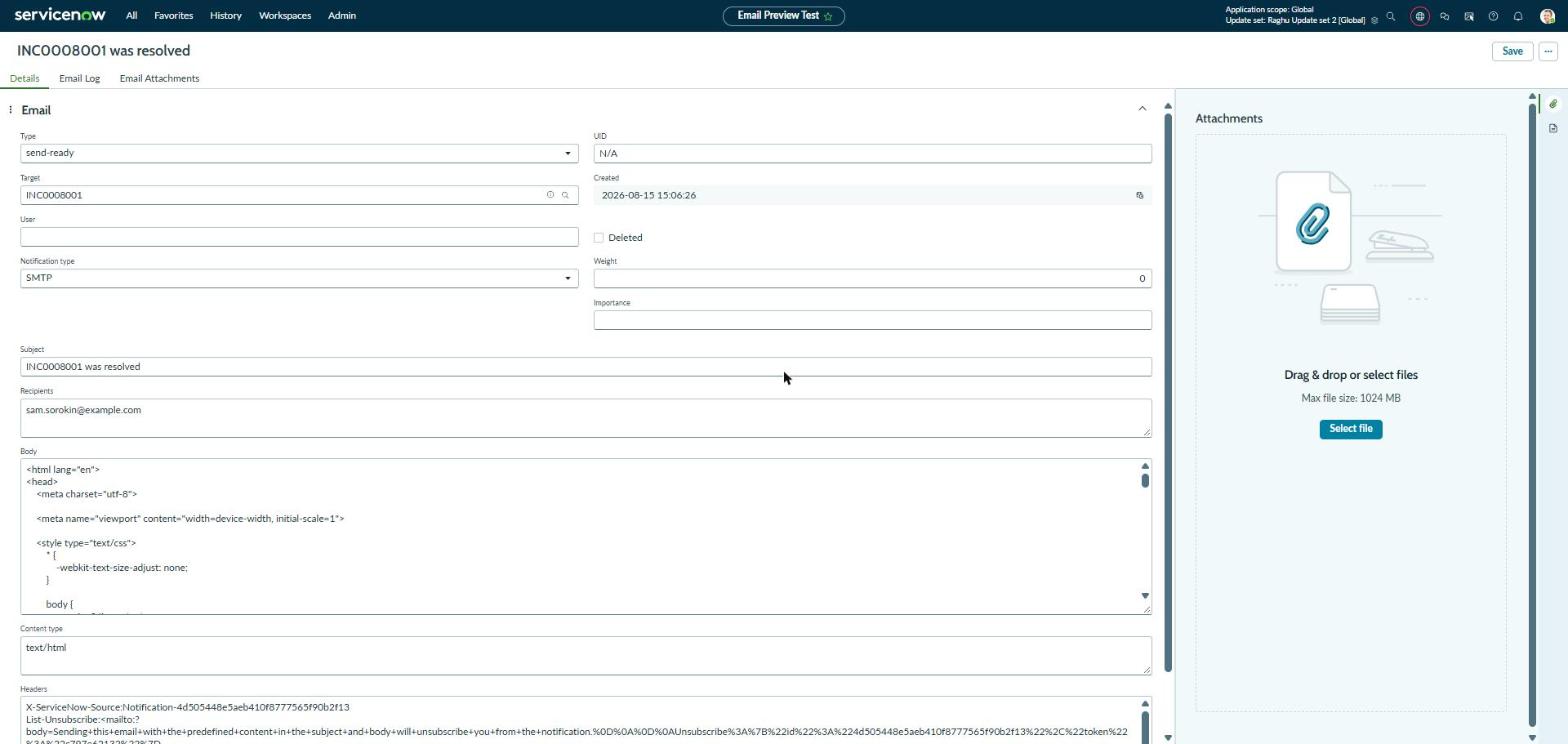
Currently, when we open an email from the Emails related list in the Workspace, it redirects to the sys_email record and displays the email record details, such as the recipients.
However, our requirement is to display the email in its original email format/look and feel, similar to how the email appears when using the Preview option.
Could you please advise how we can achieve this behavior in the Workspace?
Thanks in Advance!!
Solved! Go to Solution.

- Mark as New
- Bookmark
- Subscribe
- Mute
- Subscribe to RSS Feed
- Permalink
- Report Inappropriate Content
3 weeks ago
Hello @Mahesh Pydisett
I reproduced this issue in my PDI, and you can get the same email look and feel in your custom workspace without any code.
Why it happens:
When you open an email from a workspace, the workspace shows the email record on its Record page. Your custom workspace has no special page for emails, so it shows the normal field form, with recipients and the raw HTML body.
Service Operations Workspace doesn’t have this problem. It has its own page variant for sys_email that uses a component called Email viewer. A new custom workspace doesn’t get that variant, so you need to add it yourself.
[Screenshot 1]: before the fix, the email opens as a plain form in the custom workspace.
How to fix it (in UI Builder):
1) Open your workspace in UI Builder.
2) On the Record page, click the ⋮ menu and choose Create new variant, then Create from scratch.
3) Name it Email preview. Under Conditions, click Enter as text and type:
table=sys_email
4) Click Continue, then Create.
5) In the new variant, click + Add content and add the Email viewer component.
6) Select the component. On the right, bind Email record ID to props → sysId: click the database icon, open Page properties → props, and pick sysId.
7) Click Save.
[Screenshot 2]: the Record page with the new “Email preview” variant next to the default.
[Screenshot 3]: the Email viewer with Email record ID bound to sysId.
Result:
Open a case, go to the Emails related list, and click any email. It now opens in its original email format, the same as Preview. Other records still open with the normal form.
[Screenshot 4]: the Emails related list in the workspace.
[Screenshot 5]: after the fix, clicking an email opens it in its original format.
Tip: if the email still opens as a form, check the variant Order on the Record page. The default record variant has no condition, so it matches every record. Give it a higher order number than your Email preview variant so the email variant is checked first.
Hope this helps! If it does, please mark it Helpful / Accept as Solution.
Regards,
Raghavendra G



- Mark as New
- Bookmark
- Subscribe
- Mute
- Subscribe to RSS Feed
- Permalink
- Report Inappropriate Content
3 weeks ago
Hello @Mahesh Pydisett
I reproduced this issue in my PDI, and you can get the same email look and feel in your custom workspace without any code.
Why it happens:
When you open an email from a workspace, the workspace shows the email record on its Record page. Your custom workspace has no special page for emails, so it shows the normal field form, with recipients and the raw HTML body.
Service Operations Workspace doesn’t have this problem. It has its own page variant for sys_email that uses a component called Email viewer. A new custom workspace doesn’t get that variant, so you need to add it yourself.
[Screenshot 1]: before the fix, the email opens as a plain form in the custom workspace.
How to fix it (in UI Builder):
1) Open your workspace in UI Builder.
2) On the Record page, click the ⋮ menu and choose Create new variant, then Create from scratch.
3) Name it Email preview. Under Conditions, click Enter as text and type:
table=sys_email
4) Click Continue, then Create.
5) In the new variant, click + Add content and add the Email viewer component.
6) Select the component. On the right, bind Email record ID to props → sysId: click the database icon, open Page properties → props, and pick sysId.
7) Click Save.
[Screenshot 2]: the Record page with the new “Email preview” variant next to the default.
[Screenshot 3]: the Email viewer with Email record ID bound to sysId.
Result:
Open a case, go to the Emails related list, and click any email. It now opens in its original email format, the same as Preview. Other records still open with the normal form.
[Screenshot 4]: the Emails related list in the workspace.
[Screenshot 5]: after the fix, clicking an email opens it in its original format.
Tip: if the email still opens as a form, check the variant Order on the Record page. The default record variant has no condition, so it matches every record. Give it a higher order number than your Email preview variant so the email variant is checked first.
Hope this helps! If it does, please mark it Helpful / Accept as Solution.
Regards,
Raghavendra G
- Mark as New
- Bookmark
- Subscribe
- Mute
- Subscribe to RSS Feed
- Permalink
- Report Inappropriate Content
2 weeks ago
Hello @RaghavendraGund ,
Thank you very much. It is working now.
However, in the custom workspace, the Reply, Reply All, and Forward buttons are not working. If you are familiar with this issue, could you please help me understand how to fix it?
- Mark as New
- Bookmark
- Subscribe
- Mute
- Subscribe to RSS Feed
- Permalink
- Report Inappropriate Content
2 weeks ago
Great infoo
