- Mark as New
- Bookmark
- Subscribe
- Mute
- Subscribe to RSS Feed
- Permalink
- Report Inappropriate Content
12-22-2025 12:11 AM - edited 12-22-2025 12:28 AM
Hi everyone,
I would like to share a practical use case that we recently implemented in ServiceNow. This solution helps users create or update Asset records in bulk by simply submitting a Service Catalog Item with an Excel attachment.
This approach is especially useful when asset teams receive bulk data from external vendors or internal teams and want to avoid manual record creation.
Use Case Overview
The objective is to allow end users to upload an Excel file through a Catalog Item, and automatically:
- Create new Asset records
- Update existing Asset records (if already present)
- Track the results clearly for the requester
- Provide clickable links to created/updated records
- Send a summary email with the outcome
All of this is achieved using Flow Designer, Data Sources, Import Sets, and Transform Maps.
Solution Approach
The overall approach consists of the following steps:
- Create a Service Catalog Item with an Excel upload option
- Configure a Data Source and Import Set
- Build a Transform Map with required field mappings and scripts
- Create a Flow that triggers on Service Catalog submission
- Load and transform the Excel data programmatically
- Capture results (Inserted, Updated, Skipped, Ignored records)
- Update the RITM with a summary and clickable record links
- Send an email notification to the requester
Implementation Steps
- Create the Catalog Item
Create a new Catalog Item with the following setup:
- A reference or link to download the Excel template
- One mandatory variable:
- Attachment variable (Example label: “Upload Asset Excel File”)
The requester downloads the template, fills in asset details, uploads the file, and submits the request.

- Create a Data Source
- Navigate to System Import Sets → Administration → Data Sources
- Create a new Data Source
- Select type as File
- Use the same Excel template structure

This Data Source will be used later to load the attachment into an Import Set table.
- Configure Import Set and Transform Map
Import Set Table
- Create a new Import Set table using the Excel template
- (In my case, I selected an existing Import Set table as it was already created)

Transform Map
- Create a Transform Map for the Import Set table
- Configure required Field Mappings
- Add Transform Scripts to:
- Create Asset records if they do not exist
- Update Asset records if they already exist
- Handle validation and error scenarios
This logic ensures clean and controlled data processing.

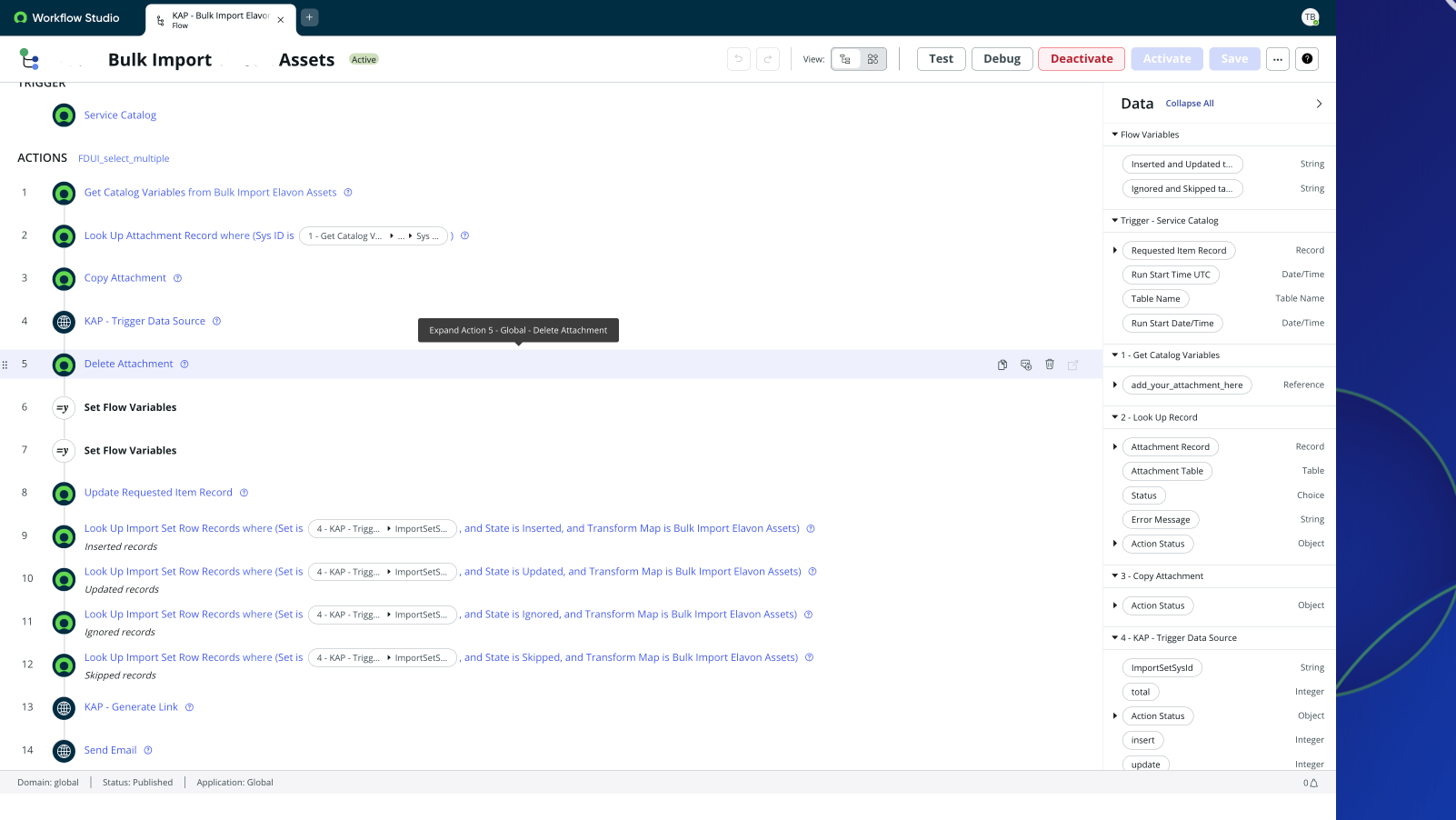
- Create the Flow in Flow Designer
Create a new Flow with the trigger:
Service Catalog → Requested Item Submitted
Flow Steps:

- Look Up Attachment Record
- Fetch the Excel file attached to the Requested Item (RITM)
- Copy Attachment
- Create a copy of the attachment to safely process the file without impacting the original upload
- Load Data into Import Set (Custom Action)
- Trigger a custom Flow Action that:
- Uses the Data Source
- Loads Excel data into the Import Set table
- Associates Import Set rows with the RITM for traceability
- Runs the Transform Map
- Returns the Import Set Sys ID
Custom Action: Run Transform Map & Capture Results
Step 1 – Inputs
- Data Source Sys ID

Step 2 – Script Logic
- Load the attachment into Import Set
- Execute the Transform Map
- Capture record counts based on transform state:
- Inserted Records
- Updated Records
- Skipped Records
- Ignored Records

(function execute(inputs, outputs) {
// ... code ...
processDataSource(inputs.dataSource);
function processDataSource(dataSource) {
//var dsUtil = new sn_impex.GlideDataSourceUtility();
//dsUtil.refreshDataStreamSchema(inputs.dataSourceSysid);
//gs.warn(dataSource);
var dataSource1 = new GlideRecord("sys_data_source");
if(dataSource1.get("import_set_table_name", inputs.dataSource)){
var loader = new GlideImportSetLoader();
var importSetGr = loader.getImportSetGr(dataSource1);
loader.loadImportSetTable(importSetGr, dataSource1);
doTransform(importSetGr);
}
}
function doTransform(set){
var importSetRun = new GlideImportSetRun(set.getUniqueValue());
var importLog = new GlideImportLog(importSetRun, set.data_source.name);
var ist = new GlideImportSetTransformer();
ist.setLogger(importLog);
ist.setImportSetRun(importSetRun);
ist.transformAllMaps(set);
//outputs.ImportSetSysId="WELCOME";
outputs.importsetsysid=set.getUniqueValue();
var isetRowGr = new GlideAggregate('sys_import_set_row');
isetRowGr.addQuery('sys_import_set.sys_id',set.sys_id);
isetRowGr.groupBy('sys_import_state');
isetRowGr.addAggregate('COUNT','sys_import_state');
isetRowGr.query();
while(isetRowGr.next()){
//outputs.total += parseInt(isetRowGr.getAggregate('count','sys_import_state'));
if(isetRowGr.getValue('sys_import_state') == 'inserted')
outputs.insert = isetRowGr.getAggregate('count','sys_import_state');
if(isetRowGr.getValue('sys_import_state') == 'updated')
outputs.update = isetRowGr.getAggregate('count','sys_import_state');
if(isetRowGr.getValue('sys_import_state') == 'ignored')
outputs.ignored = isetRowGr.getAggregate('count','sys_import_state');
if(isetRowGr.getValue('sys_import_state') == 'skipped')
outputs.skipped = isetRowGr.getAggregate('count','sys_import_state');
}
outputs.total = parseInt(outputs.insert + outputs.update + outputs.ignored + outputs.skipped);
}
})(inputs, outputs);
- For more information about GlideImportSetRun and how it can be used to programmatically execute Import Sets and Transform Maps, please refer to the official ServiceNow documentation using the link below.
https://www.servicenow.com/docs/bundle/xanadu-api-reference/page/app-store/dev_portal/API_reference/...

Step 3 – Outputs
The action returns:
- Insert Records count
- Update Records count
- Ignored Records count
- Skipped Records count
- Import Set Sys ID

- Update Requested Item (RITM)
Using the outputs from the custom action:
- Update the RITM comments or work notes
- Display results in a table format
- Include clickable links to newly created or updated Asset records
This gives the requester a clear and structured summary directly on the request.
Sending Email Notification to the Requester
Fetch Import Set Rows
- Look up Import Set Row records using:
- Import Set Sys ID
- Transform state (Inserted, Updated, Ignored, Skipped)
- Repeat this step for each state.

Generate Record Links (Custom Action)
Create another custom Flow Action that:
- Import Set Row records as input
- Generates clickable record URLs

(function execute(inputs, outputs) {
var instance_url = gs.getProperty('glide.servlet.uri');
var link = "";
var insert_link = "";
var update_link = "";
var ignore_link = "";
var skipped_link = "";
if(inputs.Count != 0){
link = "<a href="+ instance_url + "sys_import_set_row_list.do?sysparm_query=sys_import_set=" + inputs.SysId + " target=\"_blank\">"+ inputs.Count +"</a>" ;
}else{
link = inputs.Count;
}
if(inputs.insertCount != 0){
insert_link = "<a href="+ instance_url + "sys_import_set_row_list.do?sysparm_query=sys_import_set=" + inputs.SysId + "^sys_import_state=inserted target=\"_blank\">"+ inputs.insertCount +"</a>";
}else{
insert_link = inputs.insertCount;
}
if(inputs.updateCount != 0){
update_link = "<a href="+ instance_url + "sys_import_set_row_list.do?sysparm_query=sys_import_set=" + inputs.SysId + "^sys_import_state=updated target=\"_blank\">"+ inputs.updateCount +"</a>";
}else{
update_link = inputs.updateCount;
}
if(inputs.ignoreCount != 0){
ignore_link = "<a href="+ instance_url + "sys_import_set_row_list.do?sysparm_query=sys_import_set=" + inputs.SysId + "^sys_import_state=ignored target=\"_blank\">"+ inputs.ignoreCount +"</a>";
}else{
ignore_link = inputs.ignoreCount;
}
if(inputs.skippedCount != 0){
skipped_link = "<a href="+ instance_url + "sys_import_set_row_list.do?sysparm_query=sys_import_set=" + inputs.SysId + "^sys_import_state=skipped target=\"_blank\">"+ inputs.skippedCount +"</a>";
}else{
skipped_link = inputs.skippedCount;
}
outputs.url = link;
outputs.insert_url = insert_link;
outputs.update_url = update_link;
outputs.ignore_url = ignore_link;
outputs.skipped_url = skipped_link;
})(inputs, outputs);

- Returns formatted links
Send Email
- Use the Send Email action in Flow Designer
- Populate the email body with:
- Summary counts
- Direct navigation links to records

Final Output
Requested Item (RITM)
- Automatically updated with:
- Result summary in table format
- Clickable links to Asset records

Email to Requester
- Clear overview of processing results
- Direct links to created/updated Assets
- Easy navigation without manual searching

Conclusion
This solution provides a user-friendly and scalable approach for bulk Asset creation and updates in ServiceNow. By combining Catalog Items, Flow Designer, Import Sets, and Transform Maps, we can significantly reduce manual effort and improve data accuracy.
I hope this use case helps others who are working on similar requirements.
Happy to hear your thoughts or answer any questions! 😊
Solved! Go to Solution.
- 10,239 Views
- Mark as New
- Bookmark
- Subscribe
- Mute
- Subscribe to RSS Feed
- Permalink
- Report Inappropriate Content
03-16-2026 12:28 AM
Hi @Takuto K,
Thank you for your suggestion.
I have now added screenshots of the settings for actions 2, 3, 4, and 5 in the article for better clarity. I hope these images help you understand the configuration.


Please let me know if you need any further details — I’m happy to help.
Thanks!
- Mark as New
- Bookmark
- Subscribe
- Mute
- Subscribe to RSS Feed
- Permalink
- Report Inappropriate Content
03-15-2026 10:16 PM
Hi, @tharun24
This is a great article. I’ll be sure to use it as a reference.
Could you show me an image that displays the settings for each action?
- Mark as New
- Bookmark
- Subscribe
- Mute
- Subscribe to RSS Feed
- Permalink
- Report Inappropriate Content
03-15-2026 11:10 PM
Hi @Takuto K,
Thank you for your suggestion and for taking the time to review the article.
Please find the flow image below that illustrates how each action is configured and invoked within the flow. I hope this helps clarify the setup.

Let me know if you need any additional details.
If this response helped answer your question, please consider marking it as Helpful ✅ and Accepting it as the Solution.
Thanks!
- Mark as New
- Bookmark
- Subscribe
- Mute
- Subscribe to RSS Feed
- Permalink
- Report Inappropriate Content
03-16-2026 12:15 AM
Hi @tharun24 ,
I would appreciate it if you could show me screenshots of the settings for each action, similar to the image labeled “Fetch Import Set Rows.”
If that would be too much trouble due to the number of images, screenshots of actions No. 2 and 3 alone would be fine.
Thanks!
- Mark as New
- Bookmark
- Subscribe
- Mute
- Subscribe to RSS Feed
- Permalink
- Report Inappropriate Content
03-16-2026 12:28 AM
Hi @Takuto K,
Thank you for your suggestion.
I have now added screenshots of the settings for actions 2, 3, 4, and 5 in the article for better clarity. I hope these images help you understand the configuration.
Please let me know if you need any further details — I’m happy to help.
Thanks!