Adam Stout
ServiceNow Employee

Overview 

In many support offices, there are areas with large monitors on the wall showing off key metrics.  What better way to demonstrate to visitors that you are on top of your workload and ensure your team is always aware of key information? 

Below, we will walk through some important considerations prior to setting this up and how to set this up for your organization. 

Performance Considerations 

Real-Time Reports 

For the best performance, instead of refreshing the entire dashboard, you can use real-time reports.  Real-time reporting is only supported for single scores, but they are updated in real time without a full refresh of the browser, with no action required by the viewer, and very little impact to the instance. 

Refresh Time 

When refreshing a dashboard tab, all of the widgets that are viewable are refreshed.  To minimize the performance impact on your instance, we recommend that you set the reload/refresh interval to no less than 5 minutes.  Refreshing every few seconds can put an unnecessary load on your instance.  

One good option for refresh time is to use real-time reports for some single scores (e.g., open incidents, unassigned incidents, etc.) with a full refresh scheduled in a much longer period (every 15 or 20 minutes). 

Actionable and Performant Content 

It is important to ensure that only actionable and well-performing reports are included in this report.  For example, a bar chart of the number of closed incidents by month for the past two years requires the examination of large amounts of data and doesn’t provide current actionable information.  Instead, include reports that focus on the open incident queue and perhaps the number of incidents closed in the last 24 hours. 

If something like this is needed, be sure to look at leveraging Performance Analytics which can visualize trends with a significantly lighter impact on your system and with a faster response time.  

On a related note, if you are looking to get the most visually attractive dashboard, take a read through this pos, Make Better Looking Dashboards with Content Blocks

Setup and Configuration 

Let talk about how to set up an auto-refreshing dashboard. 

Configuring a User 

The first thing you need to set up a wall display is to identify the user to be used.  There are several items to consider when setting up this user.  

It is recommended to not use a real person’s login credentials.  Instead, create a dedicated system user that is specifically designed for this purpose.  This will allow you to ensure on the proper controls are in place as well as allow you to track any potential performance issues to this purpose.  

Considerations 

  • Password Reset Requirements â€“ Many organizations require users to change their password every 90 days.  You may want to except this system user from this requirement or ensure you have a process in place to handle this password change. 
  • Access Control Lists â€“ To ensure this user cannot be misused (to view or update a specific incident), create a role specifically for this purpose and create ACLs that give the minimum access possible to meet your displaying needs.  For example, ensure this role only has read access to the tables needed and possible only specific fields. 

Configure Display 

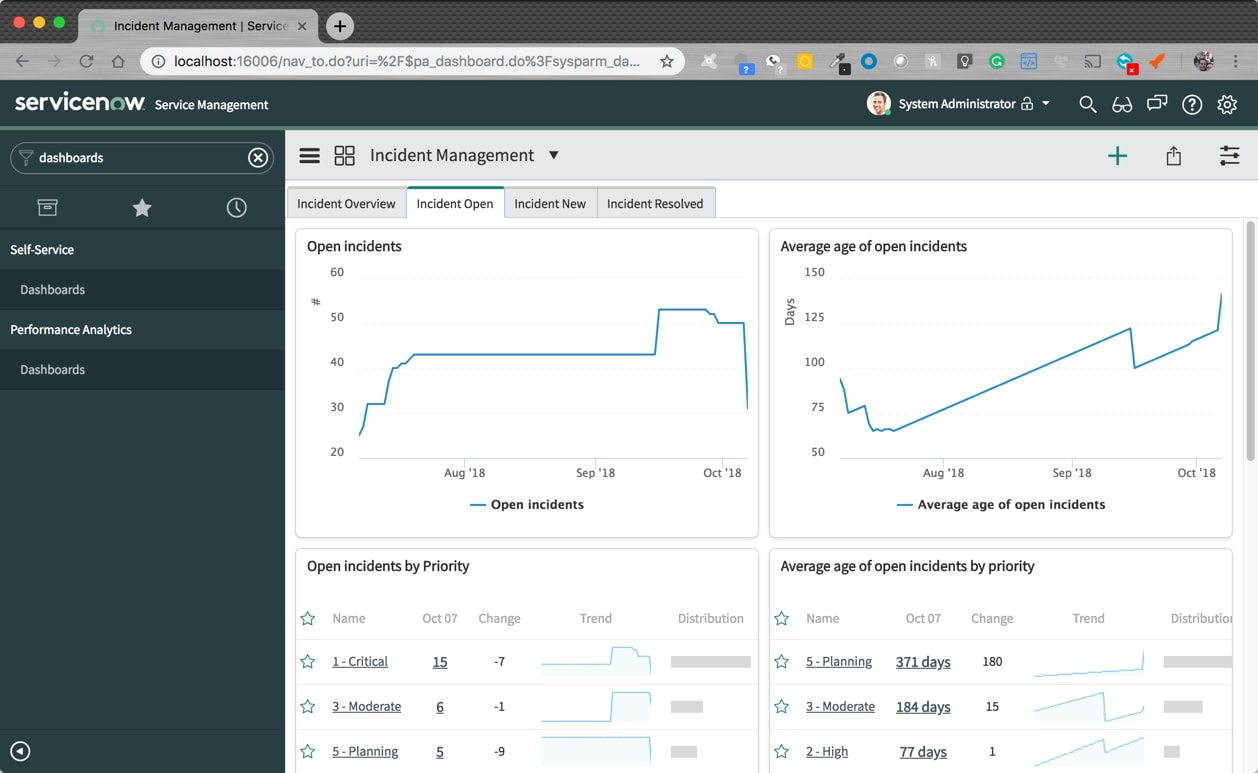
Typically, we view dashboards in the full frame including the ServiceNow header and the navigation bar.  This looks something like this: 

  find_real_file.png

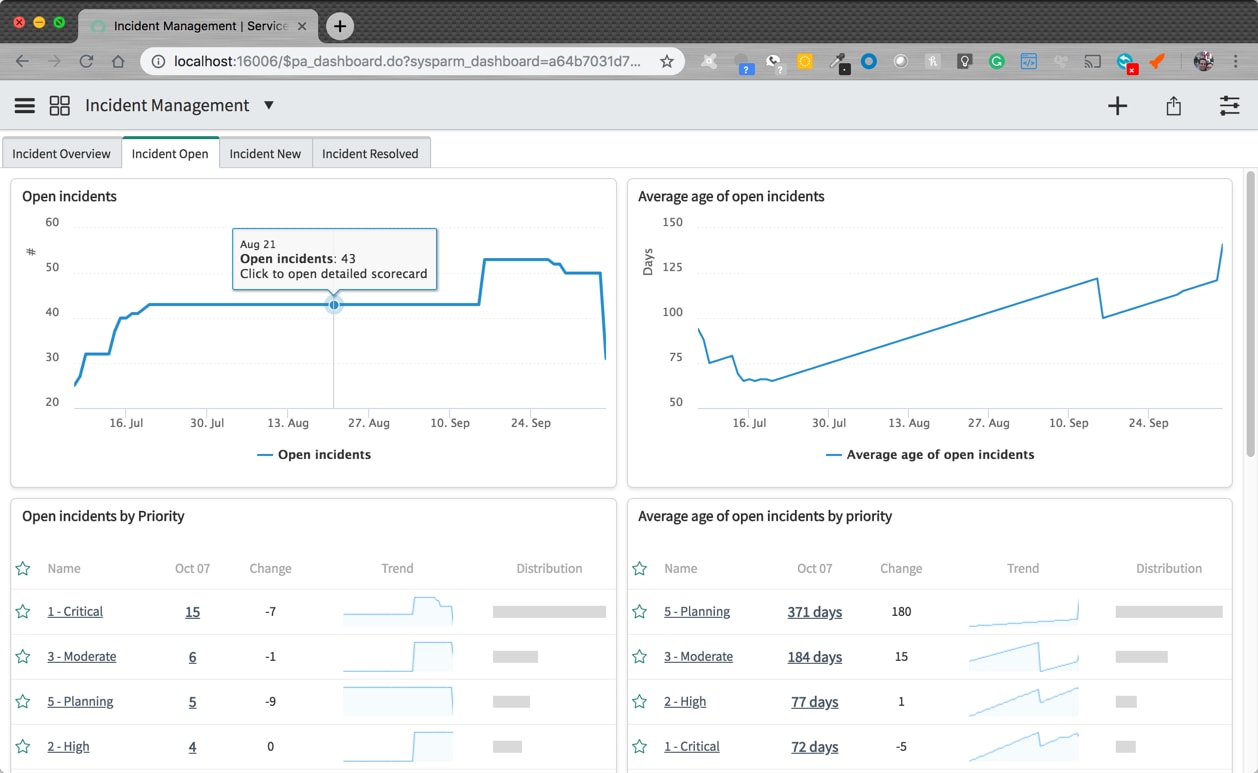
The first task is to open the dashboard without the frame.  To do this, simply edit the URL to remove the nav_to.do. 

Original URL: 

http://myinstance.service-now.com/nav_to.do?uri=%2F$pa_dashboard.do 

Modified URL: 

http://myinstance.service-now.com/$pa_dashboard.do   

This will remove the frame around the dashboard which will look something like this: 

 find_real_file.png

The URL above the load the last dashboard viewed by the user.  To get the URL of a specific dashboard, select copy the URL view the dashboard menu: 

 find_real_file.png

This will give us the full URL like this: 

http://myinstance.service-now.com/$pa_dashboard.do?sysparm_dashboard=a64b7031d7201100b96d45a3ce610335&sysparm_tab=f8bbb031d7201100b96d45a3ce610363&sysparm_cancelable=true&sysparm_editable=false&sysparm_active_panel=false  

Two import items in this URL include the sysparm_dashboard parameter which identifies which dashboard to display and sysparm_tab which identifies which tab to display initially. 

Alternatively, instead of rotating through multiple tabs, separating these tabs into multiple dashboards (only shared to the system user we created for this dashboard).  This will recapture the screen space taken up by the tabs.  

find_real_file.png

Auto-Refreshing 

To handle rotating through the tabs and auto-refreshing the dashboard, use an auto-refreshing extension for your browser such as Revolver for Chrome. 

Note:  There are many similar extensions for different browsers.  ServiceNow does not recommend any specific browser extension. 

When selecting the URL to display, ensure that you enter the correct dashboard and tab.   If you want to rotate through multiple tabs, you will have multiple URLs which are identical except for the sysparm_tab parameter. 

Set Browser to Full Screen 

To use as much screen space as possible, be sure to full screen maximize the amount of screen space available. 

Conclusion 

Prominently displaying your real-time KPIs is a great way to keep your team motivated and show off your successes.  

21 Comments
Renzo Mammetti
Giga Explorer

Hi gav1n,
The solution is very interesting but, when I apply it, the counter seems to freeze for a second before the various widgets are updated and none changed values. The widget are report like list or donut
What can it depend on?

Thanks

Renzo Mammetti
Giga Explorer

Hi gav1n,
The solution is very interesting but, when I apply it, the counter seems to freeze for a second before the various widgets are updated and none changed values. The widget are report like list or donut
What can it depend on?

Thanks

Nic Omaha
Tera Guru

Wonderful solution! For some reason the refresh only works if I have the add widget side panel showing. If its not the timer freezes and nothing happens. Any ideas?find_real_file.png

Not applicable

I love this article , you know people comes here and like the provided script in comment 🙂

@Nic Omaha : Please be care full before using script because i tried & i came across refreshing each and every tab countinuously , you must test and amend script which suits your instance.

Now coming to your answer,  just change "document.getElementsByClassName("sn-canvas-main ng-scope edit-mode show-panel")" class name to be available on your dashboard so would not be require to select every time edit option to get refreshed.

Hope this will help you.

 
mehershanti
Tera Contributor
I had a pretty rudimentary version of the above code,.. no buttons and all, had put it in a content block hidden among the whitespace of the dashboard. ]]>
Peter Caldwell
Tera Contributor

Re: Auto refresh dashboard using dynamic content view 
hey @Community Alums Wondering if you could expand on your comment about changing the script, Im not good at scripting but can following the bouncing ball, you mentioned that:

"Just change "document.getElementsByClassName("sn-canvas-main ng-scope edit-mode show-panel")" class name to be available on your dashboard so would not be require to select every time edit option to get refreshed."


Do i just comment it out or i have to change it? do i change the Show-panel to be hide-panel or something?


@Nic Omaha Did you ever find out the solution to stopping it only refreshing when the edit panel is showing?


The refresh all tabs will be annoying but will just have to make a duplicate dashboard for only just the TV account.


g1nx
Giga Explorer

Hi Peter,


I updated and modified an older script I found which works well now and enables you to customise the dashboard experience. 


Its easy to use.


Go into the first tab

Go to "Add Widget" (click plus on top right bar)

Choose widget category "Content Block"

Choose "*New Dynamic Content"

Click "Add"

Now it adds the pane, you click on "Click here to configure..."

Now enter the details as below.


Script: Dynamic Content

Category: General

Name: *Auto refresh

Dynamic Content: (copy below script)


<?xml version="1.0" encoding="utf-8" ?>
<j:jelly trim="false" xmlns:j="jelly:core" xmlns:g="glide" xmlns:j2="null" xmlns:g2="null">
	<style>.counter{display:block;margin:2px 0px;color:#969696}.sel_active{float:right;margin:5px}.refresh-select{width:auto;display:inline}</style>
	<script>
		var r_sec = 0;
		var t_now = null;
		var t_next = null;
		var t_last = null;
		var myInterval = null;
		
		//auto read seconds on selector change
		function readTime() {
			console.log('function readTime');
			r_sec = gel('sel_time').value;			
			localStorage['saved_time'] = r_sec;
			clearInterval(myInterval);
			reloadDashboard();
		}
		
		// refresh using actual page script
		function refreshPage() {
		var scope = angular.element(document.getElementsByClassName("sn-canvas-main ng-scope")).scope();
		scope.refreshAllPanes();	
		}
		
		function nextTab() {	
		var scope = angular.element(document.getElementsByClassName("sn-canvas-main ng-scope")).scope();
		// total tabe scope.tabs.length;
		var tabs=scope.tabs;
		var nexttab=0;
		// Active tab
		for (var i=0; i &lt; tabs.length; i++) {
		if (tabs[i].isActive) {break;}							 
		 }
		nexttab=i+1;		
		if (i>=tabs.length-1) nexttab=0;
		var tab=tabs[nexttab];
		
		console.log('Next tab: ' + nexttab);
		
		scope.setActiveTab(tab);
			if (nexttab!=0) { // re-run on other tabs as widget is not present.
		
				console.log('Clear interval');
				if (!myInterval) console.log('No myInterval');
		
				clearInterval(myInterval);
				reloadDashboard(60); // only show other pages for 60 seconds
			} else {
				clearInterval(myInterval); // do not reload dashboard as new widget will fire				
			}
		}
		
		//auto read active (true/false) on selector change
		function readActive() {
			console.log('function readActive');
			r_active = gel('sel_active').value;
			localStorage['saved_active'] = r_active;
			clearInterval(myInterval);
			reloadDashboard();
		}
		
		function readTabChange() {
			console.log('function readTabChange');
			r_tabs = gel('tab_active').value;
			localStorage['saved_tabs'] = r_tabs;
		}
		
		//refresh now on button click
		function refreshNow() {
			refreshPage();
			clearInterval(myInterval); //always clear interval after refresh			
		}
		
		//run interval every 1 second
		function runInterval(){
		
		console.log('runInterval');
	
			if(t_now &lt; t_next) {
		
				console.log('Now: '+t_now.getSeconds()+', Next: '+t_next.getSeconds());
		
				// the definition of "('0' + t_X).slice(-2)" is there to print the leading zeros in front
				$j('#refresh .counter').text('Now: '+t_now.getHours()+':'+ ('0'+t_now.getMinutes()).slice(-2) +':'+ ('0'+t_now.getSeconds()).slice(-2) +' Next: '+t_next.getHours()+':'+('0'+ t_next.getMinutes()).slice(-2) +':'+ ('0'+t_next.getSeconds()).slice(-2) +' Last: '+t_last.getHours()+':'+ ('0'+t_last.getMinutes()).slice(-2) +':'+ ('0'+t_last.getSeconds()).slice(-2));
					
				t_now.setSeconds(t_now.getSeconds() + 1);
			} else {
				console.log('refresh all widgets');
		
				//we refresh all widgets
				if(r_tabs == 'true') {
					console.log('next tab');
					nextTab();					
				} else {
					console.log('refresh page');
					refreshPage();					
					clearInterval(myInterval); //always clear interval after refresh
				}				
				
				console.log('we refresh dashboard...');
			}
		}
		
		function reloadDashboard(seconds = 0) {			
			console.log('function reloadDashboard');
			//read time in seconds		
		
			console.log('function reloadDashboard - sel_time');
		
			if (gel('sel_time')) {
				r_sec = localStorage['saved_time'] || gel('sel_time').value; //read saved option from cache after refresh or from the selector
			} else
				r_sec = localStorage['saved_time']
		
			$j('#sel_time').val(r_sec); //we set it to the selector
		
		console.log('function reloadDashboard - tab_active');
			//read tab change
			if (gel('tab_active')) {
				r_tabs = localStorage['saved_tabs'] || gel('tab_active').value;;
			} else
				r_tabs = localStorage['saved_tabs']
		
			$j('#tab_active').val(r_tabs); //we set it to the selector
		
		console.log('function reloadDashboard - sel_active');
		
			//read active, true or false		
			try {
				if (gel('sel_active')) {
				r_active = localStorage['saved_active'] || gel('sel_active').value; //read saved option from cache after refresh or from the selector
			} else
				r_active = localStorage['saved_active']
		
				$j('#sel_active').val(r_active); //we set it to the selector
			} catch (err) {
				$j('#sel_active').val('true');
			}
		
		if (!r_active) r_active='true';
		
		console.log('function reloadDashboard r_active is ' + r_active);
		
			if(r_active == 'true') {
		
				console.log('function reloadDashboard r_active TRUE ');
				console.log('function reloadDashboard seconds ' + seconds);
				console.log('function reloadDashboard r_sec ' + r_sec);
		
				t_now = new Date(Date.now());
				t_next = new Date(t_now.getTime());
				if (seconds>0) {
				t_next.setSeconds(t_next.getSeconds() + parseInt(seconds)); //we sum read seconds to calculate next refresh
				} else
				t_next.setSeconds(t_next.getSeconds() + parseInt(r_sec)); //we sum read seconds to calculate next refresh

				t_last = new Date(t_now.getTime()); //save last run, as t_now is displayed on real time. eg. t_now=t_now+1
				if (sessionStorage['running']) clearInterval(sessionStorage['running']);
				myInterval = setInterval(runInterval, 1000); //run every 1 sec.				
				sessionStorage['running']=myInterval; // prevents multiple intervals running
			} else {
				$j('#refresh .counter').text('Stopped. Set it to active to start.');
			}
		}

		$j('#sel_time').val('300'); //default option is 60 seconds
		reloadDashboard();					

		//if window tab is active (for optimal performance)
		$j(window).focus(function() {
		if(r_tabs == 'false') {
			clearInterval(myInterval);
			reloadDashboard();
		}
		});					
		
		if(r_tabs == 'true') {
			clearInterval(myInterval);
			reloadDashboard();
		}
		
		//if window tab is inactive (for optimal performance)
		$j(window).blur(function() {			
			if(r_tabs == 'false') {
			//clearInterval(myInterval);
			//$j('#refresh .counter').text('Stopped. Tab was inactive.');
		}
		}
		
		);
	</script>
	<div id='refresh' class='panel-body'>
			<span class='counter'></span>

		Refresh:
		<select id='sel_time' class='form-control refresh-select' onchange='readTime()'>
			<option value='120'>2 min.</option>
			<option value='300' selected="selected">5 min.</option>
			<option value='900'>15 min.</option>
			<option value='1800'>30 min.</option>
			<option value='2700'>45 min.</option>
		</select>
		<button type='button' class='btn btn-default' onclick='refreshNow()'>Refresh now</button>
		<span class='sel_active'>
			Active:
			<select id='sel_active' class='form-control refresh-select' onchange='readActive()'>
				<option value='true'>true</option>
				<option value='false'>false</option>
			</select>
			Cycle Tabs:
			<select id='tab_active' class='form-control refresh-select' onchange='readTabChange()'>
				<option value='false'>false</option>
				<option value='true'>true</option>				
			</select>
		</span>
	</div>
</j:jelly>


Peter Caldwell
Tera Contributor

Thanks @g1nx 
Will give it a shot,

Cheers
Pete

ayanshnamde
Tera Contributor

Hello Everyone,I tried with that code but {incident open today} is not working properly. When I create a new incident record {incident open today} still showing same data until I do not click on refresh now.

Is there anyone who is facing this issue?

Shawn D
Tera Expert

How do you handle session timeouts? Client has security requirements for users to have idle sessions logged out every 15 minutes. It would be a pain to have to login every 15 minutes. I know this post is several years old but it seems related.