We're reclaiming inactive PDIs to keep them available for active builders. Learn what's changing, who's affected, and how to protect your work. Read More

heidi_schnakenb
ServiceNow Employee

If you've ever tried to copy and paste an image or screenshot into your incident form, article, or other ServiceNow record, you may have found that it doesn't always work as expected, depending on your browser capabilities, device type, form view, and other factors. The best way to get an image into your forms is to insert the image or attach it. There have been quite a few community conversations around copying and pasting images, but until we can guarantee the same pasted results in terms of formatting and size across all devices, UI types, and browser versions, and all html form fields, the ability to copy and paste images is not a supported function.

The best way to ensure quality and insertion of an image is to use the insert image or the attachment function.

To insert an image into a Knowledge Base article:

1. Within the KB article, click the space where you want the image to appear.

2. On the toolbar, click the Insert/edit image icon.

Screen Shot 2015-02-02 at 10.55.18 AM.png

3. In Type, select Attachment.

4. In Image, click New Attachment Image or Choose File (either option will open your files).

5. Navigate to the desired image and select the image.

6. Click Open.

7. Click Attach.

8. Click OK.

If you need to adjust the size of the image, click the image to bring up the sizing handles and adjust as needed.

Screen Shot 2015-02-02 at 10.55.47 AM.png

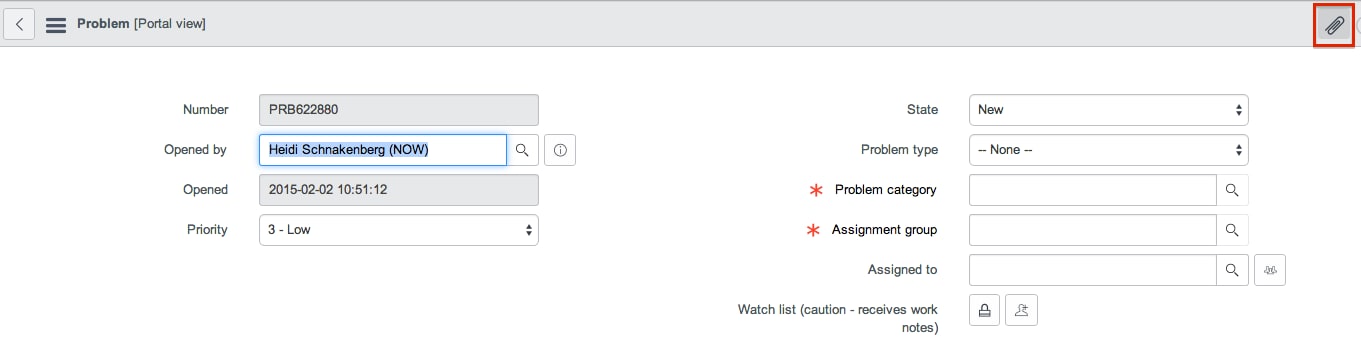
Insert an image within an Incident, Change, or Problem form:

Use the attachment option to add an image or screenshot.

1.       Navigate to the Incident, Change, or Problem form.

2.       Click the Manage Attachments paper clip in the top right corner of the form.

Screen Shot 2015-02-02 at 10.57.05 AM.png

3.       Click the Choose Files button to bring up your files.

Screen Shot 2015-02-02 at 10.57.17 AM.png

4.       Select the desired image or screenshot file and click Open.

5.       Click Attach in the Attachments dialog box. The file is then attached to the form.

6.       Click Close to close the dialog box.

For additional information on inserting images and attaching files, please see the following articles:

Copy and paste from Word does not insert images into KB

Using HTML Fields

Uploading Attachments

Adding Media to HTML Fields

We will keep you posted on future efforts to streamline copy/paste capabilities across all possible interfaces and forms.

17 Comments
Slava Savitsky
Giga Sage

Does it mean that for HTML fields inserting an image as an attachment is preferable to using the image library? Thanks.


marcelorsc
Kilo Expert

Thanks for your post.   I'm assuming your instance has TinyMCE version 4 installed correct?   Will the procedures described above work with TinyMCE version 3?


bianca_vaccarin
ServiceNow Employee

Also check out the Kb article regarding best practices for inserting images


heidi_schnakenb
ServiceNow Employee

Hi Slava, thank you for your feedback. We do prefer to use an attachment rather than the image library when working in HI, mainly because we often have new images that aren't in the library to begin with. But both options should work. Thanks, Heidi


heidi_schnakenb
ServiceNow Employee

Hi Marcelo, thanks for your feedback. It should work the same in TinyMCE version 3, as long as the insert image option is available (which I believe it is). Let us know if you have any different or unexpected results. Thanks, Heidi


HugoFirst
Kilo Sage

FYI: Filename extensions for images should be lower case.


Our story: We ran into an issue inserting images just yesterday (April 6, 2015).   My user/author used the "attach image" dialog to upload an image and then inserted it into a document.   No matter what she did, the image appeared as a   "Red X" (the error icon).  


After more analysis than I care to admit, I looked at the image record ( go to "System UI" -> Images for the list ).   I compared the record with other images that worked. I noticed that the filename extension was .JPG.


Other images which worked, had filenames that ended in lower case extensions.


So I changed the filename of the problem image to end in ".jpg" and all of the sudden we could insert the image in a document and have it appear.


Hopefully, this story will save some other person from spending "more time than they care to admit" to analyze a problem with images.


If it makes a difference, we're on Eureka Patch 2.


dline
Giga Contributor

All,


I have been asked by a group here at our Company to make our image fields within some of our extended tables ( I'll use location as an example ) We have many different locations across the state and each one have some pretty goofy entrances for our network engineers. they generally have 1-6 images that they want to be able to have available in the location record.


Their ask is to somehow make the field that will contain the image all drag and drop fields.. Please hold the compliments on my fine red arrow drawings...


See this screen shot:


DragnDropImagestoField.jpg


HugoFirst
Kilo Sage

With all the field types, you'd think there would be an image type.   But I haven't seen it.   So here's a plan B.


You can add an HTML field where they can add images if they like.   I did a similar thing for our incident record because operations wanted to add images to the description.   There are a couple of issues to keep in mind though.   I'm pasting links to my questions with answers from that change.


How can I restrict a user's ability to insert images into the db_images table?


How can I remove the "Image Library" option from the widget used to upload lmages to HTML fields?


Good luck!


dline
Giga Contributor

Steve,


SN does have fields of type image, we have been using them pretty successfully, probably too successfully, given my ask, they are talking about placing 3 images of the front of the racks, and 3 images of the back of the racks for documentation sake... and are asking for a drag and drop feature so they can do it faster...


See:


image fields.jpg


jean-lucchatton
Mega Guru

Hello,


Perhaps someone will find usefull what I've published on share


I've create an update set on share for this issue. With it you can attach image to incident from the clipboard. It work with the incident form and from record producer. Currently only IE11, Edge and Chrome are supported


Reference in Share:


- Link = https://share.servicenow.com/app.do#/detailV2/9970873413f8a2001d2abbf18144b0ea/overview


- Subject = Attach screenshots to incident from clipboard


Regards


Jean-Luc