heidi_schnakenb

ServiceNow Employee
Options
- Subscribe to RSS Feed
- Mark as New
- Mark as Read
- Bookmark
- Subscribe
- Printer Friendly Page
- Report Inappropriate Content
02-02-2015
11:34 AM
If you've ever tried to copy and paste an image or screenshot into your incident form, article, or other ServiceNow record, you may have found that it doesn't always work as expected, depending on your browser capabilities, device type, form view, and other factors. The best way to get an image into your forms is to insert the image or attach it. There have been quite a few community conversations around copying and pasting images, but until we can guarantee the same pasted results in terms of formatting and size across all devices, UI types, and browser versions, and all html form fields, the ability to copy and paste images is not a supported function.
The best way to ensure quality and insertion of an image is to use the insert image or the attachment function.
To insert an image into a Knowledge Base article:
1. Within the KB article, click the space where you want the image to appear.
2. On the toolbar, click the Insert/edit image icon.
3. In Type, select Attachment.
4. In Image, click New Attachment Image or Choose File (either option will open your files).
5. Navigate to the desired image and select the image.
6. Click Open.
7. Click Attach.
8. Click OK.
If you need to adjust the size of the image, click the image to bring up the sizing handles and adjust as needed.
Insert an image within an Incident, Change, or Problem form:
Use the attachment option to add an image or screenshot.
1. Navigate to the Incident, Change, or Problem form.
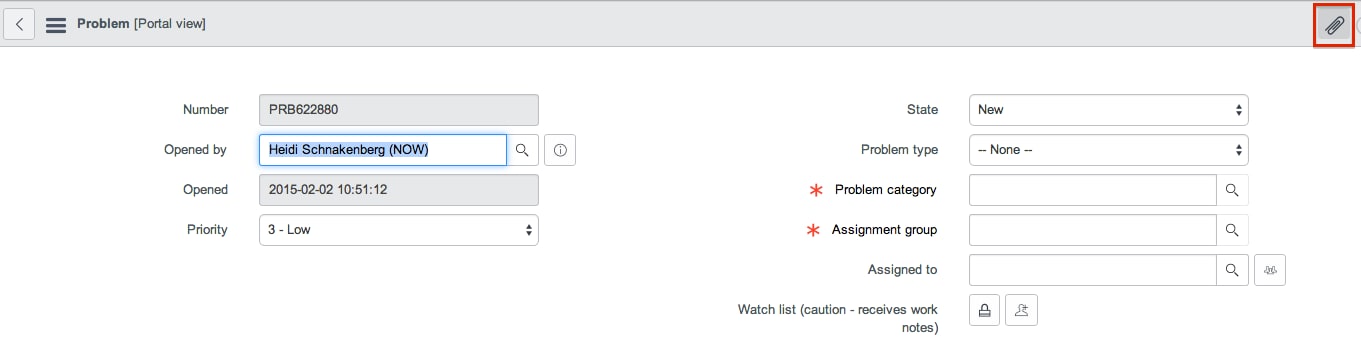
2. Click the Manage Attachments paper clip in the top right corner of the form.
3. Click the Choose Files button to bring up your files.
4. Select the desired image or screenshot file and click Open.
5. Click Attach in the Attachments dialog box. The file is then attached to the form.
6. Click Close to close the dialog box.
For additional information on inserting images and attaching files, please see the following articles:
Copy and paste from Word does not insert images into KB
We will keep you posted on future efforts to streamline copy/paste capabilities across all possible interfaces and forms.
17 Comments
- « Previous
-
- 1
- 2
- Next »
You must be a registered user to add a comment. If you've already registered, sign in. Otherwise, register and sign in.