Sush3

ServiceNow Employee
Options
- Subscribe to RSS Feed
- Mark as New
- Mark as Read
- Bookmark
- Subscribe
- Printer Friendly Page
- Report Inappropriate Content
09-21-2018
02:49 PM
Today I will go over the new Search Facets feature added in London for Service Portal.
Now SP admin can create facets to filter their search results.
Let's create a simple Search Source and add facets.
Create a new Search Source with below information.
Name: Incidents
ID: incidents
Don't change the Search page template
Fill out the Data source portion like below and save the record.
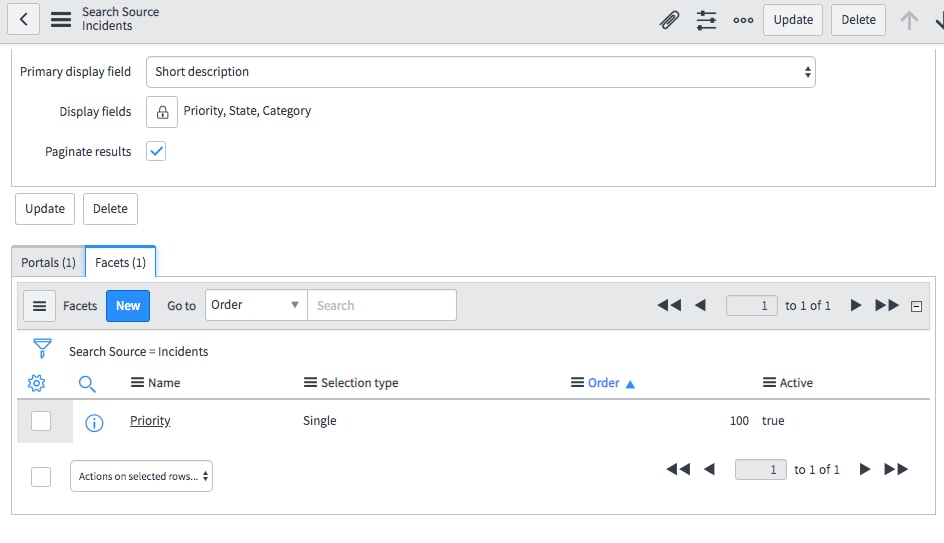
After you save the search source you must see Portals and Facets tab.
We will create a new Facet to filter incidents based on Priority. Go ahead create the facet record with below information and save it.
As you can see below the Selection type determines whether you can pick Single or Multiple filter choices.
We will talk about Mapped Filters later
Once you are done creating the Facet, make sure to add this new Search Source to your Portal. In the below screenshot, I have added this to OOTB SP portal.
Now if you search for something on the homepage and hit enter, you should be directed to the new search page
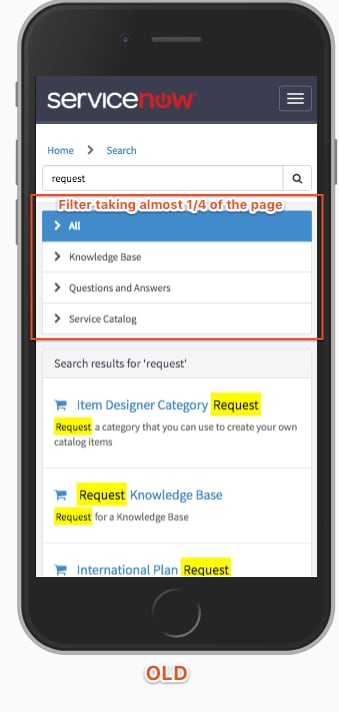
Our Facet Incidents is displayed on the page. You can use that to filter the results.
Now if you want to only see Critical Incidents, click on it, results are filtered and the selected Filter appears a pill on top, you can clear the filter by just clicking on x
Let's take a look at Mapped Facet Filters.
- Not tied to a single field in the table
- You can create filters with and/or queries of multiple fields
Now we will create a mapped filter. For the Incident Search source, we created earlier, click on New to create another Facet.
Call it Created, we will use it to filter incidents based on the created time. Choose Selection Type as Multiple and make the Use mapped facet filter as true and save the record.
As soon as you save it, you should see Facet Filter related record list appear below.
Click New to create one. Fill out the form like below and Submit it.
Similar to above, create another Mapped Facet Filter call This Month, to filter active incidents created this month.
Now if you refresh your search results page, you should see our new Mapped Filters This Year and This Month appear as filters. Since we choose Created facet to be Selection type as Multiple, you can choose more than one filters here.
Note: Search Facets can also be scripted, I will cover it in another blog post.
Well, I hope this has given some insights into new Service Portal Search Facets coming out in London.
Labels:
- 6,481 Views
3 Comments
You must be a registered user to add a comment. If you've already registered, sign in. Otherwise, register and sign in.