- Mark as New
- Bookmark
- Subscribe
- Mute
- Subscribe to RSS Feed
- Permalink
- Report Inappropriate Content
12-05-2025 12:32 AM
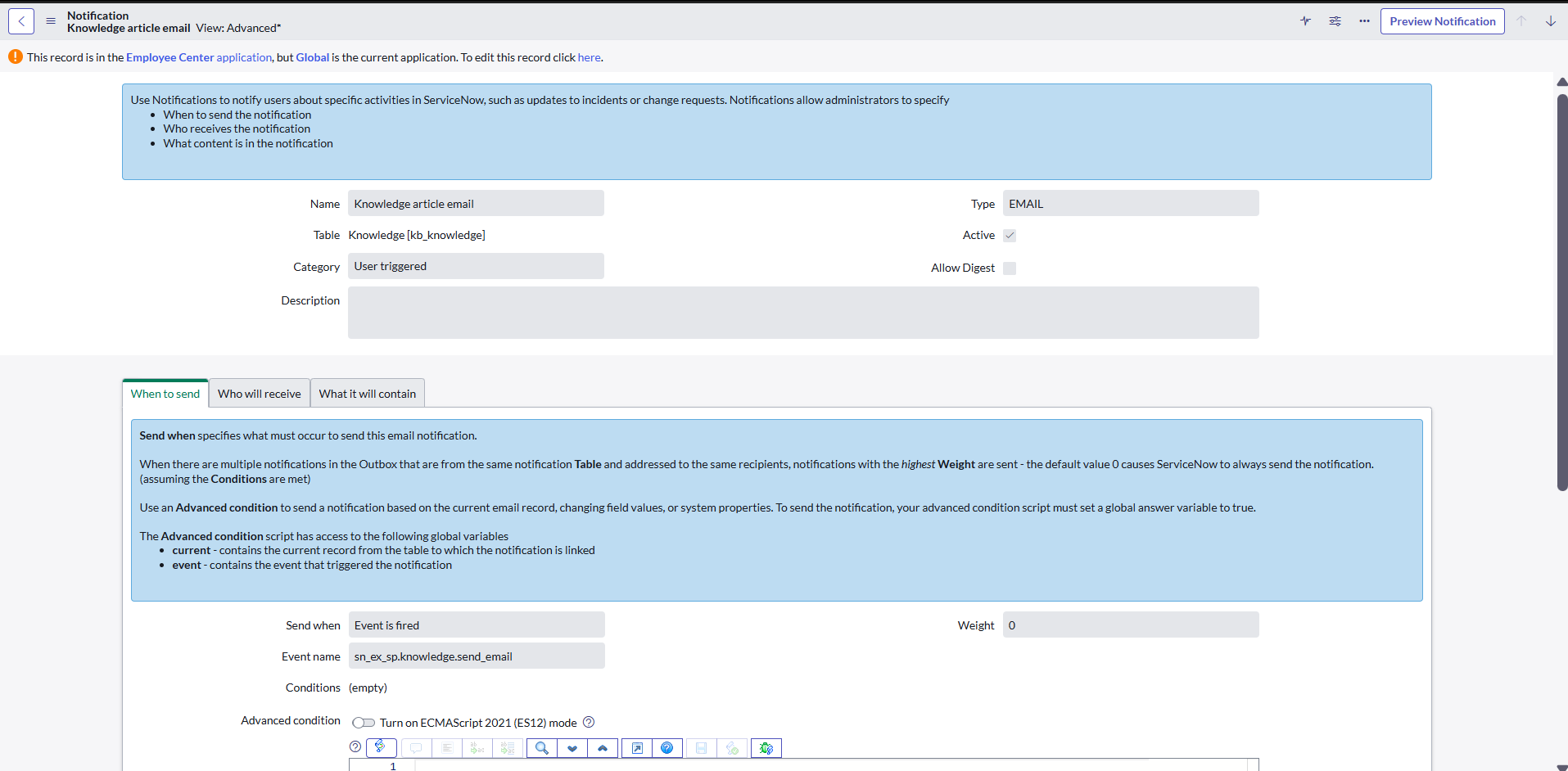
There is an OOTB notification for Knowledge management.
It fires when event "sn_ex_sp.knowledge.send_email" is triggered. But i cant seem to find the UI action send email which is mentioned in this event.

Solved! Go to Solution.
- Mark as New
- Bookmark
- Subscribe
- Mute
- Subscribe to RSS Feed
- Permalink
- Report Inappropriate Content
12-05-2025 01:35 PM
Greetings @ashutoshd07. This was a fun one to research to find your answer. I noticed that the Event Registry is written in the "sn_ex_sp" Application Scope which is the Employee Center scope. I then guesstimated that it was being called somewhere within the Employee Center which is a ServiceNow Service Portal product. There is a really great course on ServiceNow University that teaches you about Service Portal if you are ever interested. ServiceNow Service Portals are made up on various components with one of them being Service Portal Widgets. These Widget records contain Server-side script which can take advantage of the gs.eventQueue API and method to trigger the Event which you shared above.
The Event that you shared above is being called within the Service Portal Widget "Send to self actions". To get to this record, go to All > Service Portal > Widgets.

Once you get to the Widgets table, you can search the Server script field for your Event name. If you don't see the Server script field in your list of columns, you can always click "Update Personalized List" (Gear icon) to add the Server script column. You could also use the "Show / Hide Filter" button (Filter icon) to search for the event this way. I'll include a screenshot below.

Once you open the Widget record, scroll down to the Server script field and, for me, the Event name shows up on line 65.
 if (options.enable_send_email && data.sendChannel) {
            if (data.userEmail) {
                var subject = gs.getMessage("Article: {0}", data.kbGr.short_description.trim());
                data.emailData = {
                    eventName: "sn_ex_sp.knowledge.send_email",
                    subject: subject,
                    modelMessage: gs.getMessage('This will send the article "{0}" as an email to your email address {1}', [data.kbGr.short_description.trim(), data.userEmail])
                };
I hope this information is helpful!
- Mark as New
- Bookmark
- Subscribe
- Mute
- Subscribe to RSS Feed
- Permalink
- Report Inappropriate Content
12-05-2025 01:35 PM
Greetings @ashutoshd07. This was a fun one to research to find your answer. I noticed that the Event Registry is written in the "sn_ex_sp" Application Scope which is the Employee Center scope. I then guesstimated that it was being called somewhere within the Employee Center which is a ServiceNow Service Portal product. There is a really great course on ServiceNow University that teaches you about Service Portal if you are ever interested. ServiceNow Service Portals are made up on various components with one of them being Service Portal Widgets. These Widget records contain Server-side script which can take advantage of the gs.eventQueue API and method to trigger the Event which you shared above.
The Event that you shared above is being called within the Service Portal Widget "Send to self actions". To get to this record, go to All > Service Portal > Widgets.
Once you get to the Widgets table, you can search the Server script field for your Event name. If you don't see the Server script field in your list of columns, you can always click "Update Personalized List" (Gear icon) to add the Server script column. You could also use the "Show / Hide Filter" button (Filter icon) to search for the event this way. I'll include a screenshot below.
Once you open the Widget record, scroll down to the Server script field and, for me, the Event name shows up on line 65.
 if (options.enable_send_email && data.sendChannel) {
            if (data.userEmail) {
                var subject = gs.getMessage("Article: {0}", data.kbGr.short_description.trim());
                data.emailData = {
                    eventName: "sn_ex_sp.knowledge.send_email",
                    subject: subject,
                    modelMessage: gs.getMessage('This will send the article "{0}" as an email to your email address {1}', [data.kbGr.short_description.trim(), data.userEmail])
                };
I hope this information is helpful!