ServiceNow エージェント アプリを使用して、インベントリ資産をスキャンし、単一スキャン監査レコードを確認します。
始める前に
必要なロール:sn_eam.enterprise_admin、sn_eam.enterprise_asset_manager、sn_eam.asset_technician、sn_itam_common.asset_audit_user、または sn_itam_common.asset_audit_admin
手順
-
モバイルデバイスから、 ServiceNow エージェント アプリケーションを起動します。
-
画面下部のナビゲーションバーで、[ エンタープライズ資産 ] タブをタップします。
-
倉庫または場所の監査レコードを選択します。
-
[ 監査を開始] をタップします。
注: このボタンは、場所の監査に対してのみ表示されます。
-
[ スキャン] を選択します。
[資産スキャン] ページが表示されます。
-
[ 資産タグ/シリアル番号/モデルバーコード ] フィールドで、資産の資産タグ、シリアル番号、またはモデルバーコードを入力またはスキャンします。
-
[次へ] をタップします。
- オプション:
通路とスペースを選択します。
-
[送信] を選択します。
[資産とモデルのリスト (List of assets and models)] 画面が表示され、スキャンされた資産レコードが表示されます。
注: スキャンされた資産レコードが
ServiceNow インスタンスに存在しない場合、[資産とモデルのリスト] 画面は空です。インベントリ内の新しい資産の資産レコードを作成できます。詳細については、「
インベントリ監査画面からのエンタープライズ資産の作成」を参照してください。
-
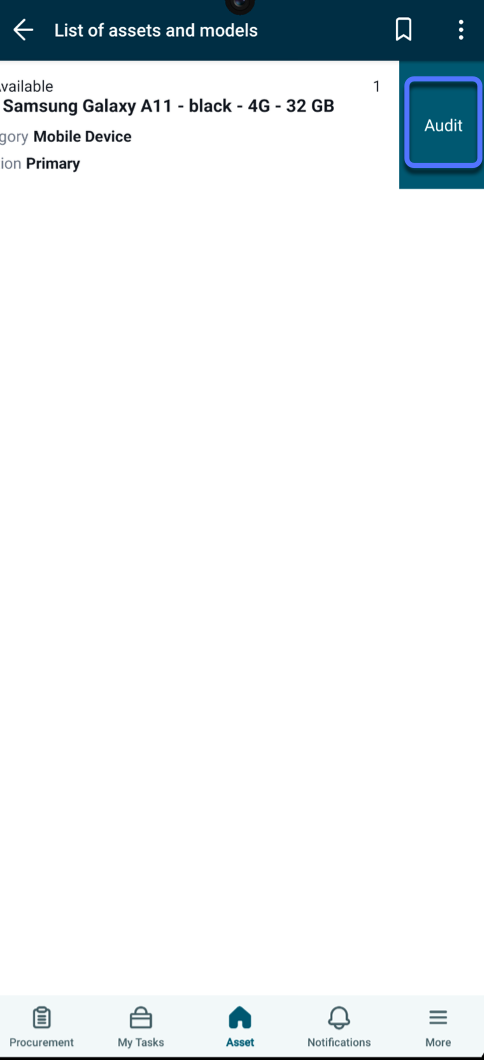
[資産とモデルのリスト] 画面で、スキャンされた資産レコードを左側にスライドします。
[監査] オプションが画面に表示されます。
-
[ 監査] をタップします。
[ 詳細 ] タブ画面が表示されます。監査結果フィールドの値は、ストックルーム資産をスキャンすると自動的に更新されます。
-
資産のスキャンが終了したら、監査を完了としてマークします。
-
ナビゲーションバーの 3 つのドットアイコンをタップします。
-
[ 完了] をタップします。
監査ページに確認メッセージが表示されます。
注: 監査の進行中は、必要な回数だけ新しいスキャンを開始できます。監査を [完了] とマークすると、それ以上資産をスキャンすることはできません。
タスクの結果
監査結果フィールドの値が [ 詳細 ] タブ画面で更新されます。フィールドの詳細については、「 監査結果」を参照してください。
次のタスク
- インベントリ監査結果を確認します。
- 監査結果フィールドの値をタップすると、資産の詳細なリストが表示されます。