Uncle Rob
Kilo Patron
Options
- Subscribe to RSS Feed
- Mark as New
- Mark as Read
- Bookmark
- Subscribe
- Printer Friendly Page
- Report Inappropriate Content
09-04-2015
01:09 PM
ACL's have the perception of being hard because they aren't easy to see in action, and have several layers of interactivity. This blog won't make you a master, but it should ramp up your troubleshooting competency in a hurry. Before reading you should...
Understand how to impersonate users
Understand ACL basics
So you're minding your own business, impersonating a user for a new feature you're building when...
or...
STEP 1 - TWO BROWSERS / TWO MODES
I usually have two Chrome browsers open, with one in Incognito mode, but you could easily do one FireFox / one Chrome. The idea here is to allow two different sessions so one browser can simulate the problem, and the other can be used as admin. We'll call these Debug Browser and Admin Browser respectively.
First, as an admin on the Debug Browser, turn on Debug Security. You'll know its on when it gives you the following message
Then impersonate the user experiencing security issues on the Debug Browser
STEP 2 - EXPERIENCE THE ISSUE
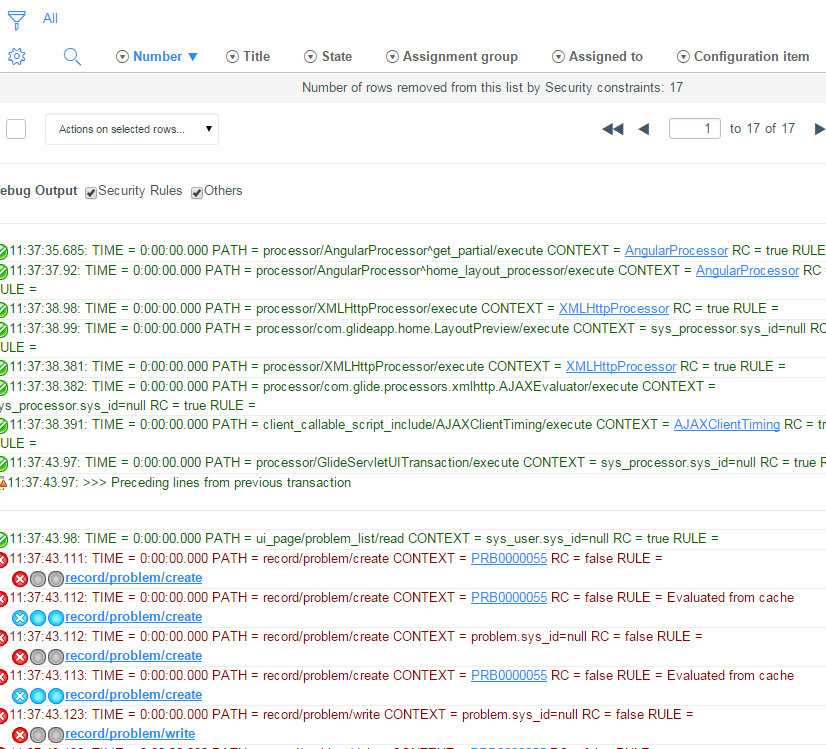
Get to the same spot you were previously experiencing issues. You should now see a TON of new information at the bottom of your screen. For this post, as beginners, we're only interested in a small portion of it.
STEP 3 - MOUSE OVER ICONS TO DISCOVER FAILURE POINTS
Lets look at just one of the entries:
This tells us three things immediately
- Which record (context) was evaluating via the hyperlink on the first line
- That it was evaluating a record ACL on the Problem table for the Read operation.
- That there were two possible read ACLs, but both failed.
But we can learn so much more! Hover over the icons beside each of the ACL evaluations and it tells you *how* it failed. Lets hover over the icons on the second ACL that evaluated...
Here we're being told the ACL was expecting the user to have no roles. Our logged in user has no roles, so that part of the ACL was a success!
The next icon tells us that there was a condition on the ACL. Whatever it was, we passed. Success!
But the third icon tells us the ACL had a script condition, which resulted in false, which caused the ACL to fail.
In table ACLs, all we need is one full ACL success to get the rights, but in this case both ACLs failed, which means the whole record evaluation failed.
STEP 4 - INVESTIGATE THE ACLs SPECIFICALLY
Notice anything interesting about the text after the icons that tell us the failure points? They look like hyperlinks... because they are.
Unfortunately they're useless hyperlinks at this point because we're impersonating a user experiencing an ACL issue. That user is likely NOT a security admin. But by Crom, we're going to find out why these two ACLs failed
This is why we need two browsers. First, copy one of the link addresses...
... then paste it into your Admin Browser. Presto... the *exact* ACL that failed.
Having the two browsers open (one in Incognito mode) will allow you to both experience and research the issue simultaneously in real time. Without this method, you could spend hours bouncing back and forth between users and screens.
Hope that was of some value to you. With all the time you're going to save, why not drop a bookmark or a like.
Oh, and remember to disable your security debugging too.
- 21,747 Views
15 Comments
- « Previous
-
- 1
- 2
- Next »
You must be a registered user to add a comment. If you've already registered, sign in. Otherwise, register and sign in.