

drjohnchun
Tera Guru
Options
- Subscribe to RSS Feed
- Mark as New
- Mark as Read
- Bookmark
- Subscribe
- Printer Friendly Page
- Report Inappropriate Content
12-03-2016
03:03 PM
The new Automated Test Framework (ATF) in the Istanbul release is a long-awaited feature that I'm sure many people are excited about. Test automation has been a focus area of mine for some time, especially in highly regulated industries under SOX (financial) and GxP (life sciences) regulations where testing is a critical part of compliance. So I decided to take it for a test drive when it first became available (using glide-istanbul-09-23-2016__patch0-10-05-2016); my understanding may be lacking at this point, so any feedback/clarification/correction would be greatly appreciated. Congratulations to the team that delivered this, whom I had the pleasure of meeting during K16!

ATF and TEST MANAGEMENT
The Test Management application has been available since the Fuji release. It has test cases and suites for tracking manual test activities for ServiceNow or any other applications. First thing I noticed was ATF and Test Management are two separate applications. This means those who've been using Test Management for ServiceNow testing will need to keep track of testing in two separate places. The same applies to those who have a mix of manual and automated tests, which is a common scenario. I wish that ATF was an extension of Test Management, so all tests can be managed in one place; manual tests then can be progressively converted to automated tests without losing continuity and a single dashboard can provide progress for all tests.
ROLES
ATF comes with two predefined roles: atf_test_admin with all permissions and atf_test_designer who can create tests in addition to other things. I think two additional roles might be useful, similar to those predefined in Test Management: atf_test_manager and atf_test_tester. The atf_test_manager role would manage creation and execution of tests whereas the atf_test_tester role can only run tests.
I created two users with each of the predefined roles and here's what they see in the Navigator:
| atf_test_admin | atf_test_designer |
|---|---|
 |  |
TESTS AND SUITES
ATF was already activated in the Istanbul instance but it didn't have any demo data loaded, except one template. So I logged in with admin role and navigated to System Definition > Plugins to open Automated Test Framework and clicked on Related Links > Load Demo Data Only as shown in the screenshot below:
The demo data adds 14 Tests and 14 Suites.
ENABLE TEST EXECUTION
Before executing tests, the feature must be explicitly enabled. Login with the atf_test_admin role and navigate to Automated Test Framework > Administration > Properties. Here you'll find two checkboxes as shown in the screenshot below. Make sure to check at least the first checkbox to be able to execute tests.
TEST EXECUTION
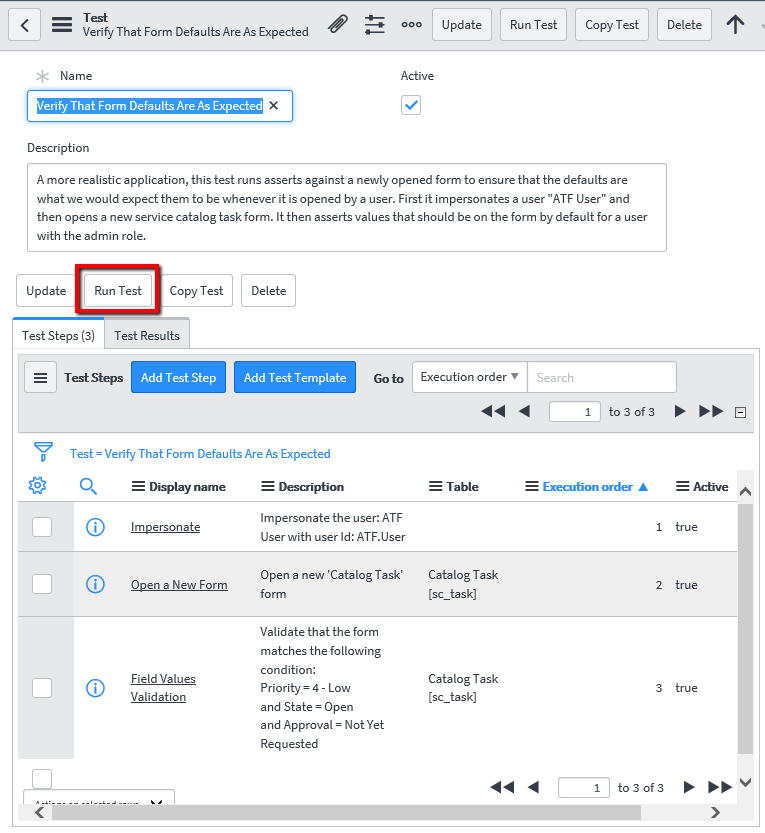
Using Internet Explorer 11, I logged in as a user with the atf_test_designer role and opened one of the simplest demo tests. This read-only test, named "Verify That Form Defaults Are As Expected", has only three steps that check for default values on a Catalog Task form, impersonating "ATF.User"; this user doesn't have either atf_test_admin or atf_test_designer role.
When Run Test was clicked, a dialog box showed up with status as in the screenshot below (I noticed the time displayed here is in PST, the system time zone, although I set the user's time zone to EST):
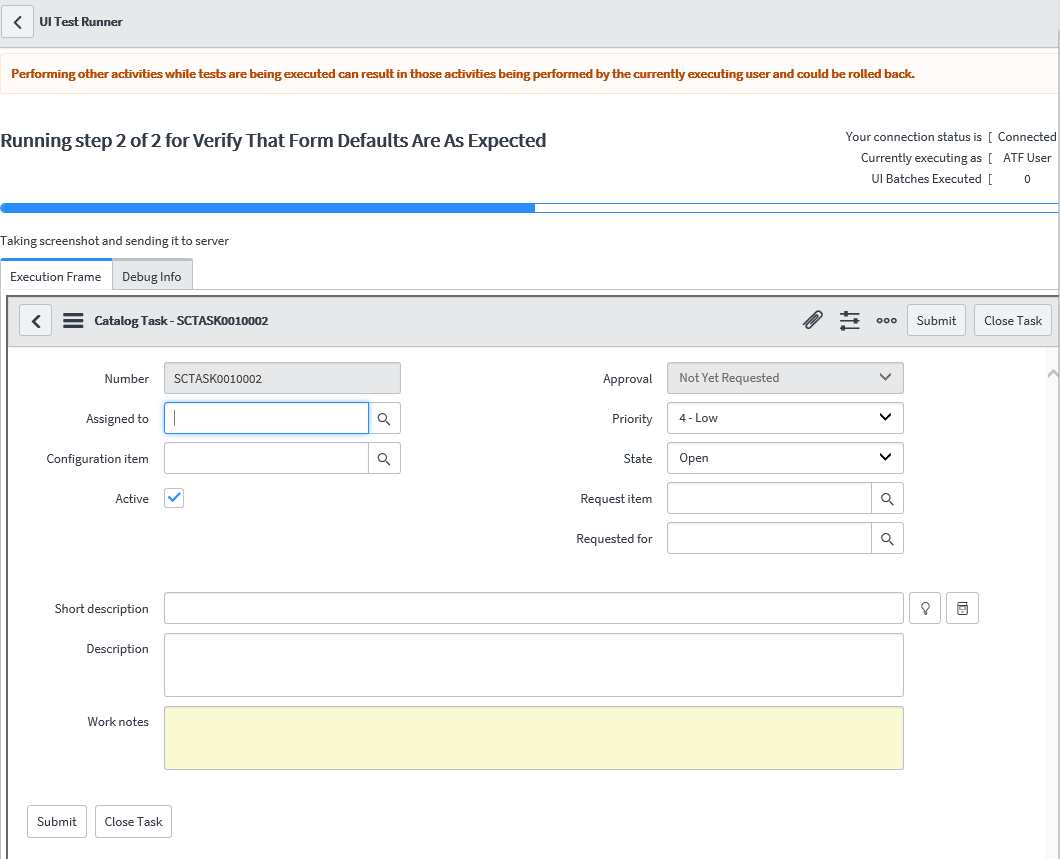
When Click here of "Click here to open a Client Test Runner" was clicked (see the screenshot above), a new Client Test Runner window opened (if it's not opened, the Test won't proceed). At the top of the window, it showed the progress with a blue progress bar for each step. In the Execution Frame tab, the form was displayed inside an iframe (more on this later), as shown in the screenshot below:
When the execution was completed, the status dialog box was updated with the results, as shown in the screenshot below:
TEST RESULTS
When the Close button was clicked, the Test form showed the test result in the Test Results tab as shown below:
When clicked on the test result link, the Test Result page opened up showing the details of the test as shown below:
The test result page showed step-by-step results in the Step Results tab and included two screenshots as attachments. Below is one of the screenshots from the attachments; notice it doesn't quite look the same as what we saw from the Client Test Runner window previously and the top is obscured by the tall gray header section and there are missing buttons and icons in the header, indicating the screenshots were not captured directly from the screen (more on this later):
The Test Log tab contains quite a bit of information; for a three-step test, it produced 43 test log entries as shown below:
When each log entry was clicked, the Test Result Item form showed more details as below:
The simple read-only test ran with flying colors with no major issues.
Next time, let's take a look at some more complex tests.
UPDATES
2016-12-07 added ENABLE TEST EXECUTION section.
Please feel free to connect, follow, post feedback / questions / comments, share, like, bookmark, endorse.
John Chun, PhD PMP 
|  |
Labels:
20 Comments
- « Previous
-
- 1
- 2
- Next »
You must be a registered user to add a comment. If you've already registered, sign in. Otherwise, register and sign in.