- Mark as New
- Bookmark
- Subscribe
- Mute
- Subscribe to RSS Feed
- Permalink
- Report Inappropriate Content
07-13-2018 09:11 PM
HI All,
Am new to ServiceNow.
I have two date fields A, B. The user will select the A, B is a calculated field which set the value 90+ days to the date in field A.

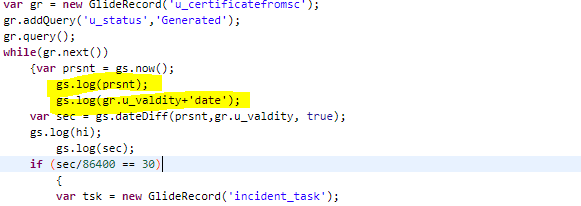
I have a scheduled job which runs daily and checks the difference between present date (using gs.now()) and date B if the difference is 30 days it will perform some action, PFB schedule job.

When checked in log statements could see that
gs.log(prsnt) = 07-14-2018 (MM -DD-YYYY)
gs.log(gr.u_validity) = 2018-10-11 (YYYY - MM - DD)
becouse of this the gs.dateDiff() function is not getting executed as per my undestanding.
Please suggest the possible solution for this.
Thanks in advance.
Solved! Go to Solution.
- Labels:
-
Incident Management

- Mark as New
- Bookmark
- Subscribe
- Mute
- Subscribe to RSS Feed
- Permalink
- Report Inappropriate Content
07-15-2018 10:23 PM
Hi Nikesh,
Please find below details and helpful link.
| calDateDiff(String, String, boolean) | Calculate the difference between two dates using the default calendar. Note: Calendars are now legacy. If Schedules are being used, see Calculate Duration Given a Schedule. |
dateDiff(String, String, boolean)
Calculates the difference between two dates. This method expects the earlier date as the first parameter and the later date as the second parameter; otherwise, the method returns the difference as a negative value. Note: Use getDisplayValue() to convert the strings to the expected format.
3.13.1 Input Fields
Parameters:
- startDate - a starting date to compare, in the current user's date format.
- endDate - an ending date to compare, in the current user's date format.
- boolean bnumericValue - true to return difference in number of seconds as a string, false to return difference in the format ddd hh:mm:ss.
3.13.2 Output Fields
Returns: if boolean bnumericValue is true, the difference in number of seconds; if false, the difference in the format ddd hh:mm:ss.
3.13.3 Example
For more examples, see Setting the Duration Field Value.
// Given two date/times as DateTime objects // Set the values this way to ensure a consistent input time var date1 = new GlideDateTime(); var date2 = new GlideDateTime(); date1.setDisplayValueInternal('2014-01-01 12:00:00'); date2.setDisplayValueInternal('2014-01-01 13:00:00'); // Determine the difference as number of seconds (returns a string) // Use getDisplayValue() to convert the string to the format expected by dateDiff() var diffSeconds = gs.dateDiff(date1.getDisplayValue(), date2.getDisplayValue(), true); // JavaScript will coerce diffSeconds from a string to a number // since diffSeconds is being compared to a number var msg = (diffSeconds <= 0) ? ' is on or after ' : ' is before '; gs.print(date1.getDisplayValue() + msg + date2.getDisplayValue())
GlideSystem Date and Time Functions - ServiceNow Wiki
http://wiki.servicenow.com/index.php?title=Calculate_Duration_Given_a_Schedule
Please Mark Correct Answer if my response helps you.
Warm Regards,
Omkar Mone

www.dxsherpa.com
- Mark as New
- Bookmark
- Subscribe
- Mute
- Subscribe to RSS Feed
- Permalink
- Report Inappropriate Content
07-15-2018 10:23 PM
Hi Nikesh,
Please find below details and helpful link.
| calDateDiff(String, String, boolean) | Calculate the difference between two dates using the default calendar. Note: Calendars are now legacy. If Schedules are being used, see Calculate Duration Given a Schedule. |
dateDiff(String, String, boolean)
Calculates the difference between two dates. This method expects the earlier date as the first parameter and the later date as the second parameter; otherwise, the method returns the difference as a negative value. Note: Use getDisplayValue() to convert the strings to the expected format.
3.13.1 Input Fields
Parameters:
- startDate - a starting date to compare, in the current user's date format.
- endDate - an ending date to compare, in the current user's date format.
- boolean bnumericValue - true to return difference in number of seconds as a string, false to return difference in the format ddd hh:mm:ss.
3.13.2 Output Fields
Returns: if boolean bnumericValue is true, the difference in number of seconds; if false, the difference in the format ddd hh:mm:ss.
3.13.3 Example
For more examples, see Setting the Duration Field Value.
// Given two date/times as DateTime objects // Set the values this way to ensure a consistent input time var date1 = new GlideDateTime(); var date2 = new GlideDateTime(); date1.setDisplayValueInternal('2014-01-01 12:00:00'); date2.setDisplayValueInternal('2014-01-01 13:00:00'); // Determine the difference as number of seconds (returns a string) // Use getDisplayValue() to convert the string to the format expected by dateDiff() var diffSeconds = gs.dateDiff(date1.getDisplayValue(), date2.getDisplayValue(), true); // JavaScript will coerce diffSeconds from a string to a number // since diffSeconds is being compared to a number var msg = (diffSeconds <= 0) ? ' is on or after ' : ' is before '; gs.print(date1.getDisplayValue() + msg + date2.getDisplayValue())
GlideSystem Date and Time Functions - ServiceNow Wiki
http://wiki.servicenow.com/index.php?title=Calculate_Duration_Given_a_Schedule
Please Mark Correct Answer if my response helps you.
Warm Regards,
Omkar Mone
www.dxsherpa.com
- Mark as New
- Bookmark
- Subscribe
- Mute
- Subscribe to RSS Feed
- Permalink
- Report Inappropriate Content
07-15-2018 11:18 PM
Hi Nikesh,
Replace gs.dateDiff as below and try once,
var sec = gs.dateDiff(gr.u_valdity, prsnt ,true);