deepakgarg

ServiceNow Employee
Options
- Subscribe to RSS Feed
- Mark as New
- Mark as Read
- Bookmark
- Subscribe
- Printer Friendly Page
- Report Inappropriate Content
01-02-2022
10:29 PM
The text type questions in a survey provide important information on the user’s opinion about your product. But how can you analyse these responses when you get hundreds of survey results every week? Wondering how you can understand text feedback from users? You can use the Sentiment Analysis plugin under Survey Management to determine if the user’s response to a survey question is positive, neutral, or negative. Currently, only string type questions are supported for sentiment analysis in Surveys.
Use the Sentiment Analysis plugin to analyse string type survey responses using 3rd party sentiment analysis providers, such as MS Azure, Google Cloud, IBM Watson, and so on. To use sentiment analysis for your survey, you must do some configurations.
Set up Sentiment Analysis for Surveys
1. Activate the Sentiment Analysis plugin (com.snc.sentiment_analysis).
2. Configure a Sentiment Connector.
Configure a Sentiment Connector
You can configure a Sentiment Connector.
Before you begin
- Role required: system administrator
- Ensure that you have the Sentiment Analysis plugin installed.
- Navigate to Sentiment Analysis > Sentiment Analysis Configurations. The Sentiment Analysis Configurations module contains the connectors of sentiment analysis.
- In the Credential Alias field, add your connection and credential alias record from the Connection & Credential Aliases table.
You can edit an out of box record among the already available ones, or create a new one as per your choice.
Note: Some out of box connector configurations have already been provided, you can either edit one of them or add any new connector configuration for the ML service of your choice.
For more information on how you can configure connector credentials, see Configure a sentiment connector.
Only ServiceNow customers are responsible to manage the license of any 3rd party sentiment analysis providers used for Survey Sentiment Analysis.
Enable sentiment analysis for a survey
A survey admin can enable or disable sentiment analysis at each survey question level.
- Navigate to Survey > View Surveys.
- Open your survey definition in Survey Designer.
- Click the Configuration tab, and select the Allow Sentiment Analysis check box. This enables sentiment analysis for the selected survey.
View sentiment analysis results
You can view the sentiment analysis results for a survey.
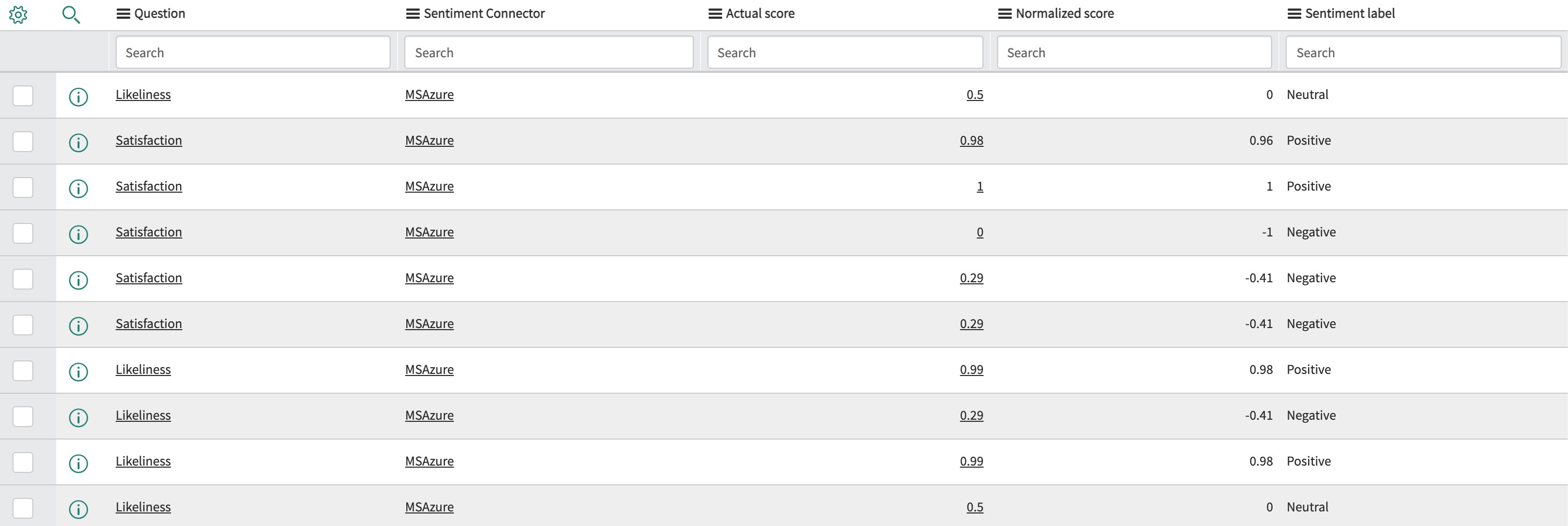
- Navigate to Survey > Question Sentiment Results.
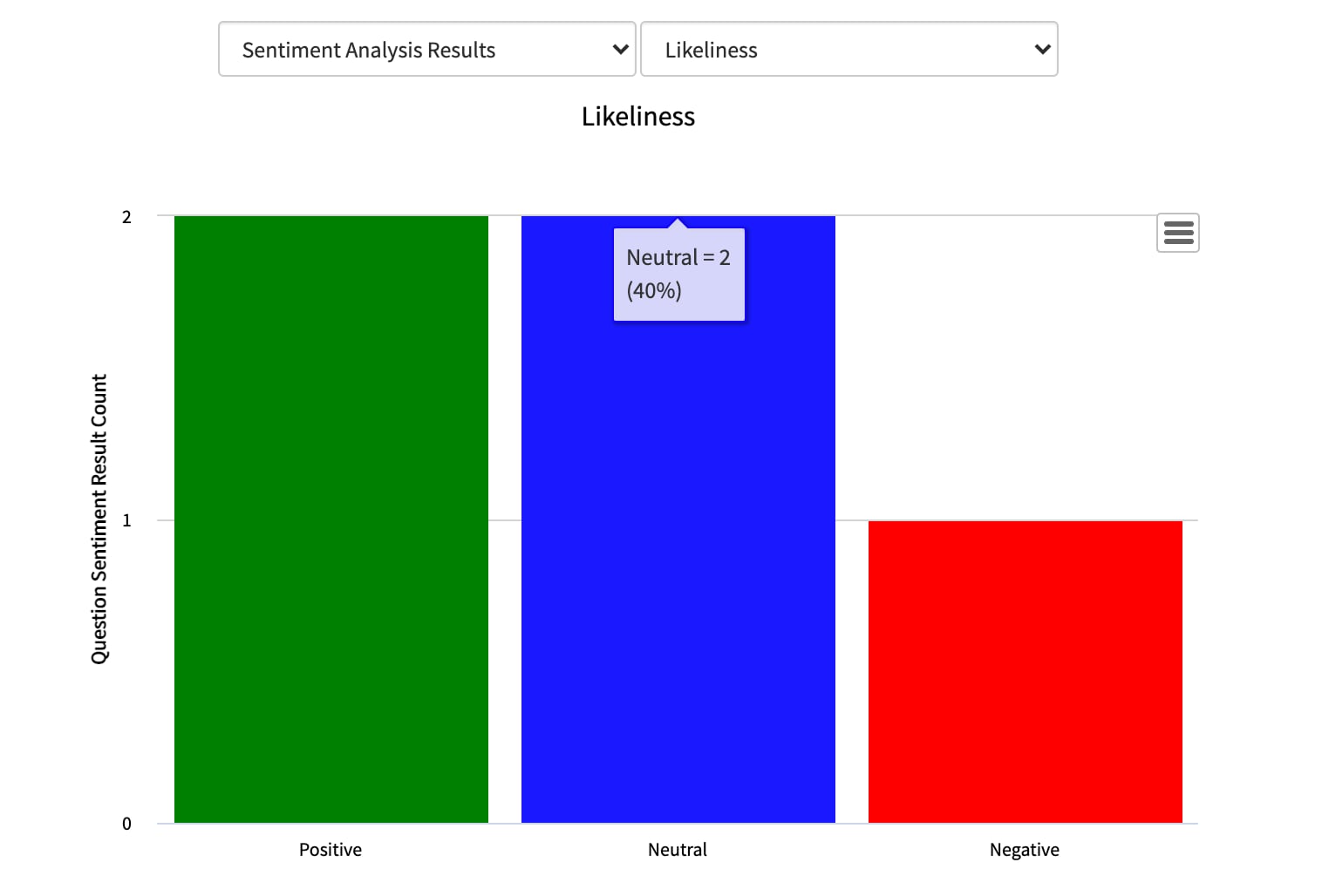
- With the percentage of positive, neutral, and negative results clearly visible now, you can quickly understand user opinion for that question.
Useful References: Servicenow Doc
Labels:
- 4,858 Views
3 Comments
You must be a registered user to add a comment. If you've already registered, sign in. Otherwise, register and sign in.