Unable to Create NLU Intent in PDI (Zurich) – "Connection to NLU Service is not available"

- Mark as New
- Bookmark
- Subscribe
- Mute
- Subscribe to RSS Feed
- Permalink
- Report Inappropriate Content
08-05-2026 04:53 AM
Hi Everyone,
I am currently learning ServiceNow Virtual Agent and Natural Language Understanding (NLU) in my Personal Developer Instance (PDI).
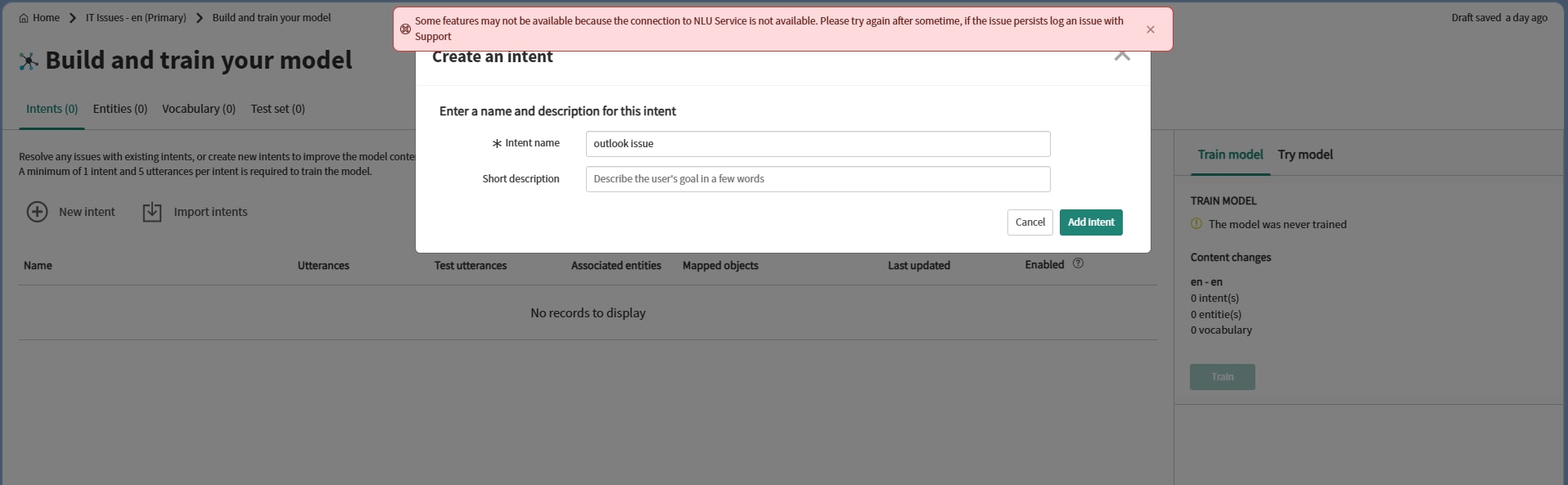
I successfully created an NLU Model named "IT Issues", but when I try to create my first Intent (e.g., Outlook Issue), I receive the following error:
"Some features may not be available because the connection to NLU Service is not available. Please try again after sometime, if the issue persists log an issue with Support."
Environment
- Instance Type: Personal Developer Instance (PDI)
- Release: Zurich Patch 10
- Module: Natural Language Understanding (NLU)
What I have verified
- Successfully created the NLU Model.
- All required NLU plugins are installed and up to date:
- NLU Workbench (com.snc.nlu_studio)
- Proxy agent for connecting to NLU providers (com.glide.nlu.proxy)
- Proxy Agent to the ServiceNow NLU server (com.glide.nlu.intent.discovery)
- Verified the system property:
- glide.shared_service_scheduler.url = https://sncmlscheduler.service-now.com/
- Refreshed the instance, logged out/in, and retried multiple times.
My Question
- Has anyone experienced this issue in a Zurich Personal Developer Instance?
- Is this a known limitation or issue with PDIs?
- Is there any alternative solution or additional configuration required to create Intents in a PDI?
I've attached screenshots of the error and my NLU model for reference.
Any guidance or suggestions would be greatly appreciated.
Thank you!


- Mark as New
- Bookmark
- Subscribe
- Mute
- Subscribe to RSS Feed
- Permalink
- Report Inappropriate Content
08-05-2026 05:21 AM
Hi @11chetans
I think this is expected behaviour in the PDI, but please have a look and confirm.
- Incorrect System Property: Check that
glide.shared_service_scheduler.urlis correctly set tohttps://sncmlscheduler.service-now.com/. [1]
- Unsynced Vocabulary: Go to the NLU Workbench, open Vocabulary Sources, and manually sync your source tables. [1]
- Machine Learning Settings: Navigate to your global application scope, reset machine learning configurations, and repair system properties. [1]
Regards
Dr Atul G. - Learn N Grow Together ServiceNow Techno - Functional Trainer
LinkedIn: https://www.linkedin.com/in/dratulgrover
YouTube: https://www.youtube.com/@LearnNGrowTogetherwithAtulG
******************************************************************************************