
- Post History
- Subscribe to RSS Feed
- Mark as New
- Mark as Read
- Bookmark
- Subscribe
- Printer Friendly Page
- Report Inappropriate Content
on 02-11-2022 10:19 AM
This is a walkthrough for the most complex case, new external content. Following the last couple of steps will allow you to update icons for an out-of-the-box or existing search result configuration.
---------
In order to configure unique icons for each of the data sources in AI Search, a new EVAM template needs to be created for each of the data sources.
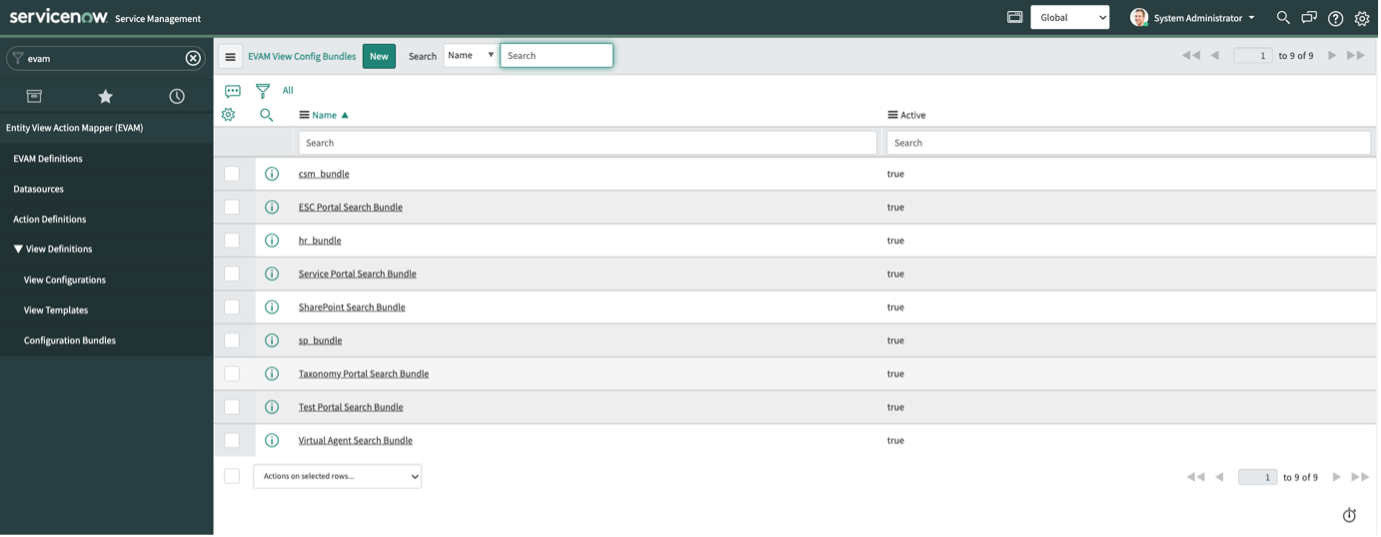
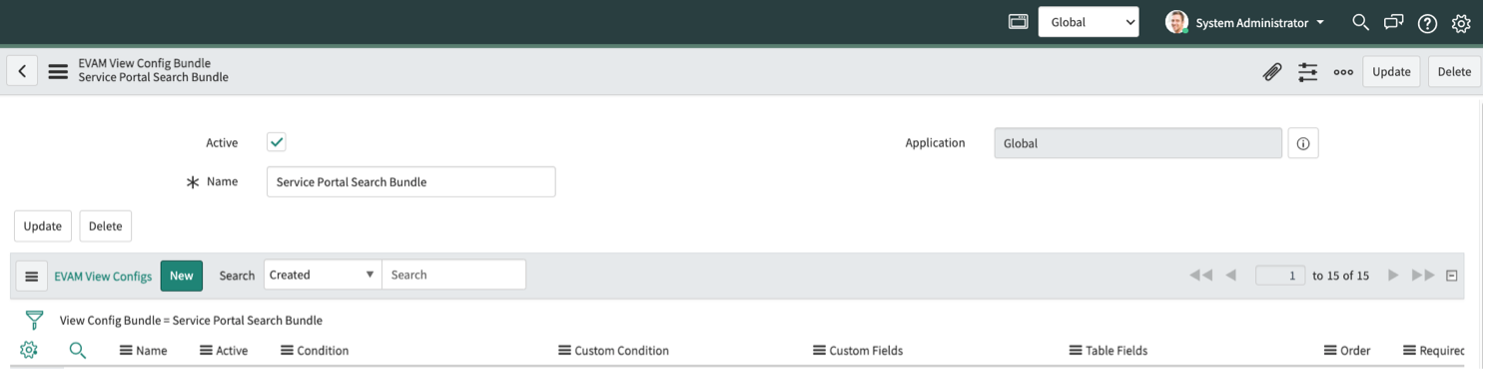
First, navigate to EVAM > Configuration Bundles.

Most of the time, we will use the Service Portal Search Bundle. If you are using the ESC Portal Search EVAM Definition, for example, it includes the Service Portal Search Bundle.
Click the Bundle you would like to use. We will click on the Service Portal Search Bundle. Assuming that a template has not been created for your data source, click on ‘New’ here.

NOTE: You must be in the Global Context prior to clicking on the Service Portal Search Bundle to edit the related list.
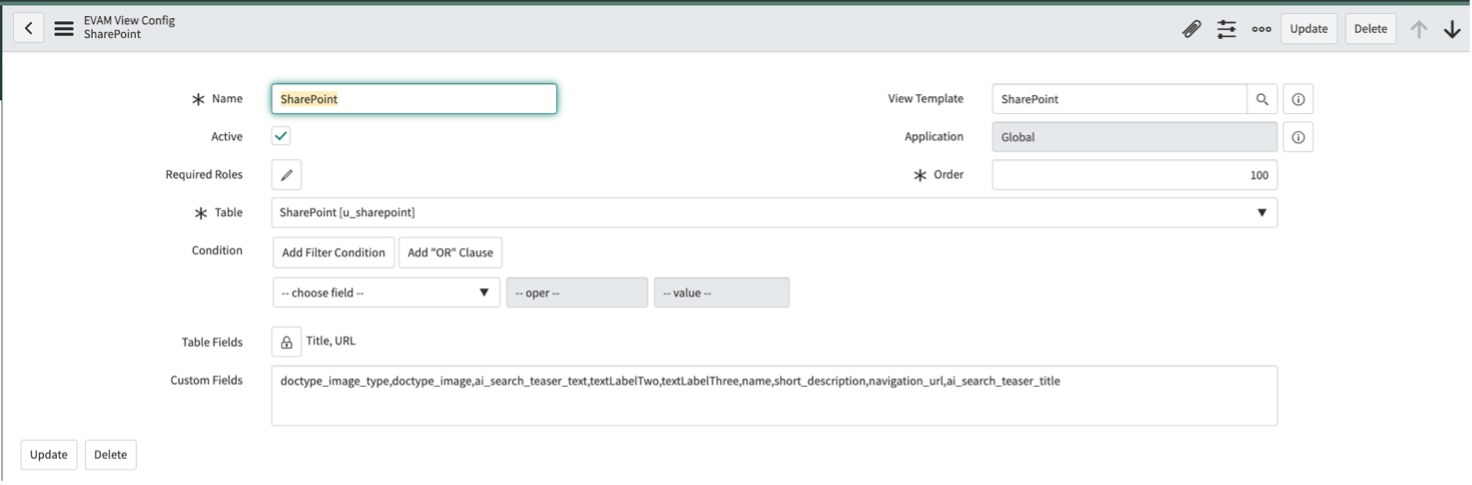
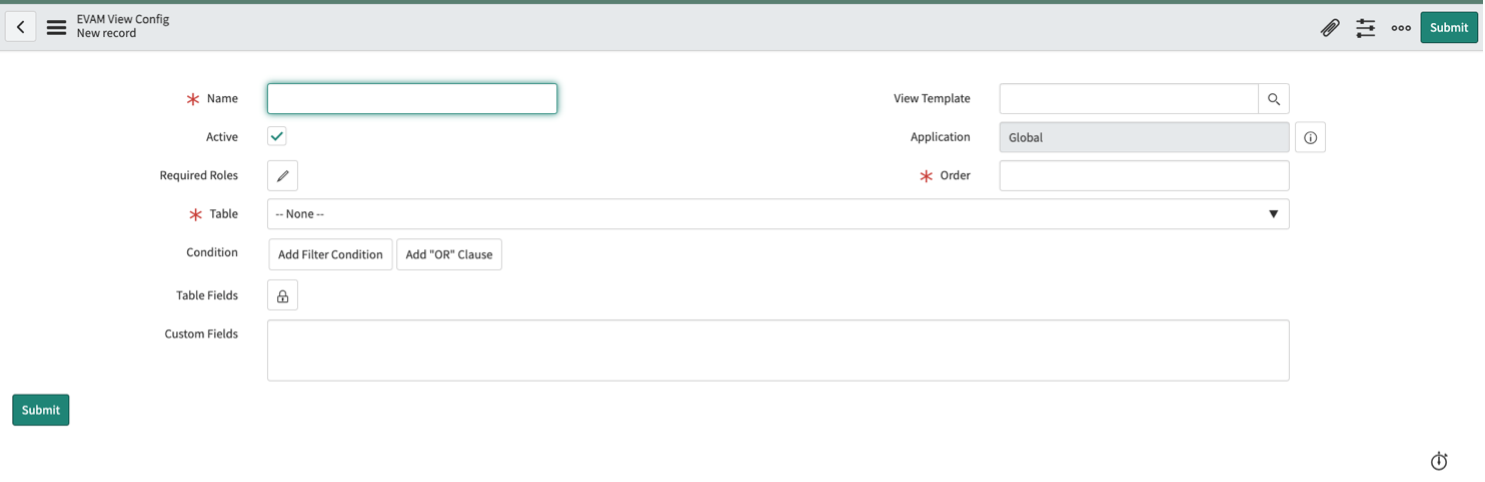
Next, fill in the information related to this data source for rendering results.

Here is an example using external SharePoint content. Note that the table begins with ‘u’ as it is user created.

Click ‘Update’. Then navigate back to the record.
Under ‘EVAM View Config Action Assignment M2Ms’ click ‘Link Existing’ and add the ‘navigation’ action. This will ensure that when the result is clicked, it will follow the URL.
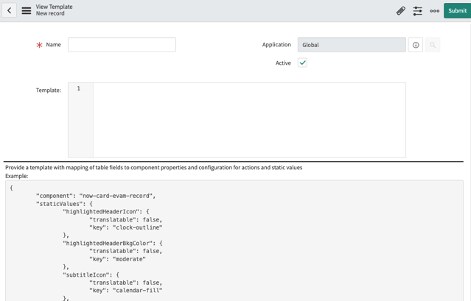
Next, in the top right of the screen, click the search magnifier box next to ‘View Template’. Then click ‘New’ next to view Templates. This will pop-up a new template configuration.

The Name of the template should be meaningful to the source. Ensure that is it active. The following is an example of a configuration that uses an image URL to render the next to the SharePoint results.
{
  "component": "sn-search-result-evam-card",
  "staticValues": {
    "textHeaderLabelOne": {
        "translatable": false,
        "key": "SharePoint"
    },
    "detailLabelOne": {
        "translatable": true,
        "key": "From:"
    },
    "detailLabelSeparator": {
        "translatable": false,
        "key": "/"
    },
    "imageType": {
        "translatable": false,
        "key": "image"
    },
    "imageURL": {
        "translatable": false,
        "key": sharepoint.png"
    }
  },
  "mappings": {
    "title": "ai_search_teaser_title",
    "textHeaderLabelTwo": "textLabelTwo",
    "textHeaderLabelThree": "textLabelThree",
    "detailValueOne": "url",
    "detailValueTwo": "drive_name",
    "summary": "ai_search_teaser_text",
    "ariaLabel": "title"
  },
  "actionMappings": {
    "clickAction": "navigation"
  }
}
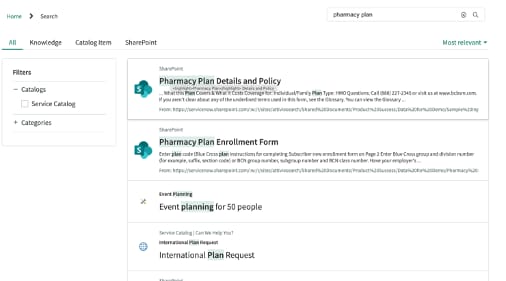
While any image URL will work, we always recommend using internal assets for images. Above, an entry from the db_image table was used. Using this configuration will render the following results: