Install the Enterprise Architecture Workspace application (sn_apm_ws) if you have the admin role.
시작하기 전에
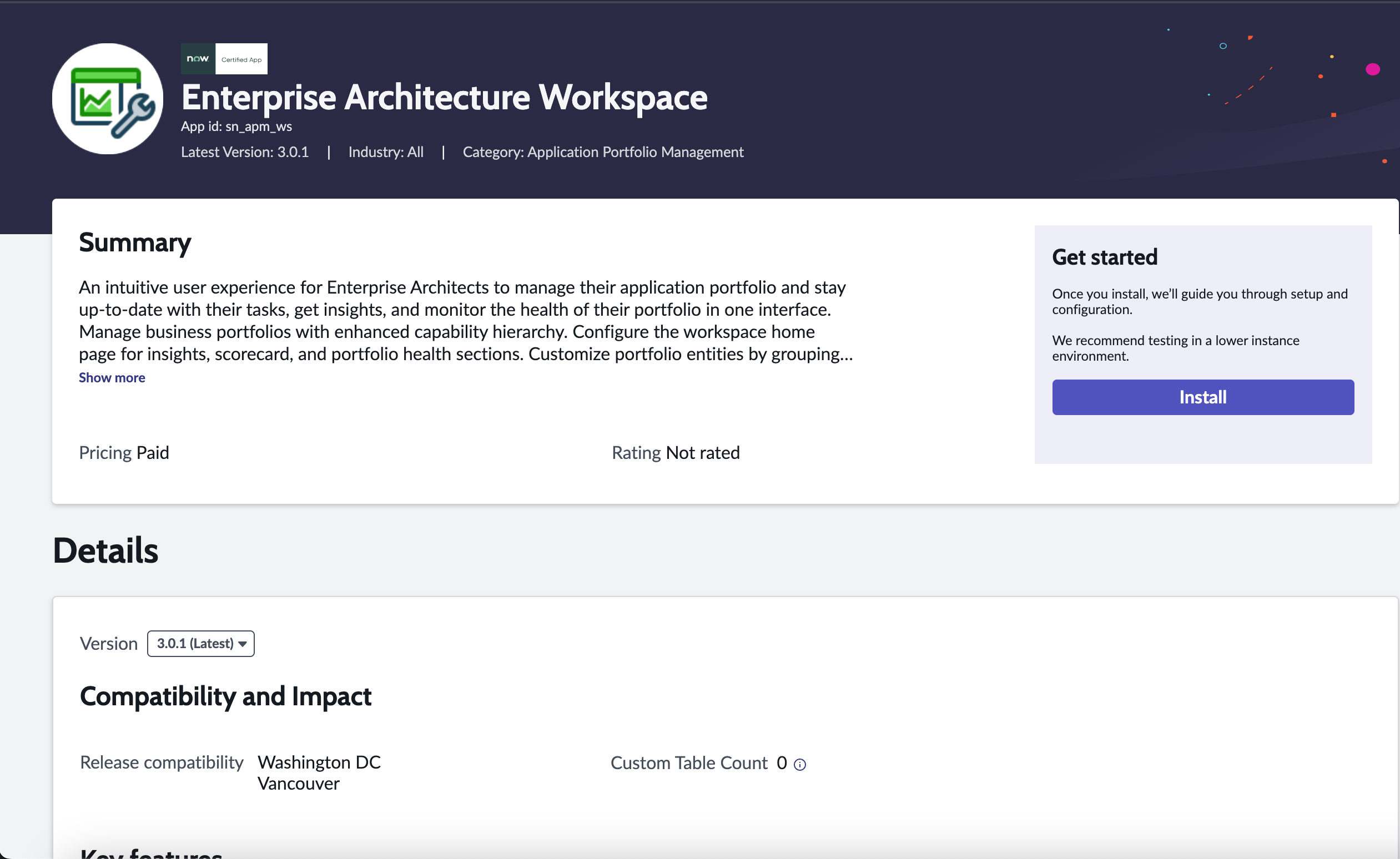
- Review the Enterprise Architecture Workspace application listing in the ServiceNow Store for information on dependencies, licensing or subscription requirements, and release compatibility.
- Ensure you have activated the Enterprise Architecture plugin
(com.snc.apm).
- For enabling the technology portfolio management information in the Enterprise Architecture Workspace:
- Ensure you have activated the Software Asset Management Foundation plugin (com.snc.sams).
- Ensure you have installed the Technology Portfolio Management (sn_apm_tpm) store app.
Role required: admin
프로시저
-
Navigate to .
-
Find the application using the filter criteria and search bar.
You can search for the application by its name or ID. If you cannot find an
application, you may have to request it from the ServiceNow Store.
Visit the ServiceNow Store to view all the available apps, and for information about submitting requests to the store. For cumulative release notes information for all released apps, see the ServiceNow Store version history release notes.
-
Select a version from the list and select Install.
In the Review Installation Details dialog box, any dependencies installed with your application are listed.
-
If you're prompted, follow the links to the ServiceNow Store to get any additional entitlements for dependencies.
- 옵션:
If demo data is available and you want to install it, select the
Load demo data check box.
Demo data are the sample records that describe application features for common use cases. Load the demo data when you first install the application on a development or test instance.
-
Select Install.