See the list of flows that
include a custom action. Determine the impact that changes to an action have on
published and draft flows.
Before you begin
Role required: admin or flow_designer
About this task
Determine the impact that your action changes have on published and draft flows. See
a list of flows that include the action and determine if your changes require
changes to the related flows. For example, if you change the inputs an action uses,
someone must reconfigure the related flows to use the new or modified inputs.
Procedure
-
Navigate to .
-
Select Actions.
-
Select the action whose related flows that you want to see.
The system displays the action in the Workflow Studio
environment.
-
From the More Actions menu, select See related
flows.
The system shows the Related Flows dialog.
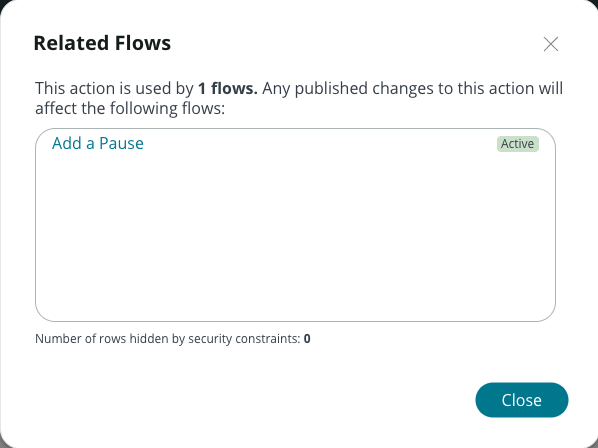
The Related Flows dialog shows information about the flows that use the
action.
What to do next
Determine if your planned action changes require updates to the related flows.
Publishing an action also displays a list of related flows that use the action.