- Mark as New
- Bookmark
- Subscribe
- Mute
- Subscribe to RSS Feed
- Permalink
- Report Inappropriate Content
06-09-2021 06:40 AM
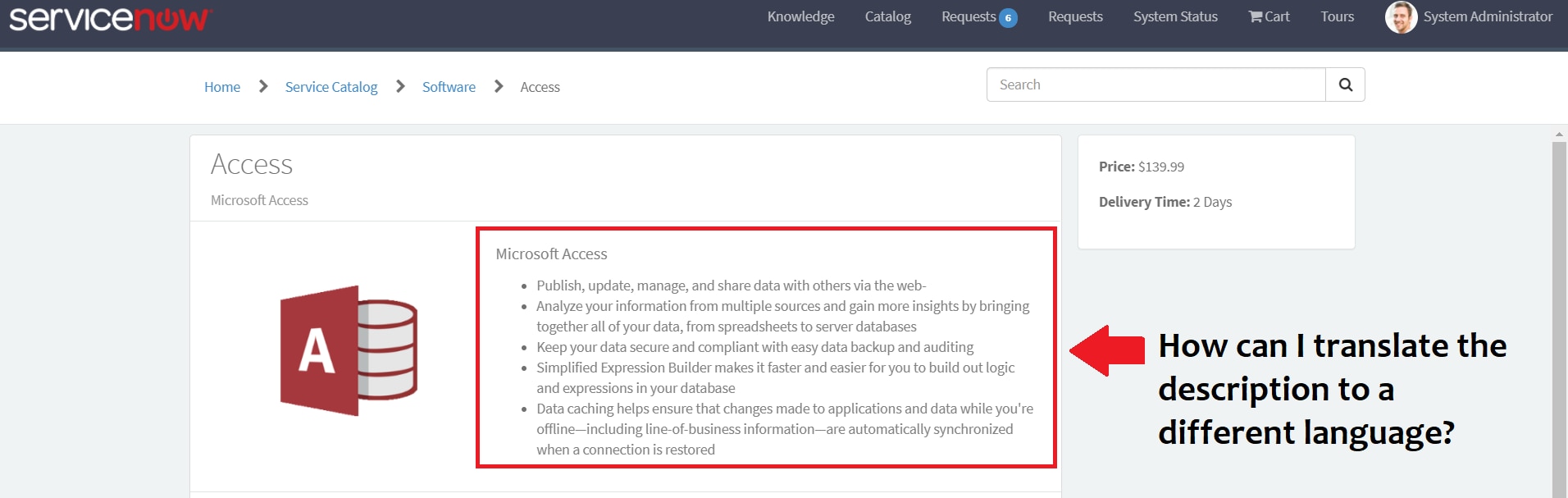
Hi everyone, good day! I am trying to translate the description part of a Catalog Item to a different language. Can someone teach me where and how will I do that? Thanks in advance.

Solved! Go to Solution.
- Labels:
-
Service Catalog
- Mark as New
- Bookmark
- Subscribe
- Mute
- Subscribe to RSS Feed
- Permalink
- Report Inappropriate Content
06-09-2021 07:20 AM
Hello Byron,
Below are the steps you can follow :
Method 1
1) Navigate to the catalog item from the backend. i.e. in left navigation type : Maintain items --> Open the access catalog item in new tab.
2) Go to your profile & change to desired language. For e.g. English to German / Spanish.
3) Reload the catalog item form which is opened in new tab as part of Step 1.
4) In the description paste the translated text & save the form.
5) Reload the form on portal & notice that the description now appears in the desired language.
Servicenow stores the translations in sys_translated_text table. You can also use below method to add translations directly as a record in this table.
Method 2
1) In left navigation, type "sys_translated_text.do" & press enter.
2) A form with below fields appears :
-- Table Name : If it is a record producer, select "sc_cat_item_producer" else if its a catalog item, select "[sc_cat_item]"
-- Language : Select the desired language from the dropdown.
-- Value : Paste the translated text into this box.
-- Field : Select the desired field, in this example it would be "Description".
-- Document : Select the catalog item, for reference : Access.
Note : I am assuming that the language internationalization is activated in your instance.
Let me know if this answers your question.
- Mark as New
- Bookmark
- Subscribe
- Mute
- Subscribe to RSS Feed
- Permalink
- Report Inappropriate Content
06-09-2021 07:18 AM
Hi Byron,
To create a translation of a catalog item, you need to switch your session to the desired language, open the catalog item and edit the description. This will create the desired translation for your session language.
I hope the above helps!
Best regards,
Pedro
- Mark as New
- Bookmark
- Subscribe
- Mute
- Subscribe to RSS Feed
- Permalink
- Report Inappropriate Content
06-09-2021 07:38 AM
Hi Pedro, I appreciate your response. The default language is English but we cater to multiple languages. French, Japanese, Korean, Italian and German. I need to translate the description of the Catalog item to different languages depending on what language user is using.
- Mark as New
- Bookmark
- Subscribe
- Mute
- Subscribe to RSS Feed
- Permalink
- Report Inappropriate Content
06-09-2021 07:43 AM
Hi Byron,
Fully understand. The approach I suggested would involve changing the language on your user's session and updating the item.
As an example, you want to translate the item "Laptop 1" to French:
- Change the session language on your user's session to French (cog on the top right of the main window)
- Open the catalog item editing form - you will see all in the default language
- Update the description, short description, etc to corresponding French text and save
- The above will not overwrite the default language description, etc, but will, instead, create a translation for those fields
Best regards,
Pedro
- Mark as New
- Bookmark
- Subscribe
- Mute
- Subscribe to RSS Feed
- Permalink
- Report Inappropriate Content
06-09-2021 07:20 AM
Hello Byron,
Below are the steps you can follow :
Method 1
1) Navigate to the catalog item from the backend. i.e. in left navigation type : Maintain items --> Open the access catalog item in new tab.
2) Go to your profile & change to desired language. For e.g. English to German / Spanish.
3) Reload the catalog item form which is opened in new tab as part of Step 1.
4) In the description paste the translated text & save the form.
5) Reload the form on portal & notice that the description now appears in the desired language.
Servicenow stores the translations in sys_translated_text table. You can also use below method to add translations directly as a record in this table.
Method 2
1) In left navigation, type "sys_translated_text.do" & press enter.
2) A form with below fields appears :
-- Table Name : If it is a record producer, select "sc_cat_item_producer" else if its a catalog item, select "[sc_cat_item]"
-- Language : Select the desired language from the dropdown.
-- Value : Paste the translated text into this box.
-- Field : Select the desired field, in this example it would be "Description".
-- Document : Select the catalog item, for reference : Access.
Note : I am assuming that the language internationalization is activated in your instance.
Let me know if this answers your question.