- Mark as New
- Bookmark
- Subscribe
- Mute
- Subscribe to RSS Feed
- Permalink
- Report Inappropriate Content
07-07-2026 11:15 AM
Hi Team,
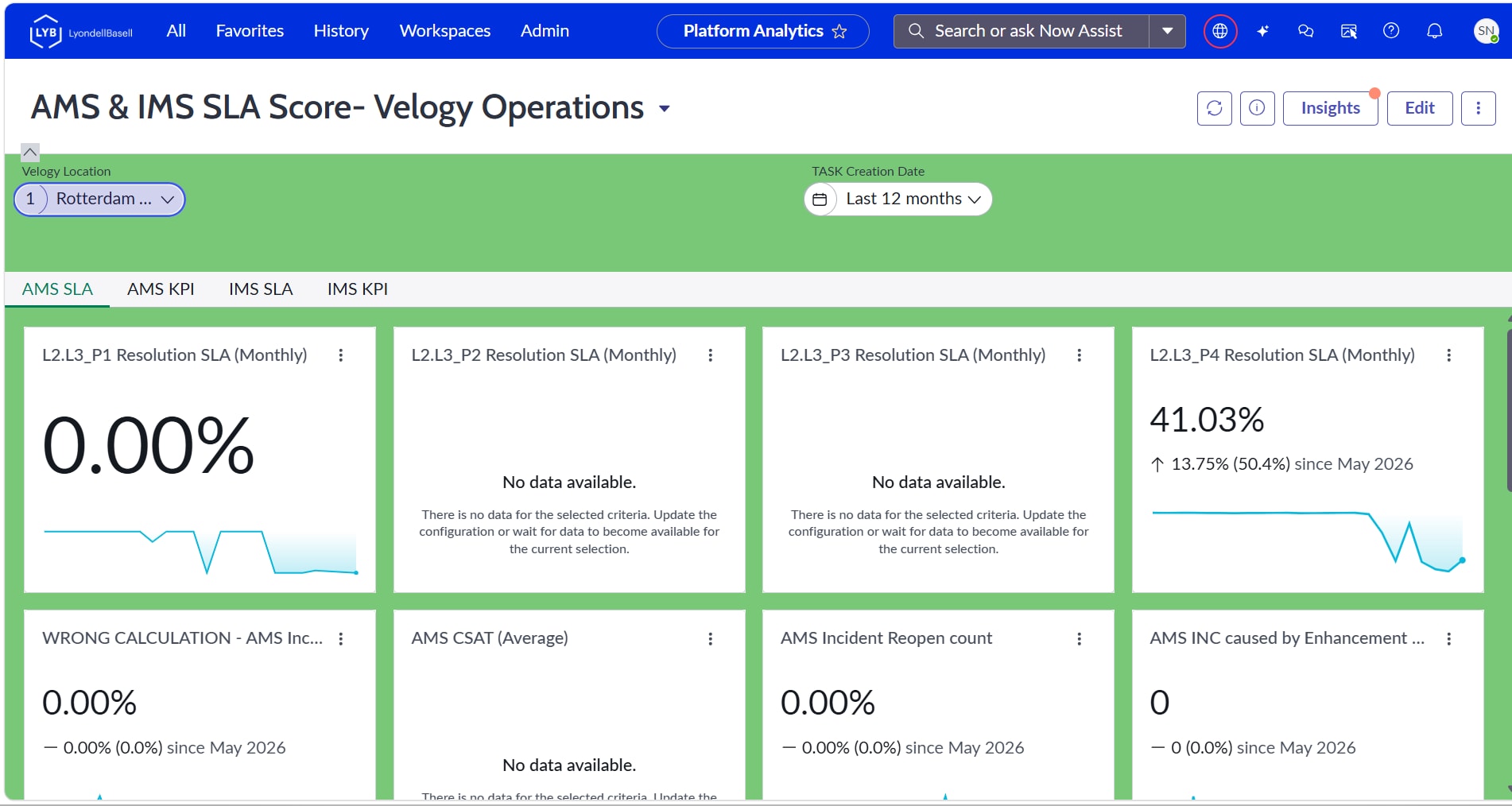
I have a requirement to map an existing Location interactive filter to four SLA and KPI widgets in Platform Analytics. The expectation is that when a user selects or changes a location, all four widget reports should automatically refresh and display data relevant to the selected location.
Currently, in the PA report, I am able to add the custom Location field as a Breakdown, but I do not see an option to use the same field in the Indicator configuration (Numerator and Denominator). Because of this limitation, I am unable to map the interactive filter to the dashboard widgets.
Could anyone please advise on how to make the Location field available for the Numerator/Denominator indicators or suggest an alternative approach to map the interactive filter across all widget reports?
This is a high-priority requirement, and I would greatly appreciate any guidance or recommendations to help resolve it as soon as possible. Kindly find attached snips for refrence
Thanks in advance for your support.
Solved! Go to Solution.

- Mark as New
- Bookmark
- Subscribe
- Mute
- Subscribe to RSS Feed
- Permalink
- Report Inappropriate Content
07-07-2026 11:08 PM
Hey @naraharasetti
Approach
Step 1 – Verify the Indicator Source
Open each Indicator used by the dashboard and verify its Indicator Source.
The source table must contain the Location field (or your custom location field).
For example:
Task
Incident
Case
Custom Table
If the Location field is not available in the Indicator Source, the Interactive Filter will never work.
If your Location value comes from a reference field (for example Assignment Group → Location or CMDB CI → Location), you may need to expose that value in the Indicator Source first.
Step 2 – Create a Breakdown
If not already done:
Platform Analytics
→ Breakdowns
Create a Breakdown using the Location field.
Example:
Breakdown Name:
Location
Element:
u_location
(or location)
Save the record.
Step 3 – Associate the Breakdown with the Indicator
Open the Indicator.
Go to the Breakdowns related list.
Add the newly created Location Breakdown.
Without associating the Breakdown to the Indicator, the Interactive Filter cannot use it.
Step 4 – Recollect Indicator Scores
This is the step that is most commonly missed.
After adding a new Breakdown, previously collected scores do not automatically contain that dimension.
You must recollect the Indicator Scores.
Either:
- Run Collect Scores
- Run the Data Collector
- Execute the PA Collection Job
After recollection, verify that the collected scores contain the Location Breakdown values.
Step 5 – Configure the Interactive Filter
Open the Dashboard.
Go to:
Dashboard
→ Edit
→ Interactive Filters
Configure:
- Interactive Filter = Location
- Breakdown = Location
- Apply to:
AMS SLA
AMS KPI
IMS SLA
IMS KPI
Once the mapping is complete, changing the Location should refresh all four widgets automatically.
If the Widgets are Formula Indicators
If these widgets are Formula Indicators instead of Automated Indicators, there is one additional limitation.
Every base Indicator used by the Formula must contain the same Location Breakdown.
For example:
Indicator A
Location Breakdown
Indicator B
Location Breakdown
Indicator C
No Location Breakdown
In this case, the Formula Indicator cannot respond correctly to the Interactive Filter because one of the contributing Indicators does not contain Location as a collected dimension.
If the Widgets are Standard Reports
If the dashboard widgets are actually Report Widgets (and not Platform Analytics Indicators), the approach is different.
In that case:
- Every report must use the same data source.
- Every report must contain the Location field.
- The Interactive Filter must be mapped to the report field.
Simply creating a Breakdown in PA will not affect standard reports.
Why Location does not appear in Numerator/Denominator
This is expected and by design.
The Numerator and Denominator define how Indicator Scores are calculated, whereas Interactive Filters operate on Breakdown dimensions that are stored with those collected scores.
Because of this architecture, you will not see the Location field available for filtering inside the Numerator or Denominator configuration.
************************************************************************************************************************************
If this response helps, please mark it as Accept as Solution and Helpful.
Doing so helps others in the community and encourages me to keep contributing.
Regards
Vaishali Singh
Servicenow Developer
Linkedin - https://www.linkedin.com/in/vaishali-singh-2273361bb

- Mark as New
- Bookmark
- Subscribe
- Mute
- Subscribe to RSS Feed
- Permalink
- Report Inappropriate Content
07-07-2026 11:08 PM
Hey @naraharasetti
Approach
Step 1 – Verify the Indicator Source
Open each Indicator used by the dashboard and verify its Indicator Source.
The source table must contain the Location field (or your custom location field).
For example:
Task
Incident
Case
Custom Table
If the Location field is not available in the Indicator Source, the Interactive Filter will never work.
If your Location value comes from a reference field (for example Assignment Group → Location or CMDB CI → Location), you may need to expose that value in the Indicator Source first.
Step 2 – Create a Breakdown
If not already done:
Platform Analytics
→ Breakdowns
Create a Breakdown using the Location field.
Example:
Breakdown Name:
Location
Element:
u_location
(or location)
Save the record.
Step 3 – Associate the Breakdown with the Indicator
Open the Indicator.
Go to the Breakdowns related list.
Add the newly created Location Breakdown.
Without associating the Breakdown to the Indicator, the Interactive Filter cannot use it.
Step 4 – Recollect Indicator Scores
This is the step that is most commonly missed.
After adding a new Breakdown, previously collected scores do not automatically contain that dimension.
You must recollect the Indicator Scores.
Either:
- Run Collect Scores
- Run the Data Collector
- Execute the PA Collection Job
After recollection, verify that the collected scores contain the Location Breakdown values.
Step 5 – Configure the Interactive Filter
Open the Dashboard.
Go to:
Dashboard
→ Edit
→ Interactive Filters
Configure:
- Interactive Filter = Location
- Breakdown = Location
- Apply to:
AMS SLA
AMS KPI
IMS SLA
IMS KPI
Once the mapping is complete, changing the Location should refresh all four widgets automatically.
If the Widgets are Formula Indicators
If these widgets are Formula Indicators instead of Automated Indicators, there is one additional limitation.
Every base Indicator used by the Formula must contain the same Location Breakdown.
For example:
Indicator A
Location Breakdown
Indicator B
Location Breakdown
Indicator C
No Location Breakdown
In this case, the Formula Indicator cannot respond correctly to the Interactive Filter because one of the contributing Indicators does not contain Location as a collected dimension.
If the Widgets are Standard Reports
If the dashboard widgets are actually Report Widgets (and not Platform Analytics Indicators), the approach is different.
In that case:
- Every report must use the same data source.
- Every report must contain the Location field.
- The Interactive Filter must be mapped to the report field.
Simply creating a Breakdown in PA will not affect standard reports.
Why Location does not appear in Numerator/Denominator
This is expected and by design.
The Numerator and Denominator define how Indicator Scores are calculated, whereas Interactive Filters operate on Breakdown dimensions that are stored with those collected scores.
Because of this architecture, you will not see the Location field available for filtering inside the Numerator or Denominator configuration.
************************************************************************************************************************************
If this response helps, please mark it as Accept as Solution and Helpful.
Doing so helps others in the community and encourages me to keep contributing.
Regards
Vaishali Singh
Servicenow Developer
Linkedin - https://www.linkedin.com/in/vaishali-singh-2273361bb