Michael Ritchie

ServiceNow Employee
Options
- Subscribe to RSS Feed
- Mark as New
- Mark as Read
- Bookmark
- Subscribe
- Printer Friendly Page
- Report Inappropriate Content
02-14-2019
10:44 AM
Knowledge is an important part of Service Management. This is especially true in today's self-service world where people prefer to search and solve questions and issues themselves. Good knowledge content can deflect tasks that would normally be answered by costly service desks.
The ServiceNow platform has included Knowledge Management since the very beginning and users have access to search, view, rate, and provide feedback on articles. If viewing articles from the standard/platform UI, users have the ability to create an incident directly from an article. Knowledge properties allow you to configure that process. While helpful, this feature is very limited and hasn't grown with the platform as HRSD, CSM, Security Operations, etc have been introduced. It has always presented one option to create an incident, but what if I am viewing an HR knowledge article and want a case routed to the HR team? Most end users that consume knowledge use the Service Portal where this feature unfortunately doesn't exist, until now.
With the help of other ServiceNow employees including Darren Murby, Kimberley O'Brien, and Sush Chandrashekar, a solution is now available in ServiceNow Share that provides a very flexible rules engine to allow users to create a task from a knowledge article. Similar to assignment rules, administrators can define conditions to determine the type of task to be created from a knowledge article. This can be based on any attribute of a knowledge article such as Knowledge base, Category, Description, etc. This is especially important in Human Resources where many Centers of Excellence exist such as Payroll, Employee Relations, Talent Management where each COE is a different task table within ServiceNow.
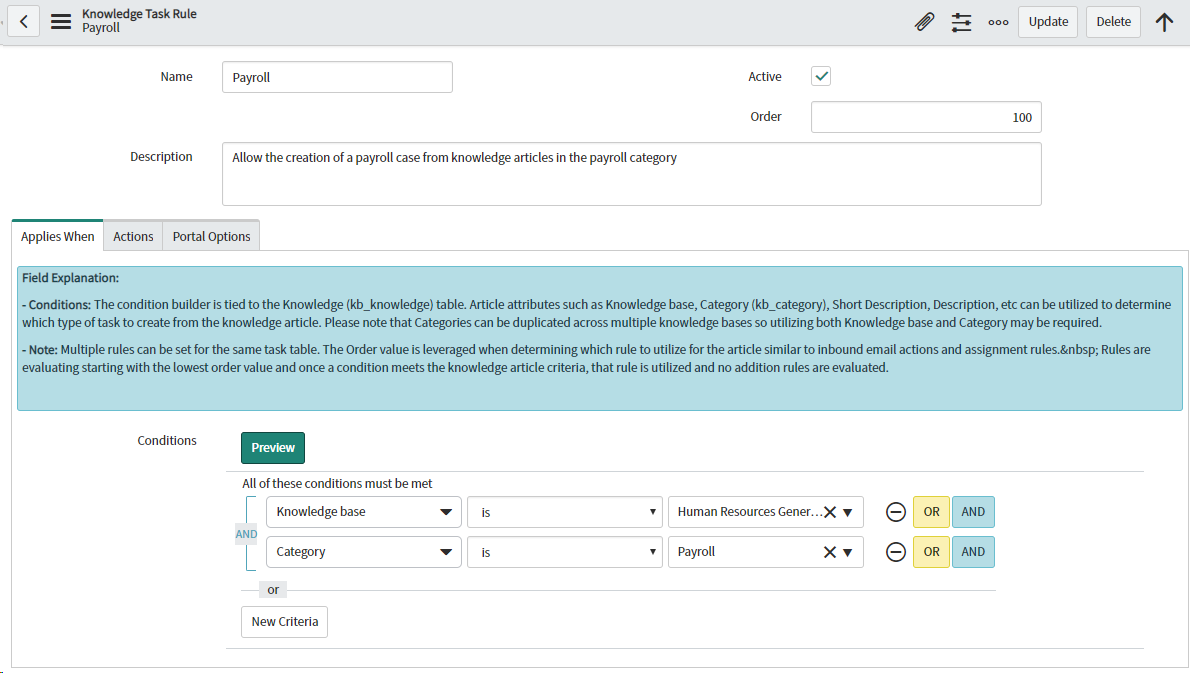
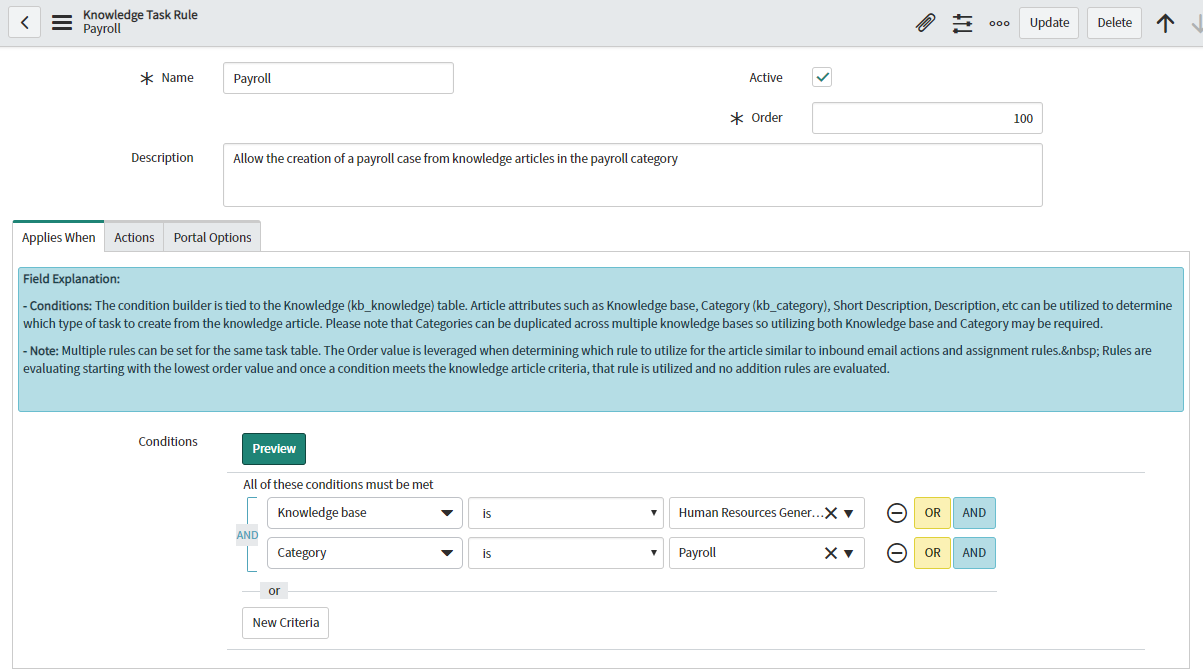
Lets walk through an example. The HR Payroll group has created many knowledge articles to address questions around direct deposit, pay schedule, etc. If a user viewing a knowledge article in the HR knowledge base in the Payroll category has a question, allow them to create a case:
When the case is created, apply the "Employee Payroll Setup Request" template and the set fields in the case based on information from the knowledge article:
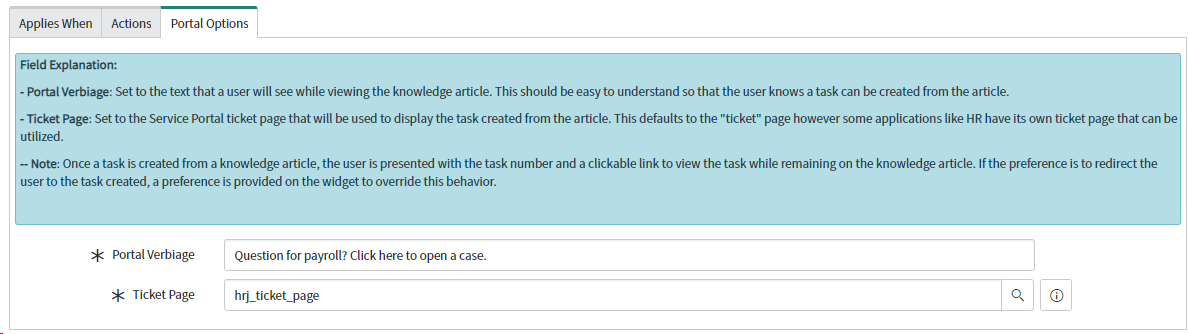
Instead of using confusing verbiage, provide an easy to understand phrase so the user viewing the article knows how to get answers to questions. Once the case is created redirect them to the HR Case Ticket form.
Now when a user views an article in the HR knowledge base in the Payroll category, he/she will have an option to create a case:
The Code:
The solution is available for download from ServiceNow Share: Knowledge Task Rules. Download the update set from Share, load/preview/commit it, and then you can leverage this solution in your instance.
The Setup:
- An example "catch-all" rule is provided with this solution. This rule has no conditions defined so at the very least users will be able to create an incident from any knowledge article if you keep this in place. This example also provides several advanced set field options leveraging dynamic filter options, the Same As operator, and the use of JavaScript to concatenate text.
- After committing the update set navigate to Knowledge \ Administration \ Knowledge Task Rules to create a new rule or view the provided example.
- As seen in the screenshots above, annotations have been provided to explain all the fields and options.
- Like assignment rules, an order field is provided to establish the order in which you want these rules to evaluate. The conditions of rules are processed lowest to highest and once a condition matches no additional rules will be evaluated.
- If no rule conditions match a knowledge article the widget will be hidden from users and they will not be able to create a task from that knowledge article.
-
- Since the feature does require updating a Service Portal page that is utilized across the platform, an "Allow Task Creation" attribute is available to be unchecked and if the conditions of that rule match, the user will not be able to create a task from that knowledge article.
- Once you have defined at least one rule, or utilize the provided example, you will now need to add the provided KB Create Task widget to the portal page that displays knowledge records.
- Out of the box a page named Knowledge Base, id kb_article, is used to display knowledge articles in the Service Portal. This page is used by the default "sp" portal as well as the HR Employee Service Center "esc" portal.
- All components of this solution are in the Global scope. Please ensure that you have selected the Global application in your user preferences.
- Navigate to Service Portal \ Service Portal Configuration and once loaded click Designer
- In the Filter by title or ID box, enter "kb_article" and click the Knowledge Base card to edit the page.
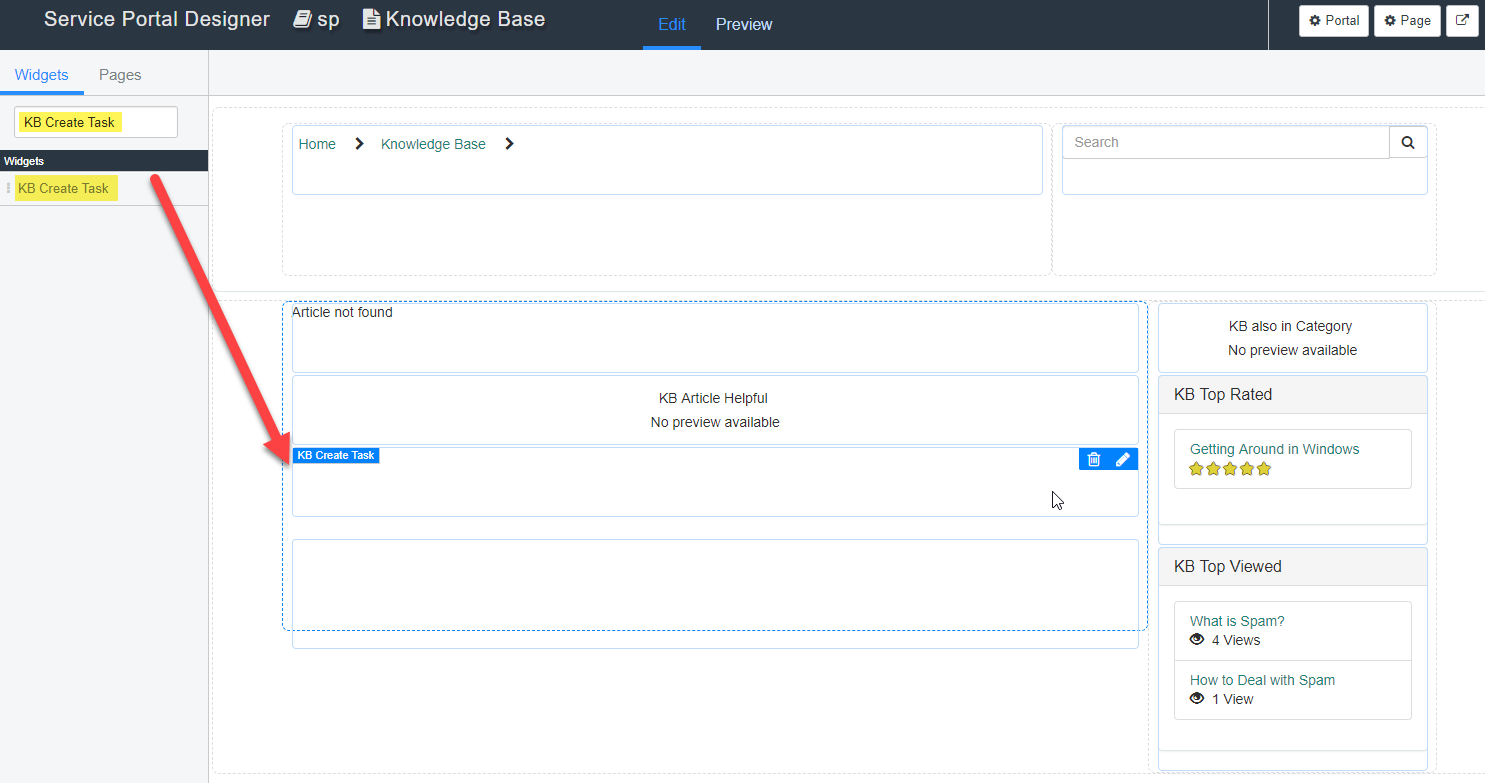
- In the upper left side you will find a Filter Widget box, enter "KB Create Task"
- Drag and drop that widget to your preferred location on the page. In this example, I put it between the Helpful question and the Article comments
- The KB Create Task widget has one preference to control whether the user remains on the knowledge article after the task is created or redirected to the task. By default the user will remain on the knowledge article with the task number and link presented.
- Once done you are set.
- Navigate to your Service Portal and pull up a knowledge article to see and test this new functionality.
Labels:
- 3,360 Views
You must be a registered user to add a comment. If you've already registered, sign in. Otherwise, register and sign in.