mohankrishna1

ServiceNow Employee
Options
- Subscribe to RSS Feed
- Mark as New
- Mark as Read
- Bookmark
- Subscribe
- Printer Friendly Page
- Report Inappropriate Content
04-25-2019
08:33 AM
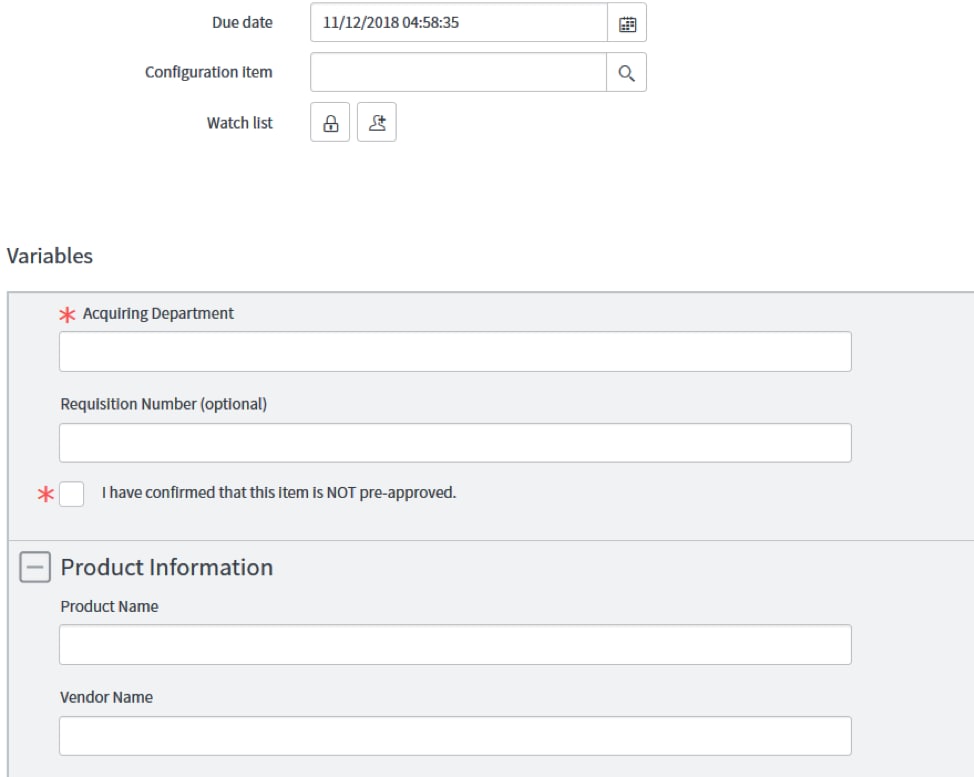
If you have seen a few Requested Item records intermittently created with no Variable data. It could be because you might be initializing to a new catalog form.
This behavior can be caused by server.update() on the client script of the SC Catalog Item widget before submitting the catalog item. This server.update() is essentially used to perform some service side action for additional functionality on Catalog Item widget.
server.update() re-Initializes the catalog form
Once the variable values are filled for a catalog item in Service Portal, These values are stored in the angular scope. However, When you perform a server.update() after filling in these variables the Server script is rerun and initialize the catalog form.
“Note: After calling server.update() the client script’s data object is automatically overwritten with the server’s data object.”
Since these variables values in DOM and $scope are single way bound, The end user will still see the values on Catalog Form UI but when submitting the end user is submitting a new Catalog item form (initialized by server.update()). Thus, fulfillers will see empty RITMs created without any values
Resolution:
Switch to OOB SC Catalog Item widget, If you don’t know already follow the steps below,
- Navigate to <yourInstance>.service-now.com
- Navigate to sp_page_list.do
- Filter by Page ID, here it is “sc_cat_item”
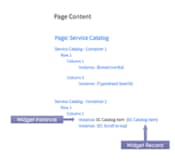
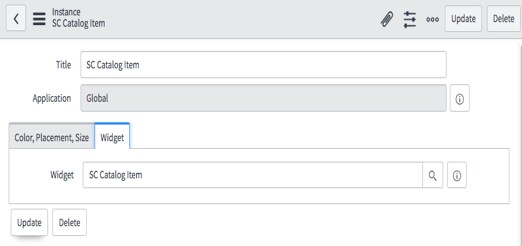
- Open the widget instance associated to the SC Catalog Item Widget
5. In the widget Instance record, Change the widget field from Custom SC Catalog Item widget to SC Catalog Item Widget
Possible Workaround:
1. Add a conditional wrapper around the OOB Server Script for SC Catalog item widget
- (function () {
- // Server Code of the SC Catalog Item widget
- if(input.<variable>){ //<variable> place holder for input variable object
- Perform the action initiated from the client
- Custom feature
- } else {
- OOB SC Catalog Item code
- }
- })()
2. Create another widget with the custom feature and perform server.update()
Additional Links:
Labels:
- 4,649 Views
1 Comment
You must be a registered user to add a comment. If you've already registered, sign in. Otherwise, register and sign in.