View emails saved for later or create a new email while saving your current draft automatically from the full email composer.
始める前に
Role required: email_composer
手順
-
Open a Workspace
record in your instance.
-
Open the mini email composer by selecting the Email tab under the Compose panel.
-
注: Instead of a button to save email drafts manually, drafts save automatically.
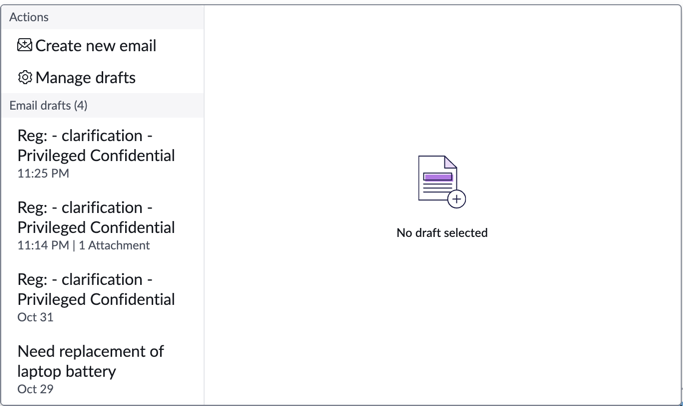
Access your drafts by selecting the drafts icon ( ) from the email footer.
A modal opens with a list of actions and email drafts.
-
Select an action or recent draft.
- View all of your email drafts by selecting Manage drafts.
- Create a new draft while saving your current draft automatically by selecting Create new email.
-
Create a new draft while saving your current draft automatically by selecting Create new email.
-
Open a draft after previewing it.
-
Select a draft from the Email drafts list.
A preview of the draft opens.
-
Select Apply.
-
Open a draft from the Manage drafts modal.
-
Open the Manage drafts modal by selecting Manage drafts from the menu.
-
Select a draft from the list.
-
Delete multiple drafts from the Manage drafts modal.
-
Open the Manage drafts modal by selecting Manage drafts from the menu.
-
Select drafts from the list.
-
Select Delete.