WSD Setup Guide: Tips & Tricks for Booking, Now Mobile, Calendar Sync

- Mark as New
- Bookmark
- Subscribe
- Mute
- Subscribe to RSS Feed
- Permalink
- Report Inappropriate Content
yesterday - last edited 42m ago
WSD Practical Setup Guide (Tips & Tricks)
This is a hands-on guide for technical folks setting up WSD Desk Booking, the Now Mobile app, and Calendar Sync. Not here to repeat the official docs, this is more the stuff nobody tells you and you kind of have to figure out yourself along the way.
Contents
Watch these first
Prerequisites
Map Studio: floor plans & naming
Reservable module
Neighborhoods
Now Mobile app
Calendar Sync
Additional resources
1. Watch these first
Before touching anything in the platform, watch these two general WSD overview videos, they'll give you the big picture before you dive into the detailed steps below:
WSD overview walkthrough:
https://www.youtube.com/watch?v=VvQBKV-vfKI&t=4177s
WSD overview walkthrough (part 2):
https://www.youtube.com/watch?v=twSb0Ex3BR8
2. Prerequisites
This guide assumes you already have WSD Enterprise installed, with these plugins active:
Workplace Service Delivery integration with Microsoft Places — sn_ms_teams_wsd
Workplace Concierge — sn_wsd_concierge
Workplace Service Delivery for Mobile — sn_wsd_mobile
Workplace Agent for Mobile — sn_wsd_agent_mob
Workplace Indoor Mapping — sn_wsd_indoor_map
Workplace Move Management — sn_wsd_move
Workplace Maintenance Management — sn_wsd_maintenance
Workplace Services Kiosk — sn_wsd_kiosk
Workplace Central — sn_wsd_central
Workplace Lease Administration — sn_wsd_la Workplace Connectors — sn_wsd_wc
Workplace Visitor Management — sn_wsd_visitor
Workplace Calendar Synchronization — sn_wsd_rsvsync
Workplace Space Management — sn_wsd_spcmgmt
Also, you need an actual CAD floor plan ready before you even start. There is no way to build a floor plan from scratch inside ServiceNow, someone with AutoCAD has to prepare that for you first.
3. Map Studio: floor plans & naming
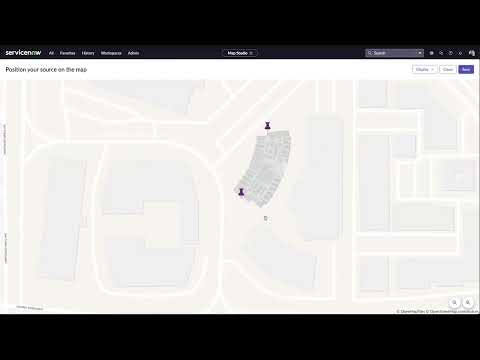
Start with Map Studio, there's a nice YouTube video out there on how to set your map up and configure it properly, just watch it and follow exactly what the guy does for creating your campus.
Before touching anything though, get on a call with your CAD architect (or whoever is the person that actually knows AutoCAD and prepares the plans for you). They can create specific variables/attributes inside AutoCAD that you'll later use inside Map Studio, and you'll have to come up with a naming convention together here.
Naming convention example
Desk_US_WA_11.0_106 where 11 is the building number, 0 is the floor and 106 is the desk name.
Title would be something simple and human-readable, like Desk 106.
Title = what shows on the map when employees actually book desks or rooms (e.g. Desk 106). Name = just the backend name of that space/place, same logic applies for meeting rooms.
Meeting_US_CA_2.1.33_Zen Room where 2 is the building number, 1 is the floor and 33 is the meeting room number.
Configuring a floor
Path: Manage Workplace > Floors & Floor Plans → tap the building → Configure on the desired floor → click Edit on any place.
On each Place you can set the Name and Title Template. The Title Template can use specific attributes that come straight from the CAD plan, so one option is to construct the name/title directly from those (check with your CAD architect on exactly what's available to you). For example, a building CAD file might only have {{TEXT}} and {{autocad_entity_handle}} available, essentially you'll usually have more of these options, each containing specific text like meeting room, state, city, floor number and so on, so you just combine the attributes you need to form the name or title.
Tips & tricks to keep in mind
When you have to maintain multiple floor plans and sync them, let's say you finished everything and now you get a new floor plan because someone moved a desk or created a new meeting room, your CAD architect will most likely remove that resource and create a new one instead of editing it. When you sync, WSD will retire the old space with status Retired. Sync is done via: Space Mapping > Indoor Mapping Administration > Indoor Map / WSD Synchronizations.
Every desk/room/space, when freshly imported via Map Studio, will be not reservable by default, meaning is_reservable is set to false. When this field is false on any space, that space won't be bookable, it won't show up as green/clickable on the actual map.
Make sure your floor and building are also reservable, otherwise the spaces underneath won't be reservable either, even if the desks themselves are flagged as reservable. So if floor 1 isn't reservable, it just won't work, even if all the desks on it are. Simply open those records and make them reservable too.
If you also have Calendar Sync in place, every new room you import needs an email address and a Reservable Sync Configuration record, otherwise it won't sync with Exchange/Google. More on this in section 6 (Calendar Sync) below.
For migrating space/map data between instances, check the official docs on snapshots:
4.Reservable module
In the Reservable module, you need to set the Reservable Views related list, add Map here so it's actually visible on the portal.
Also on the first tab, make sure the Reservable filter is correct, you'll typically filter by name, given you already have a naming convention for your spaces. Make sure your desks are actually caught by that filter, otherwise your users simply won't see them (here I used desks as the example, but it's the same deal for meeting rooms or any other space type you want bookable via the map/card views).
Docs for more info:
5. Neighborhoods
Basically, neighborhoods let you restrict some users to only book certain desks and so on. So you can allow only users from a certain group or business unit to book on floor 1 let's say, or even add only certain spaces into a certain neighborhood and manage it however you like.
https://www.servicenow.com/docs/r/employee-service-management/workplace-core/neighborhoods.html
6. Now Mobile app
Depending on how your Now Mobile app is already configured, you might have to manually add the parts WSD offers.
Finding your app configuration
Open Mobile App Builder, set the Application Scope to Now Mobile.
Go to Mobile App Configs and select Now Mobile, make sure you pick the standard version, not Now Mobile Agent.
In the left nav, go to Now Mobile Nav, select the Home Launcher tab.
Under Launcher, select the Homepage entry and open the record.
Scroll down to the Launcher Sections panel, this is where your app's home screen content is actually managed.
Out-of-the-box behavior
If you just finished the install, WSD usually adds its components automatically. You should already see things like Make a Reservation showing up in your Launcher Sections and Quick Action Functions, no manual config needed.
If the items are not showing up
In Launcher Sections, manually add the Workplace Reservations component.
In Quick Action Functions, add whatever additional actions you need.
When searching for items to add, filter by application scope "Workplace Service Delivery for Mobile", this will surface the relevant components, including:
Quick Reserve Workplace Reservations Make a Reservation ← this is the most important one
Tips
Make a Reservation is available out of the box in Quick Action Functions, but you may want to promote it to the front/home screen of the app for better visibility.
You can freely configure the layout to match your org's needs, the steps above are just the minimum required to get workplace reservations actually working.
7. Calendar Sync
Before you even start, watch this YouTube video, it'll save you time:
https://www.youtube.com/watch?v=2vQApdiTVTM
Make sure you update or install the Microsoft Exchange Online Spoke.
Best approach is to follow the Guided Setup and the official docs side by side, this worked best for me. Guided Setup lives under: Workplace Calendar Synchronization > Administration > Guided Setup.
Official docs starting point:
Also highly recommend these two community articles, they cover the Exchange setup well:
Configuring Microsoft Exchange - Workplace Calendar Sync:
Workplace Calendar Synchronization with Microsoft Exchange:
Setting up your meeting rooms
Once Guided Setup is done, your calendar provider record (e.g. Microsoft Exchange) will be sitting on the sn_wsd_rsvsync_provider table. Open it, and in the related list you'll find Reservable Sync Configurations, this is where the real per-room setup happens:
You need one Reservable Sync Configuration record per meeting room you want synced with Exchange/Google.
Every meeting room also needs an email address set on its space record (sn_wsd_core_space table).
That email address has to match exactly between the space record and the Reservable Sync Configuration record.
Once the config record is populated, activate it. After a few seconds the subscription_reference field should auto-populate, that's your confirmation the room subscribed to the calendar (Outlook, in my case). If it stays empty, something went wrong, check Flow Designer for the error (see below).
Tip: whenever you import a new floor/CAD plan with new rooms, don't forget this step applies to every new room too — assign the email, create the sync config record, activate it. Easy to forget since it's not part of the map import itself (see the reminder in section 2, Map Studio tips, above).
Debugging connection issues
Flow Designer is your best friend here. Go to Flow Designer > Operations tab > Flows tab > Today's Executions, filter by name containing "calendar" or "meeting" and you'll find the relevant flows. Easiest to spot right after you trigger a test action, the execution shows up almost immediately.
Confirming a reservation actually synced
On the sn_wsd_rsv_reservation table, add these two columns to your list view:
External iCal External ID
Once a reservation syncs with Exchange (I would assume for Google is similar), both fields get populated with a long ID string (something like 012030E00074C5B7101A82...). If you see that, your integration is working.
Virtual meetings (Teams)
If you're setting up virtual Teams meeting integration, go to the Meetings reservable module and set the virtual_meeting_provider field to Microsoft Teams.
Additional helpful resources
Snapshots for indoor mapping (migrating space/map data between instances):
Configure the reservable module:
Neighborhoods:
https://www.servicenow.com/docs/r/employee-service-management/workplace-core/neighborhoods.html
Install Workplace Calendar Synchronization:
Configuring Microsoft Exchange - Workplace Calendar Sync:
Workplace Calendar Synchronization with Microsoft Exchange:
There's more detail I haven't repeated here because it's already well covered in the videos and docs above, watch and read through those, and keep this guide as a handy reminder for the extra tips that hopefully save you some time.
Good luck in your WSD journey and I hope this comes in handy!
If you have questions about any of this, drop them in the comments, happy to help.