Filtering pages
Drill down into usage data with standard and custom filters.
Users with the analytics_viewer, portal_analytics_viewer, mobile_analytics_viewer, core_ui_analytics_viewer, now_experience_analytics_viewer roles can filter pages that they have access to.
Most pages in the Usage Insights application have visible default filters and an option to add other standard filters. To add additional user-related fields, see Add user properties as filters to Usage Insights.
Default filters
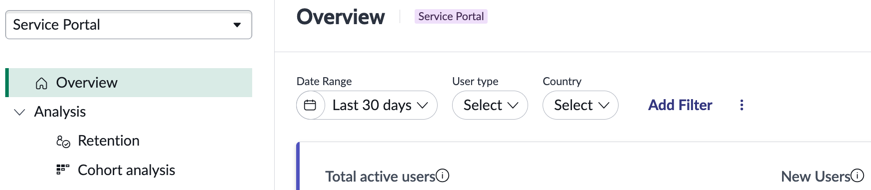
On each page of Usage Insights, there are several default filters for constraining the information on the page. Most pages have filters for date range, user type, and country.
Note:
Mobile applications have additional default filters for operating system and version.
The Cross-application overview also has filters for channel, application, and role.

Additional filters
Select Add filter to choose from available filters configured for the application.
Note:
Additional filters are joined to the selected default filters with the AND condition, meaning that both filter conditions must be true for the filter to apply. For example, select User
type=Returning and Additional filter=Password needs reset. If no returning users need to reset their passwords, all of the visualizations on the
page will be empty because both conditions must apply.
The available additional filters are:
- Password needs reset
- Role
- Enable multifactor authentication
- Active
- Department
- VIP
In addition to the default filters on the pages of the Usage Insights application, you can add filters based on user properties. See Add user properties as filters to Usage Insights for details.