Administer table and field descriptions

  • Release version: Yokohama
  • Updated January 30, 2025
  • 2 minutes to read
  • Users with the report_description_admin role can add and edit table and field descriptions that users see when they create reports.

    A user with the admin role must enable the report_description_admin role. The user with the report_description_admin role can edit field and table descriptions. Report administrators inherit this role by default when it is activated.

    In the Report Designer, the user sees the table descriptions on the Data tab. When appropriate, the user sees the field descriptions on the Configure tab.
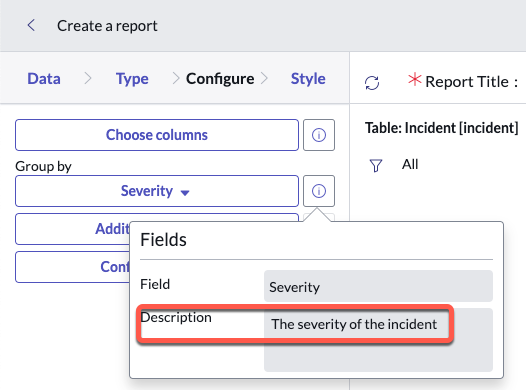
    Group by field in Configure tab showing field description.

    Enable the report description admin role

    Users with the admin role can enable the report_description_admin role. Users with this role can add and edit table and field descriptions.

    Before you begin

    Role required: admin

    Procedure

    1. Navigate to All > System Definition > Plugins.
    2. Enter com.glideapp.report.description_config in the search bar.
    3. Install the Table and field description configuration for report plugin.
      This plugin enables the configuration of table and field descriptions in reports. Find the table and field description configuration plugin and install it.
    4. Assign the report_description_admin role.

      For more information, see Assign a role to a user and Assign a role to a group

      Users with the report_admin role have the new role automatically.

    Result

    In the Report Designer, the user sees the table descriptions on the Data tab and the field descriptions, when appropriate, on the Configure tab.

    Edit table and field descriptions

    Users with the report_description_admin role can add and edit table and field descriptions that users see when they create reports.

    Before you begin

    Role required: report_description_admin

    Procedure

    1. Navigate to All > Reports > Administration > Field Descriptions.
      The Field Labels list has four columns:
      Table
      Lists the table the element is associated with. There is one entry in this column for every field in the table, plus one for the table itself.
      Element
      The field in the table that the description applies to. If the Element value is empty, then the description applies to the table.
      Language
      Two-letter code of the language the field is localized in. Read-only.
      Note:
      Right-click the code of the language you're adding descriptions in and select Show Matching. In this way, you limit the table to only the fields you need for this task.
      Hint
      Contains the descriptions of the tables and fields that users see in the Report Designer.
    2. Double-click the cell in the Hint column and add or edit the description.
      Click the check icon to save the description.A description being added to the severity element on the incident table.

    Result

    In the Report Designer, when you group by a field that you have added a hint to, you see that hint text in the Information popup for the field.
    The added description of the severity element visible on the Report Designer.