Generate correlation insights from the Now Assist panel to help you connect past events to the security incident that you are working on.
始める前に
Roles required: sn_si.analyst, sn_si.manager or sn_si.basic
手順
-
Navigate to and open a security incident that is assigned to you.
-
Alternatively, in the legacy UI (UI16), locate a security incident on the Security Incidents [sn_si_incident] table and open it.
-
Select the Now Assist icon (
 ) in the top header to open the Now Assist panel.
-
Select Generate correlation insights.
Correlation insights are generated if one or more of the following values can be matched. The following filters to base your insights on are displayed in the
Now Assist panel. Only the filters that have matches to other security incidents are displayed.
注: If you do not have a security incident record open, you are prompted to enter the number for a
security incident record after you select Generate correlation insights.
- Configuration item (CI): Records that have the same CI to help you identify potential vulnerabilities in specific systems. An example might be a user’s laptop.
- Affected user: Past incidents that have the same user to help you see patterns such as frequent phishing attempts or multiple unauthorized access attempts. An example is a specific user’s
name.
- Observables: Records that are linked by shared observables that suggest potential ongoing attacks or repeated use of malicious infrastructure. Examples might include IP addresses, URLs, or
file hashes. You must enter an exact value for an observable, for example, a complete file hash.
If no matching data exists for any of these filters, none are displayed. You are prompted to add one of these values to the security incident that you are working from, save it, and reset your conversation in the
panel and try again.
-
Reset your conversation by selecting the Now Assist more options menu icon (
 ) in the panel and select Reset Conversation.
-
Select a filter.
Matching results are displayed in the Now Assist panel.
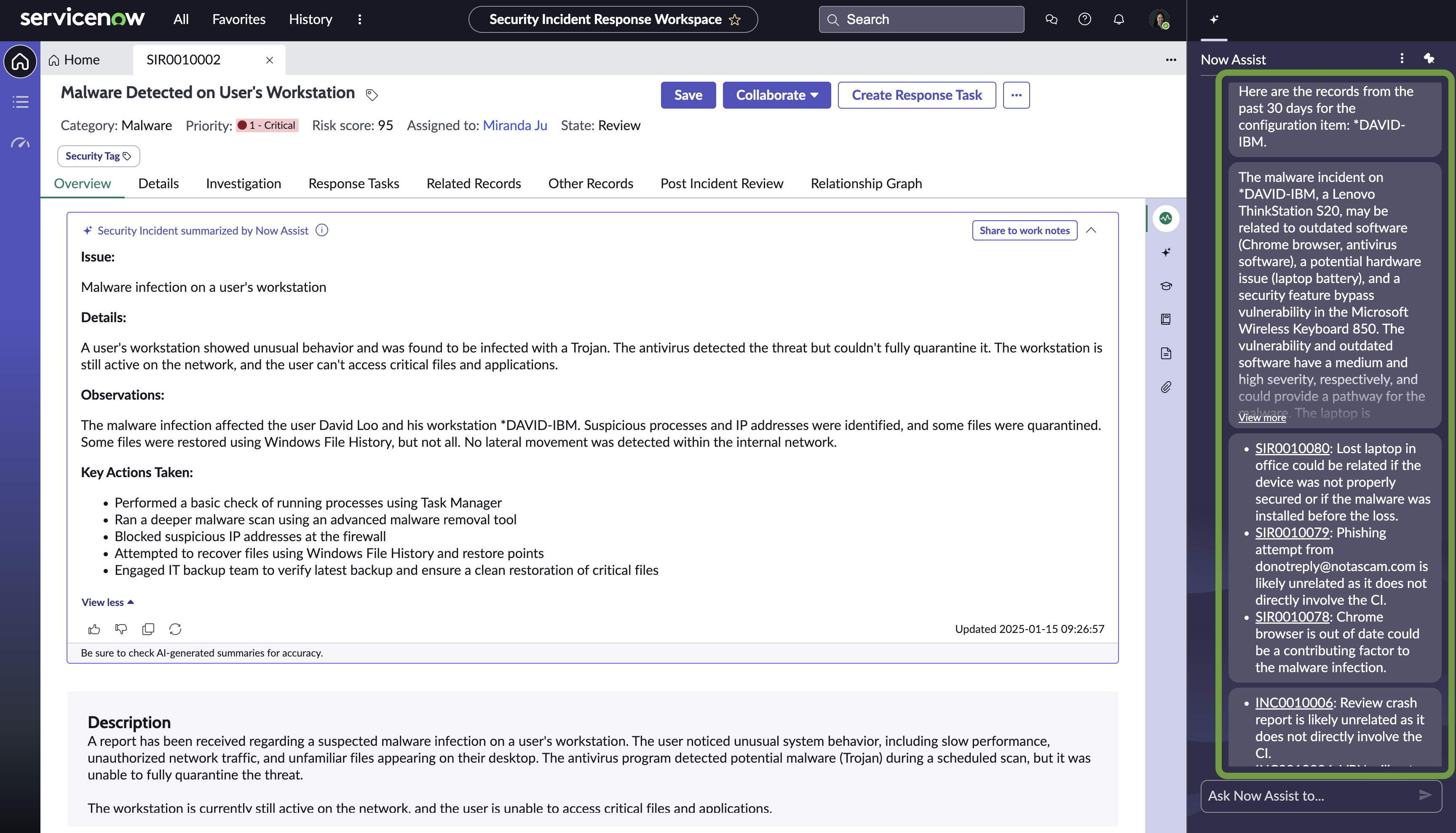
In the following example, Configuration item was requested. The search returned a high-level summary and links to records that have a matching
configuration item.
Results are grouped by record type: security incident record (SIR), incident (INC), change request (CHG), problem (PRB), and vulnerable item (VIT).
- The Affected users filter returns: SIR, INC, and CHG records.
- The Configuration filter item returns: SIR, INC, CHG, PRB, and VIT records.
- The Observables filter returns SIR records.
- オプション:
Modify the 30-day limit for the query by following these steps:
-
As a user with the Security Incident Manager role [sn_si.manager], navigate to sys_properties.LIST.
-
Locate the Correlation lookback period [sn_sec_gen_ai.correlation_lookback_period] system property and open the record.
-
Enter a number in the Value field up to 360.
-
Save the record.
-
Return to the security incident record and refresh the page.