Campaign overview and Campaign analytics dashboards

  • 릴리스 버전: Australia
  • 업데이트 날짜 2026년 03월 12일
  • 소요 시간: 9분
  • Content Analytics collects data on user interactions and generates visualizations to help campaign managers determine the effectiveness of campaigns.

    Use Content Analytics to measure the effectiveness of a campaign and the content provided to your employees. Content Analytics is one of several resources to help you improve your campaigns. To learn about the other resources, see Analyzing your campaign for effectiveness.

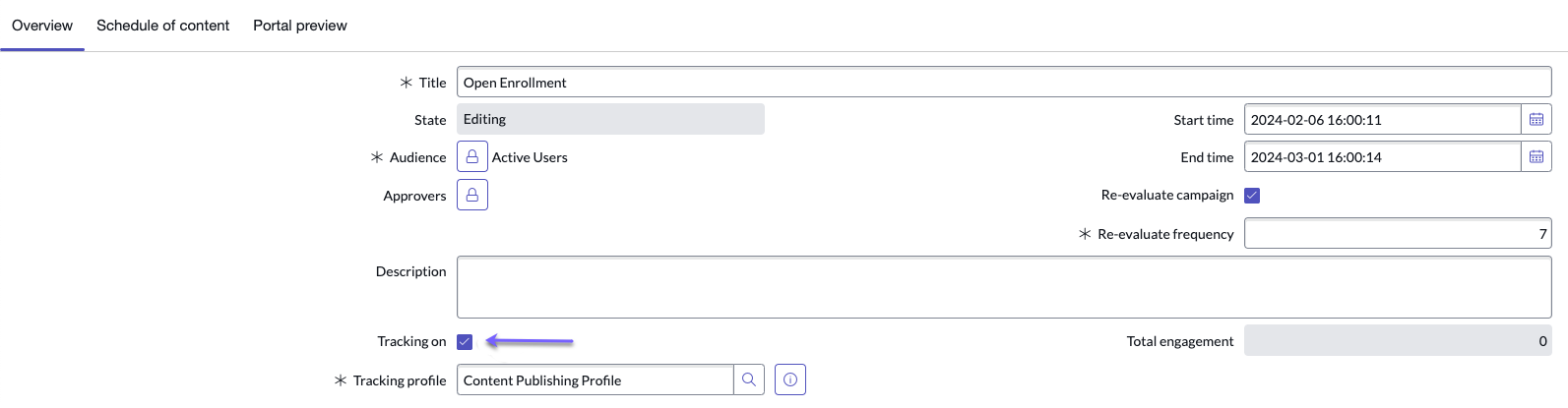
    When tracking is enabled for a campaign, Content Analytics generates data visualizations. For more information on how to enable tracking, see Create a campaign.Enable tracking for a campaign
    주:
    We recommend waiting at least 24 hours after publishing for data to appear on the dashboards.

    Interaction tracking

    Dashboards display data visualizations for specific parameters, such as user interactions with content.
    주:
    • An interaction is an action performed by the user, such as a download, link click, to-do completion, or video play.
    • An impression is an instance of content appearing for a user. Each time a user views the content, it is counted as an interaction.
    Content Analytics tracks the following user interactions (depending on content type). When content is rendered in the portal, the system counts that as an impression. When an employee clicks on content, the system counts that as a clickthrough, download, or played (depending on the content type).
    • Banner clickthrough
    • Banner impression
    • Calendar download
    • Calendar impression
    • Email clickthrough
    • Event download
    • Event impression
    • Image-based link clickthrough
    • Image-based link impression
    • Link clickthrough
    • Rich content clickthrough
    • Rich content impression
    • To-do completion
    • To-do impression
    • Video impression
    • Video played

    Campaign overview dashboard

    The Campaign overview dashboard displays performance metrics by campaign, including tasks closed and user actions.

    표 1. Campaign performance metrics
    Visualization Description
    Open Campaign Tasks Number of tasks in each state by campaign. The value in each cell links to a list of the tasks in that state and campaign.
    Campaign Task Closures This Week Stacked bar chart that shows the number of tasks that were closed this week. Mouse over a bar to see metrics specific to a campaign.
    Event Activity Over Time Total number of user interactions with content.
    Events Over Time by Content Number of user interactions with content, where each line represents a piece of content. Mouse over a line to see metrics specific to a piece of content.
    Events Over Time by Action Number of user interactions with content, where each line represents a type of interaction. Mouse over a line to see metrics specific to a type of interaction.
    Action Activity Pie chart that shows the proportions of each type of interaction and impressions compared to the total number of actions.
    Top Content Bar chart showing the most accessed content. Clicking a bar shows metrics for the specific content and action.
    Top Notifications Bar chart showing the most clicked email notifications during the campaign.

    Campaign analytics dashboard

    The Campaign analytics dashboard displays data on campaign engagement, to-dos, and impact. Use filters to specify the metrics to include in the visualizations. Choose from Campaign and Campaign Success Goal, then specify which campaign or campaign success goal.

    표 2. Campaign Engagement tab
    Visualization Description
    Campaign info Displays the campaign title and audience
    Days running The start and end dates of a campaign and the total days the campaign has run to date
    Total engagement This metric provides statistics on how many employees are interacting with the campaign. It shows the percentage of campaign targets who have visited the destination portal and have engaged with content by clicking or viewing. Those campaign targets who have never been to the portal are not part of this calculation.
    주:
    Currently, email link clicks are tracked as anonymous and do not affect the campaign engagement score.
    Event activity over time Total number of user interactions with content.
    Events over time by content Number of user interactions with content, where each line represents a piece of content. Mouse over a line to see metrics specific to a piece of content.
    Events over time by action Number of user interactions with content, where each line represents a type of interaction. Mouse over a line to see metrics specific to a type of interaction.
    Action activity Pie chart that shows the proportions of each type of interaction and impressions compared to the total number of actions.
    Top content Bar chart showing the most accessed content. Clicking a bar shows metrics for the specific content and action.
    Top notifications Bar chart showing the most distributed notifications during the campaign.
    표 3. To-dos tab
    Visualization Description
    All campaign to-dos Shows campaign data in a bar chart for the last 12 months for to-dos by state.
    • Closed complete
    • Closed incomplete
    • Open
    표 4. Campaign impact tab
    Visualization Description
    Campaign impact

    Campaign impact shows data related to your established campaign success goals. For more information on creating campaign success goals, see Create campaign success goals.

    Select a campaign success goal to view a chart that shows how your campaign is progressing. The campaign impact chart shows:
    • Evaluation count: Shows current data during campaign duration. Use this information to compare against your baseline and target count shows how your campaign is progressing.
    • Baseline count: Shows historical data based on past, similar campaigns.
    • Target count: The count you hope to reach when no historical data is available.
    • Trend: Depends on how you set your campaign success goal type. If you select Deflection, your trend should point down. If you select Drive action, your trend should point up.
    • Forecast Evaluation Count: Shows how close the campaign is to the target count and when it might be reached.