Specify a facts table to serve as a data source for breakdowns. Apply conditions to specify the elements for this breakdown source.
Before you begin
Roles required: pa_data_collector, pa_admin, or admin. The breakdown source creator
needs access to the table and reference column that the indicator source uses.
About this task
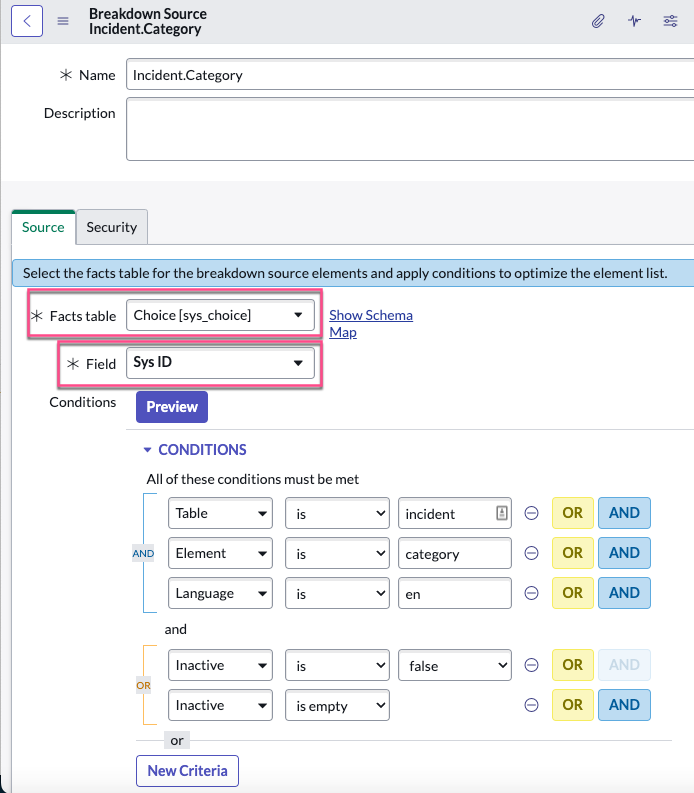
Always use a facts table with a field that has a unique value for every record, usually Sys ID. For example, the Incident.Category breakdown source takes its elements from the
Choice table. The elements are identified by the Sys ID field. The breakdown source filters the choices to those that are on the Incident table, in
English, and not inactive.
Tip: As in this example, if you use Choice [sys_choice] for the facts table, put conditions on the Table, Element, and Language fields. Also filter out Inactive records.
The breakdown source uses the following records from the Choice table:
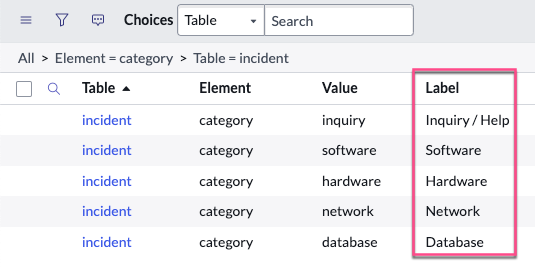
Note: The Choice table includes every possible choice from every table, which is why it has Table and Element columns. Most other facts tables you would use for a breakdown source are simpler.
Procedure
-
Navigate to and click New.
-
Give the breakdown source a meaningful Name.
-
Add a detailed Description to help others understand the
use and purpose of this breakdown source and to help them avoid creating
duplicates.
-
For the Facts Table, select the table that the breakdown
source gets elements from.
For example, for the breakdown source to specify user groups as elements, select
Group [sys_user_group].
Warning:
- You cannot use Workflow Data Fabric tables for a breakdown source.
- Do not change
the facts table for a source after you have started collecting data. If you change the
facts table, you lose all historical scores for the associated indicators at the next
score collection.
-
In the Field table, select a field that contains a
unique value for every record.
This field is usually Sys ID.
-
Set the Conditions to filter out unneeded elements.
If you set Choice [sys_choice] as the facts table, always filter on table,
element, and language, and filter out inactive records. For example:
[Table] [is] [Incident]
and
[Element] [is] [Category]
and
[Language] [is] [en]
and
[Inactive] [is] [false]
or
[Inactive] [is] [empty]
-
To see how many records match the selected conditions, click
Preview.
- Optional:
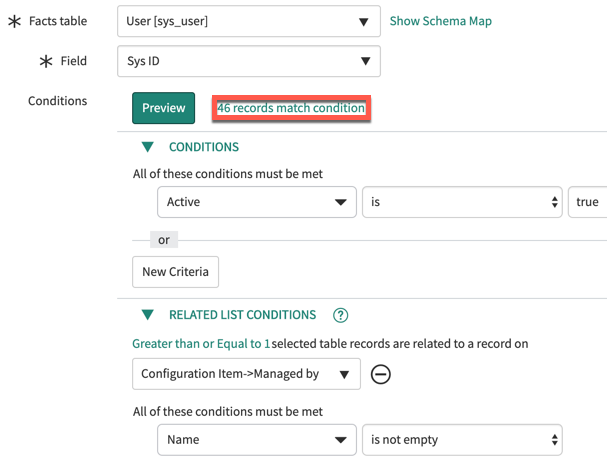
Define RELATED LIST CONDITIONS to include a relationship
with another table in the filter.
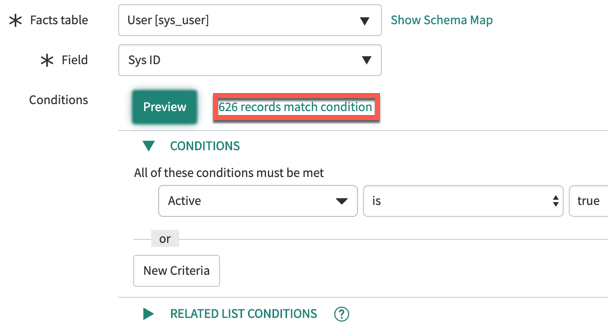
For example, consider a breakdown source for Configuration Item (CI)
Managers. The facts table is User [sys_user], but the only condition you can
apply from this table is to filter for active users. No field on the table lets
you select only users who are CI Managers. You get hundreds of results.
If you add a condition that the Name on the User record must
match at least one entry in the Managed by column of the Configuration Item
[cmdb_ci] table, the breakdown source only returns the users who are CI
Managers.
- Optional:
In Label for unmatched, write a custom label to use when
the value in a mapped field on an indicator source record does not match any
elements on the breakdown source.
The default label is Unmatched.
The Incident.Category breakdown source references records on the Choices
[sys_choices] table where the value of the Table field is incident and the value
of the Element field is category. The Category breakdown includes a mapping from
the Incident.Category breakdown source to the Category field on the Incidents
[incident] table. If an Incident record has a null value in the Category field,
the value when you apply the Category breakdown to this record is
Unmatched, by default.
-
In the Security tab, set whether to exclude or include
breakdown source elements by role based on element security lists.
What to do next
Create breakdowns that use this breakdown source. You can
open the Breakdowns tab and click New. The
Breakdown form opens, as described in Create an automated breakdown. After you create breakdowns that
use this source, these breakdowns are listed in the Breakdowns
tab.