If you want to attach multiple update sets to a deployment request, you can attach an update set to an existing deployment request on the Deploy an update set form.
Before you begin
Role required: developer or release_admin
Procedure
-
On the Deploy an update set form, select the Deployment request field, then select the deployment request that you want to attach the changes to from the list.
Note: You can only select deployment requests that are in the draft state.
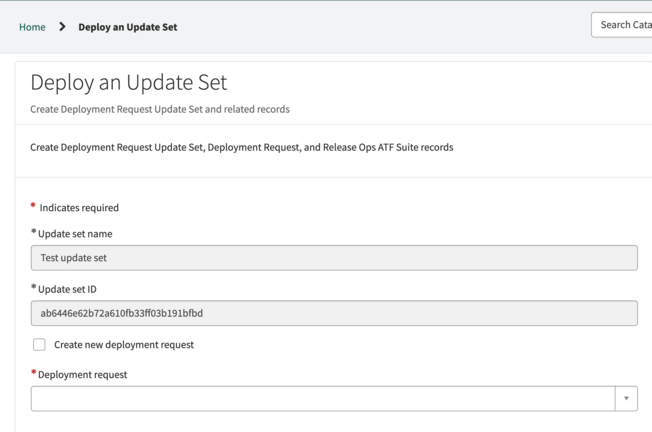
-
Select Submit to create your deployment request.
Your update set is attached to the existing deployment request. You can make additional changes to the deployment request as needed, such as adding additional update sets to the request.
-
When you're ready to submit your deployment request through the pipeline, select the Ready to assess button.
Warning: When you select Ready to assess, assessment of the deployment request begins immediately, and making additional changes to the deployment request isn't recommended. Only select
Ready to assess when you're ready to deploy your changes to the pipeline.
When you have selected Ready to assess, ReleaseOps automatically begins assessing your deployment request. You can see how the assessment is running and any issues that the assessment encountered in the Activity
section of the deployment request form. Once your deployment request has passed the assessment checks, your deployment request will be moved into the pipeline that your organization has configured.