The bubble data visualization is used to do compare fields and see their relationships.
시작하기 전에
Role required: Anyone with access to data can create a visualization of that data on any dashboard that they can edit. Users with the itil, report_user, admin, or viz_creator role can create a visualization in
the Visualization Designer. When you create a visualization in the Visualization Designer, it is saved to the Library. For more information on access, see Report_view access control and Platform Analytics roles.
이 태스크 정보
Use a bubble visualization to show two ordinal fields, such as Priority and Age, as circles of different sizes along an x-y axis. Use the relative size and position of the circles to compare fields and see their relationships. You
can also group the data by a third field, which can be qualitative. The third field is differentiated by color.
In this example, you create a bubble visualization that shows the number of open incidents and color code the visualization to highlight the value's desirability.
프로시저
-
Follow the first steps to Create a bubble data visualization in the Visualization Designer:
-
Navigate to , or open an in-line dashboard and select Edit.
-
Select New.
-
Select the Bubble (
 ) visualization type.

-
For the moment, skip the header and border section and move to the data source.
-
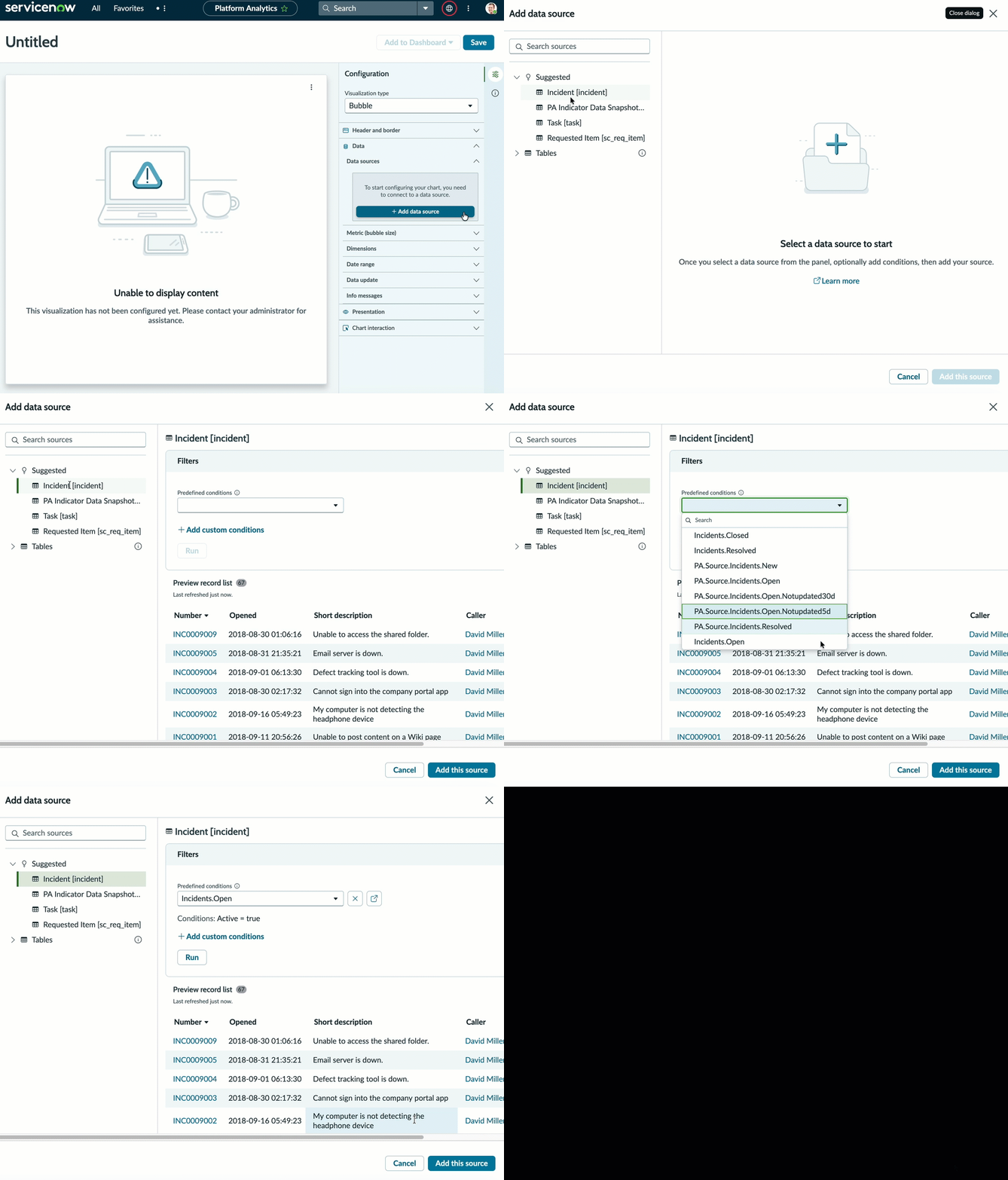
Select Add data source.
-
Choose the Incident [incident] table.
-
Because this visualization shows open incidents, let's add the Incidents.Open condition in the Filters section.
With this filter selected, the visualization only shows the number of active incidents.
- 옵션:
Select Run to preview the records that the visualization will be based on.
-
Select Add this source.
A bubble visualization with the current values of the selected data appears in the
Visualization Designer.
-
Now that you can see the visualization, let's add some context for the user.
-
Expand the Header and border section.
-
Select Show header and provide the visualization title Resolution time by state.
When Show header is selected, you can add a title and a description. The chart title isn't necessarily the same as the visualization name. The visualization
name identifies it in the Visualization Designer and in a list. The chart title appears within the visualization.
-
Enter a description of the visualization: Bubble report showing incident resolution times with state.
While the description and title fields aren't required, this information makes the visualization easier to understand on a dashboard and easier to identify in a list.
-
Skip the Data source sections
While the bubble report does support multiple data sources, we're just working with incidents. Because we only want to see the number of open incidents, you don't need to change the default metric, Count, or its label,
Incident.
-
In the Dimensions section, keep the X axis field, Business resolve time and select State for the Y axis field.
-
Under Data update, configure how the audience interacts with the visualization.
-
Select Follow filters.
This option enables the visualization to follow interactive filters on the dashboards it's placed on that are based on the same table.
-
Select Show filter icon to show the number of filters applied to the visualization.
For example, if dashboard filters limit the value of the visualization, the icon indicates that you're seeing the number of open incidents that match the filters. You can then check to see which filters are in
effect.
-
Select Enable drilldown to let viewers navigate to relevant information by selecting a data point in the chart.
Some visualizations only drill down to the list of associated data. Table data is generally restricted by access control lists (ACLs) and viewers may not see all of the associated records.
This control mirrors
Allow chart interaction. Under Chart Interaction, you can also select the destination of drilling down.
-
Choose the Default color type for the visualization.
- Default applies the colors associated with your UX theme.
- Single specifies the same color for each bubble. All data visualizations that use fixed element colors show the same element in the same color.
결과
You've created a bubble visualization sorted on two values. You've also configured the visualization's colors.