After you activate an Platform Analytics Solution, run a
historical data collection job. This job gives you immediate insight from your existing
data.
시작하기 전에
Role required: pa_admin, admin
프로시저
-
Navigate to .
-
Filter the list of jobs for those containing the word 'Historic'.
-
Locate and open the historic job that corresponds to your new Platform Analytics Solution.
-
Go to the Collection Parameters section, and set the Relative
start and Relative start interval fields
to collect data from as far back as you want.
The Data Collector runs a number of times equal to the number of days (or
other collection periods) specified in the form. For example, the default
configuration of 60 days causes the Data Collector to run 60 times in
succession. The Data Collector starts at T-60 days and examines all records as
if the date were 60 days ago. After processing those records, the Data Collector
runs again at T-59 days. The Data Collector repeats the process until it gets to
the current date.
Each day's collection may take a minute or two to complete
depending on the size of your tables. A historic data collection over
multiple months may take some time to complete.
If the product or
application for which you installed the Platform Analytics Solution is new, you might not have much historical data. In this case,
you can shorten the relative start interval. If you have not yet used the
product or application, you can skip collecting historical data
altogether.
-
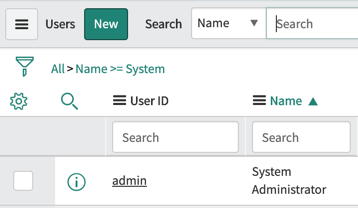
Ensure that the user specified in the Run as field
exists.
If you are using domain separation, you collect only records from domains
which the Run as user can view. However, the ACL
permissions of the Run as user do not affect data
collection.
-
Verify that the Run As tz time zone is appropriate for
your company.
Database queries based on this indicator source use this time zone. This time
zone affects the timestamps for the data collection job. This time zone also
defines what day is "Today" for conditions like [[Created][on][Today]].
-
Click Execute Now to run the job.
-
Navigate to .
-
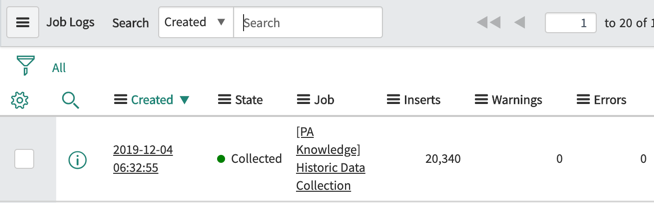
Look at the State of the job you are running.
Refresh the view periodically until the job completes. If the job is
successful, the State changes to
Collected.
Collecting historical data for newly installed Platform Analytics Solution
You have just installed a set of
Platform Analytics Solutions. You
want to run the initial historical data collection job on them, so you navigate to . To find the historic jobs for
Platform Analytics Solutions, you filter the list on [[Name][contains][Historic]].
팁: When
you start to create your own historical data collector jobs, include the word
'Historic' in their names.

You decide to run the job for the Knowledge Management solution first. To ensure that
nobody has run the knowledge management historical job yet, you navigate to and filter the list on [[Job][contains][knowledge]].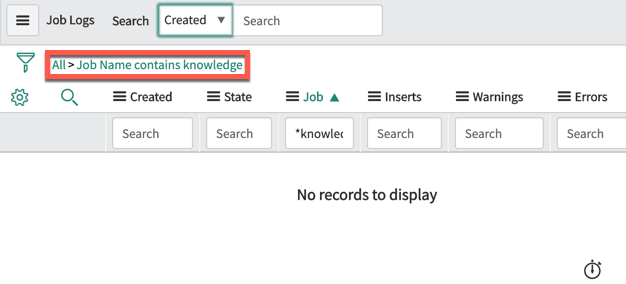
In this case, you see that the job has not been run since the last zBoot. So you
navigate back to the Jobs list and open [PA
Knowledge] Historic Data Collection.
In the form, you verify the following details:
- The Relative start field is set for the default 60
days, which is fine for you.
- The Run as user exists on your instance. Otherwise,
you would have to choose a different user.
- The time zone is appropriate for your company.
You are satisfied with the settings for the historical job, so you click
Execute Now. After a few minutes, the job is shown as
Collected in the job logs.