Create a Data snapshots automated indicator

  • 릴리스 버전: Australia
  • 업데이트 날짜 2026년 03월 12일
  • 소요 시간: 12분
  • To analyze the performance of a business process that is recorded in a ServiceNow table, use an automated indicator. If you have Data snapshots enabled on your instance, you can create a Data snapshots automated indicator.

    시작하기 전에

    Determine whether your use case meets the following requirements:
    • Your license enables you to create indicators.
    • You have Data snapshots enabled on your instance. For more information, see Activate Data snapshots.
    • You have a suitable Data snapshots source. For more information, see Data snapshots sources and collection.
    • You don’t need to apply a scripted breakdown, such as an Age bucket group, or a scripted aggregate to the indicator. If you need such a breakdown or aggregate, create a classic indicator instead. For more information, see Create an automated indicator.

    Role required: pa_power_user or higher

    프로시저

    1. Select the correct application scope.
      The indicator you create will be in the application scope of your session. This application scope must match the application scope of the Data snapshots source you’ll choose.
    2. Follow one of these procedures to start creating a Data snapshots automated indicator:
      • Create an indicator from the Indicator library, as described in Create an indicator from the library.
      • Navigate to All > Data Snapshots > Indicators > Automated Indicators - Data Snapshots and select New.
    3. If you selected Create indicator from the indicator library, select the Automated indicator type and Data snapshots source type.
      Create new indicator page opened from indicator library.
    4. If the Name and Description fields are empty, give the indicator a meaningful name and description.
      If you don’t provide a description, the system generates one.
    5. If you started from the Create new indicator dialog from the indicator library, press Create
      A Data snapshots Indicator form opens, prefilled with the information you provided in the Create new indicator dialog.
    6. In the Source field, select from the existing Data snapshots sources.
      If there are no sources, or none of the sources are suitable, select New. Follow the procedure in Create a Data snapshots source.
      Data snapshots list for the Sources field on the Data snapshots Indicator form, showing New button.

      When you select a source, the fact table field is automatically populated and read-only. The available calendars are populated, and if the source supports only one calendar, this field is read-only.

    7. Select the calendar.
      Confirm that the calendar you select supports the frequency of the Data snapshots source. For example, if you select an Industrial Connected Workforce (ICW) source with All Activity frequency, you can select the Industrial shift calendar. If you select an ICW source with a Daily frequency, you can select only the Standard calendar.
    8. Select a calendar frequency.
      Available calendar frequencies depend on the calendar.
    9. Complete the other fields.
      Field Description
      Aggregate The aggregate function to apply to the data from the indicator source.

      Count counts the number of records. Count distinct counts the number of unique values rather than the total number of records. For example, if the name of a user appears more than once in a list, the user is only counted once. Other choices perform the specified aggregate operation, such as summing the values in a field across records.

      Field The field on the Data snapshots source to which the aggregate is applied. Required for all aggregates except Count.
      Trend by (optional) A date field on the Data snapshots source. Narrows the scores to changes per field value instead of an aggregate total. For example, consider trending by the Actual End field on a Resolved Incidents indicator that aggregates by Count. Doing so shows you the number of incidents whose state changed to Resolved on each day. If you hadn't specified a Trend by field, you would instead see the cumulative total of Resolved incidents each day.
      Direction The direction in which you want scores to change. This selection affects Targets and helps you evaluate progress. Set a Direction whenever it makes sense to do so. A Direction is more likely to make sense when applied to cumulative changes than when a Trend by field is specified.
      Unit (optional) The unit in which indicator scores are expressed, such as percentage (%) or currency ($, €, and so on)
      Conditions Conditions to apply to fields on the Data snapshots source so as to filter which data is aggregated. Conditions apply only to fields specified in the Data snapshots source. They do not apply to other fields on the fact table.
      주:
      You don’t select breakdowns on Data snapshots indicators. The fields you select on the Data snapshots sources can be used to filter the indicators on data visualizations and KPI Details, thus serving the function of breakdowns.
    10. In the Access control tab, set whether to save this indicator to the library and whether to limit the visibility of the indicator by user, group, or role.
      • You can turn on Show in library to make the indicator available in the following places:
        • The Platform Analytics indicator library
        • KPI Details
      • You can limit visibility either by groups and users or by roles.

    Simple daily count indicator

    Here you have an automated Data snapshots indicator built on a source with a daily frequency.
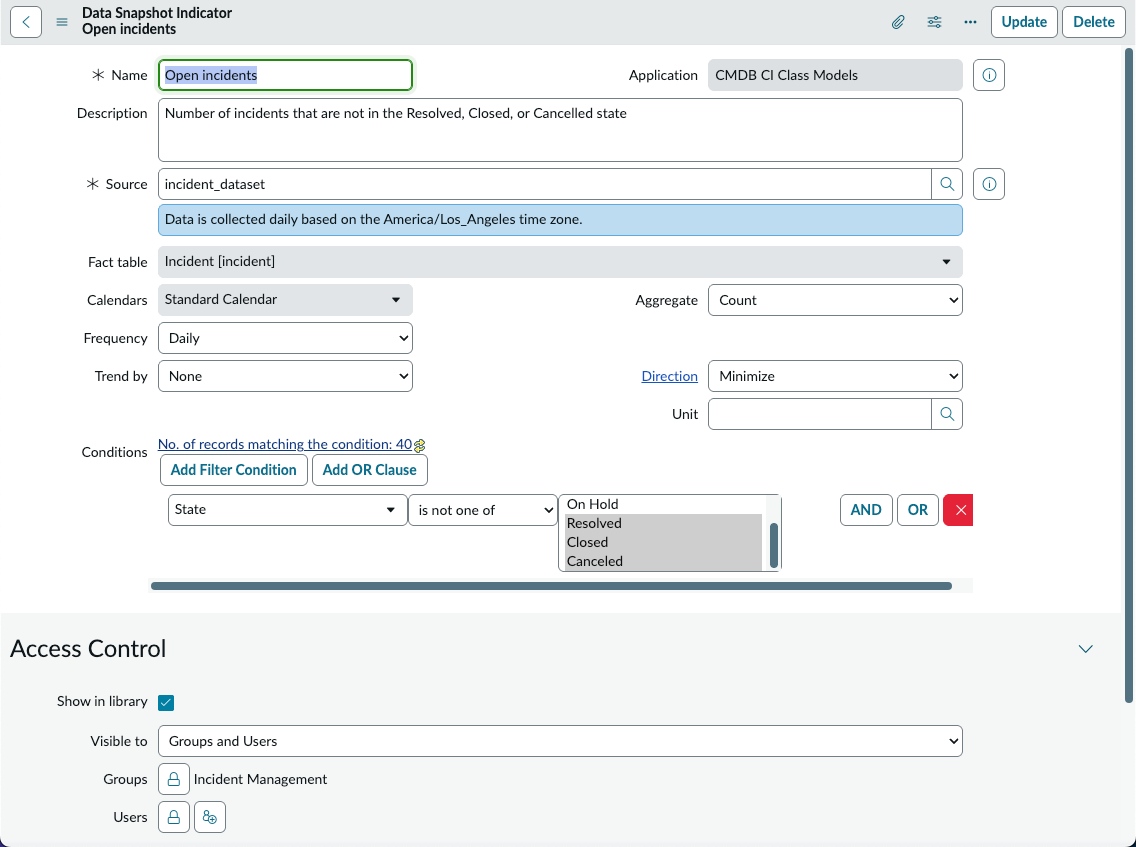
    A simple record of a Data snapshots indicator built from scratch.
    Note the following points:
    • The application scope is CMDB CI Class Models. This scope was selected before any work began to create the indicator, to match the application scope of the Data snapshots source. By implication, you should investigate the Data snapshots sources before you create an indicator.
    • The source is incident_dataset. You see that the fact table for this source is Incident [incident]. The source has only one calendar, the Standard Calendar, and it has the Daily frequency.
    • No Trend by field is selected and the aggregate is Count. Therefore, the indicator score is the total number of open incidents on each day that data is collected, regardless of when the incidents became open.
    • The direction is Minimize, because you want this number to go down.
    • The conditions define which incidents are Open; namely, those indicators whose States aren’t Resolved, Closed, or Canceled.
    • The Access Control section shows that the indicator is displayed in the indicator library and KPI Details. You also see that viewing rights are restricted to users in the Incident Management group.

    Intraday indicator

    Here you have an indicator whose source is based on an intraday calendar. Intraday indicators can be created only from sources where the Data frequency is All Activity.
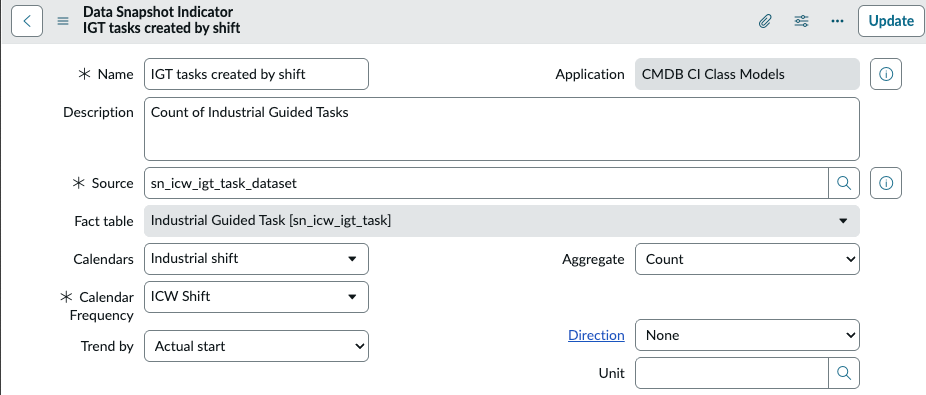
    Indicator record with a calendar frequency based on factory shifts.
    Note the following points:
    • The application scope is CMDB CI Class Models. This scope was selected before any work began to create the indicator, to match the application scope of the Data snapshots source. By implication, you must investigate the Data snapshots sources before you create an indicator.
    • The source is sn_icw_igt_task_dataset. You see that the fact table for this source is Industrial Guided Task [sn_icw_igt_task]. This source supports both the standard calendar and several business calendars. You want a calendar that supports intraday factory shifts, so you choose the Industrial shift calendar. Then you choose the Calendar Frequency that supports shifts, ICW Shift.
    • The aggregate is Count and the Trend by field is Actual start. As a result, the indicator counts the number of Industrial Guided Tasks that are created on each shift.

    Effect of Trend by field

    In the Intraday indicator example, you had an indicator that used the Actual shift field for trending. The resulting scores are the number of Industrial Guided Tasks (IGT) that are created on each shift.
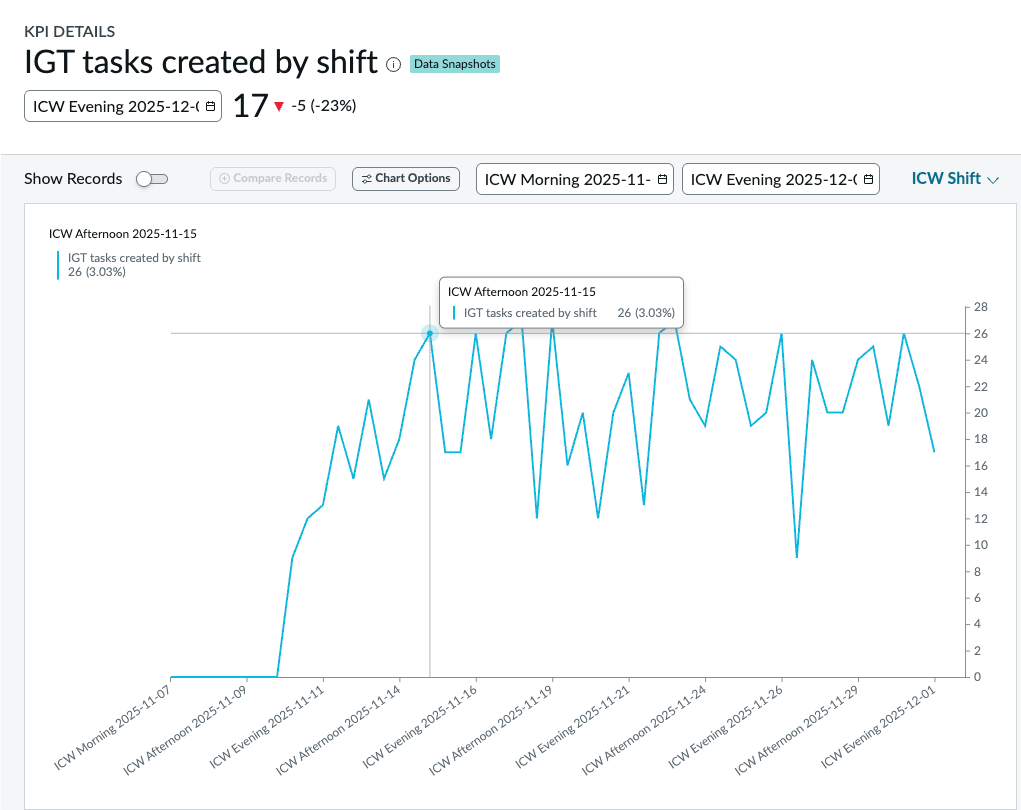
    KPI Details showing IGT tasks created by shift.
    If no Trend by field is selected, the data doesn’t show IGT tasks created by each shift. Instead, the data shows the cumulative number of IGT tasks created over the chart time period.
    KPI Details showing cumulative IGT tasks created.