Create a reference field interactive filter

  • Rversion finale: Australia
  • Mis à jour 12 mars 2026
  • 4 minutes de lecture
  • A reference field interactive filter allows users to filter report widgets based on the value of a reference field.

    Avant de commencer

    Role required: hp_publisher_admin and report_admin. The hp_publisher_admin role exists only for managing interactive filters in Core UI. By default, it contains the role analytics_filter_admin for managing Core UI filters that are migrated to Platform Analytics experience.

    When a user selects All, they do not see a report with all filter options applied, they see the unfiltered report. This example of reference filter provides filter options from the Assignment Group field on the Group [sys_user_group] table.
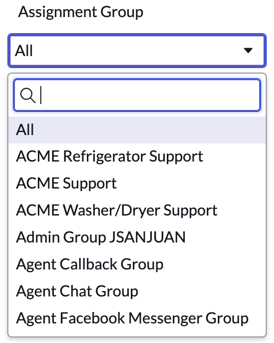
    Reference list filter example with the All option selected
    Remarque :
    If the interactive filter has a default value or specifies the last selected value, non-responsive dashboards do not apply this value automatically. This feature is only available on Responsive dashboards.

    Procédure

    1. Facultatif : Check the existing interactive filters on the same table.
      1. Navigate to All > Performance Analytics Administration > Core UI Artifacts > Interactive Filters and select an interactive filter based on the same table you want to filter.
      2. Under Related Links, select Other filters on Table.
      3. Review the other filters that are available on the same table to see if the filter you want already exists.
    2. Navigate to All > Performance Analytics Administration > Core UI Artifacts > Interactive Filters.
    3. Click New.
    4. In the Filter based on list, select Reference.
      Filter based on list with Reference selected
    5. In the Reference table list, select the table that stores the referenced records you want to filter on.
    6. Facultatif : Select a Default value for the filter.
      This default is applied automatically for all users. Values that a user selects override the global default for that user. You can specify more than one default value when using a UI control type that enables multiple selections, such as Select Multiple Input.
      Remarque :
      To pass more than 50 default values, or if you see the error This is exceeding the GET call limitation, create multiple interactive filters.
    7. Set the following fields:
      Name Description
      Name Enter a name for the filter. This name appears on the dashboard widget for the filter.
      Look up name Enter a lookup name for the filter. This name appears in the Add content menu for users adding a filter to a dashboard. Use this name to help organize your filters. If you do not specify a lookup name, the Name value is used instead.
      Description Enter a description of the filter.
      UI control type Select how the available filtering options for this filter appear on the dashboard widget. See Available interactive filter UI control types.

      Show only search results that start with keyword

      When selected, searches return only the results that start with the search term. Otherwise, searches return results that contain the search term anywhere. Consider this option when you are setting up a reference filter on a very large table, for example one with millions of records. A search on a common term may return too many records to be managed.

    8. Facultatif : Select Apply filter to database views and tables to apply the filter to widgets based on both database views and tables.
      Remarque :
      It is not possible to apply filters to tables that extend the database view’s tables. For more information, see Interactive filters on database views and table hierarchies.
    9. Right-click on the form header and select Save.
    10. Facultatif : If the UI control type is Select Single Input, select Remove All option to configure the interactive filter without the All option.
      When a user selects All, they do not see a report with all filter options applied, they see the unfiltered report.
    11. In the Interactive filter references related list, select New.
      This related list does not appear until you save the filter.
    12. In the Reference table field, select a table that has reports that you want to filter.
    13. Select the Reference field to filter on.

      The field must reference the table specified in the parent filter Reference table field.

      You can dot-walk from fields that reference other tables. For example, if the parent filter Reference table is Department [cmn_department], you can select Incident as the reference Reference table, then select Caller Department as the Reference field.

      Remarque :
      Reference interactive filters do not support string fields.
    14. Facultatif : Add a related list condition.
      You can add a condition to your filter based on the records in one related table.
      1. Click the link labeled Greater than or Equal to 1.
        From the list, select the number of records on the source table that must be related to a record on the target table.
        The options are:
        • Greater than or Equal to
        • Greater than
        • Less than or Equal to
        • Less than
        • Equal to
        • None
        • Between
        Related list condition value list
      2. Choose the related table.
      3. Specify the conditions on that table that must be met for the filter to be valid.
    15. Click Submit.

    Que faire ensuite

    Repeat steps 10–13 as needed for each reference field you want to filter on. After you create the filter, add it to a dashboard.
    Remarque :
    A filter may be converted from the Check boxes control type to the Select Multiple Input control type for performance reasons.
    1. After you create the filter, add it to a dashboard.
    2. On the dashboard, select the Edit widget icon (Edit columns icon) on each visualization on the dashboard that should follow the filter and select Follow interactive filter.