Configure record level analysis in AI Data Explorer
Get more detailed answers based on the content of individual records to provide more meaningful insights.
Avant de commencer
Roles required: now_assist_explorer_admin or higher
Pourquoi et quand exécuter cette tâche
Record-level analysis provides deeper insights into your data. You can activate it as an administrator. You can activate it as an opt-in, where you specify the tables to which it applies, or as an opt-out, where it applies to all tables you don't specify. Whether activated or not, queries that touch on more than 50 records in a table aren’t supported.
Avertissement :
Take care when activating record-level analysis for a table with record-level security. The LLM applies the record-level security when analyzing records, but it applies only report_view ACLs when the exploration is
shared. Therefore, users may see data about records that they are not authorized to access when an exploration is shared with them.
Procédure
-
If the Deactivate skill button is visible for this skill, expand the 3-dot menu
 and select Edit.
-
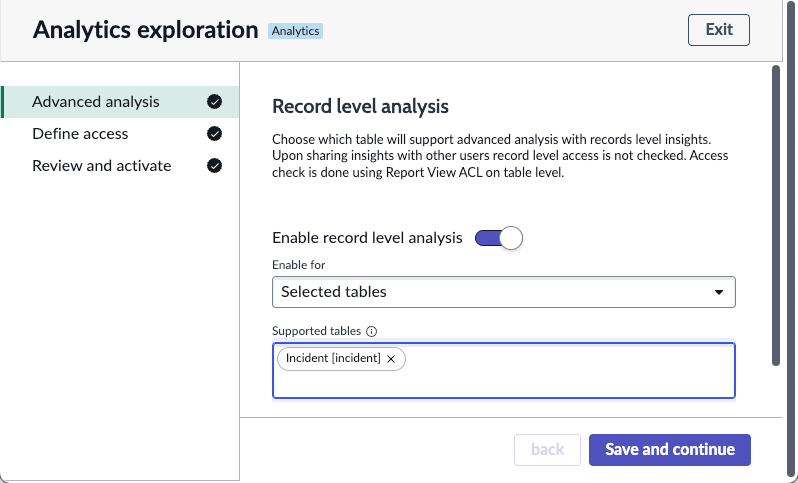
Toggle on Enable record analysis.
Simple request with and without record level analytics
You don’t have record level analytics enabled, and you open an exploration and ask for all open incidents. You’re told "There are currently 40 open incidents. This reflects all incidents that remain unresolved at this time."

Now you enable record level analytics on the instance. You choose an opt-in approach and specify Incident [incident] as the only table included in record level analytics.
Finally, you ask the same question again in an exploration, asking for all open incidents. Now the response includes details about the differences between open incident records. You’re told "There are 40 open incidents currently.
Among these, several are marked as 1 - Critical priority, including issues such as inability to launch VPN clients, rain leaking on the main DNS server, and multiple SAP application outages. The most common categories for open incidents
are inquiry / help, software, and hardware, with critical incidents distributed across all three."
