Options for time series data visualizations with multiple metrics
If you are showing multiple metrics in a time series data visualization, you can set the group by, visualization type, and Y-axis scale for each metric. You can also have filters on a dashboard apply only to specific metrics.
Note:
Additional data sources must use the same unit as the first metric. Otherwise, only the first metric is used in the visualization.
Separate visualization for each metric
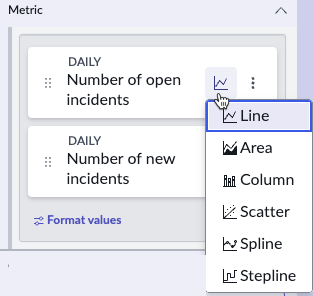
When you have a data visualization with more than one data source, you have a separate metric for each data source. In time series data visualizations, you can select a separate visualization type for each metric, to make the visualization easier to
read. In each Metric tile, selecting the visualization icon opens a list of visualization types to choose from.
Note:
When a Data snapshots indicator is selected, the Metrics component is the same as the source table.
Dot-walk fields are limited to those fields defined in the snapshot indicator's source.
Multiple Y-axes
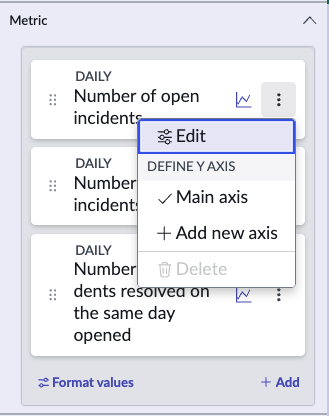
In some time series, the difference between the range of values of metrics makes it difficult to read the metrics when they share the same Y-axis scale. In this case, you can have separate Y-axis scales for the metric. Add a Y-axis
for a metric by selecting the More options icon in the metric tile. Be sparing with this function, however, because having too many Y-axis scales also makes the visualization difficult to read. Also, be sure to give a short but clear label for
each Y-axis if you have more than one.
Group by per metric
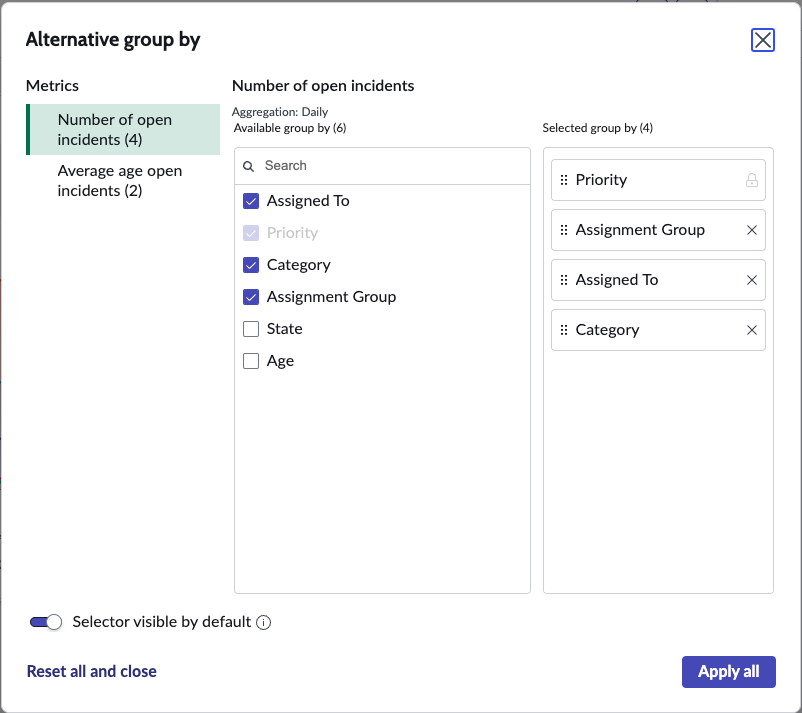
You can also set separate group-by values for each metric.
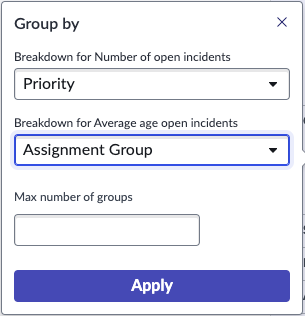
If you have no more than three metrics, you can also set alternative group-bys. You can select any field or breakdown that can apply to any of your metrics. The dialog where you select the alternative group-bys says how many of your
selections apply to each metric. In runtime, the viewer can select a group-by for each metric, but only from the choices that can apply to that metric.
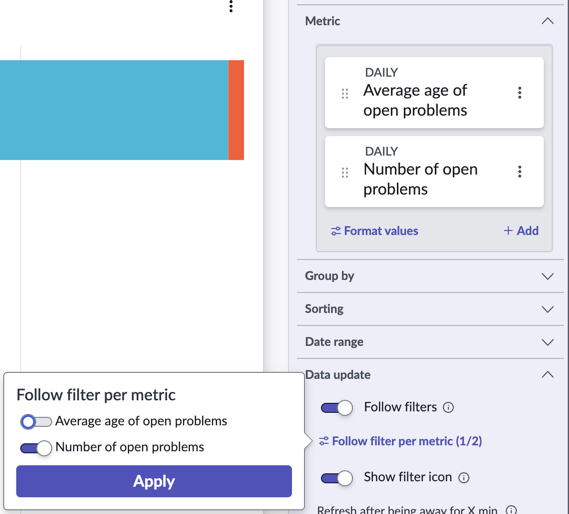
Follow filters per metric
If Follow filters is activated on a time series or bar visualization that shows multiple metrics, the configuration panel shows an expandable item called Follow filters per metric. Expand this item to toggle filter following on or off for each metric.
For example, consider a bar visualization that shows the Number of open problems and the Average age of open problems. You can configure this visualization so that the Number of open problems follows any
applicable filters on a dashboard, but the Average age of problems does not.