Si un filtre de tableau de bord se trouve sur la même table que la répartition d’un projet de processus, ce filtre peut s’appliquer à une Exploration de processus carte de ce projet.
Vous pouvez appliquer un filtre à sélection unique ou vrai/faux à une Exploration de processus carte.
Filtre à sélection unique sur Exploration de processus les cartes
Pour qu’un filtre à sélection unique s’applique à une Exploration de processus carte, la source du filtre et les données à filtrer doivent toutes deux se trouver sur la même table que la table du projet de processus. De plus, ils doivent se trouver sur un champ de cette table qui est également une répartition du projet de processus.
Prenons l’exemple d’un projet de processus sur la table Incident [incident]. Les filtres de répartition pour ce projet incluent le champ Category (Catégorie). Dans le
Exploration de processus Espace de travail, vous pouvez voir les répartitions dans la colonne Filtres de répartition de la console d’analyste pour le projet.
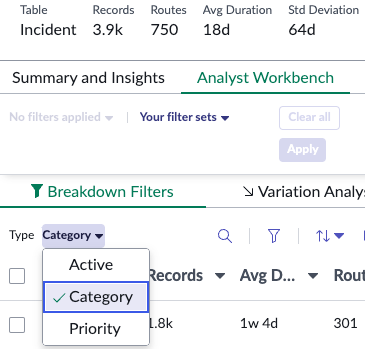
Vous pouvez également voir et modifier les répartitions dans l’enregistrement de configuration de la table du projet. Pour plus d'informations, consultez Configurer une définition de répartition.
Dans le tableau de bord où vous avez ajouté votre
Exploration de processus carte pour ce projet, vous souhaitez que les utilisateurs puissent filtrer la carte par catégorie. La catégorie est une répartition du projet de processus, il est donc simple d’ajouter un tel filtre. Lorsque vous créez le filtre, sélectionnez la table Incident, puis le champ Category (Catégorie). Cette sélection s’applique automatiquement à la source de filtre et à la date à filtrer, comme décrit dans .
Configurer une sélection simple/multiple ou un filtre en cascade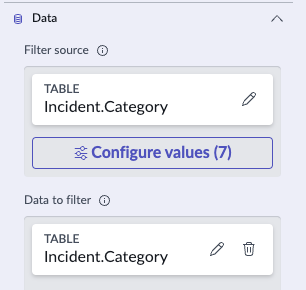
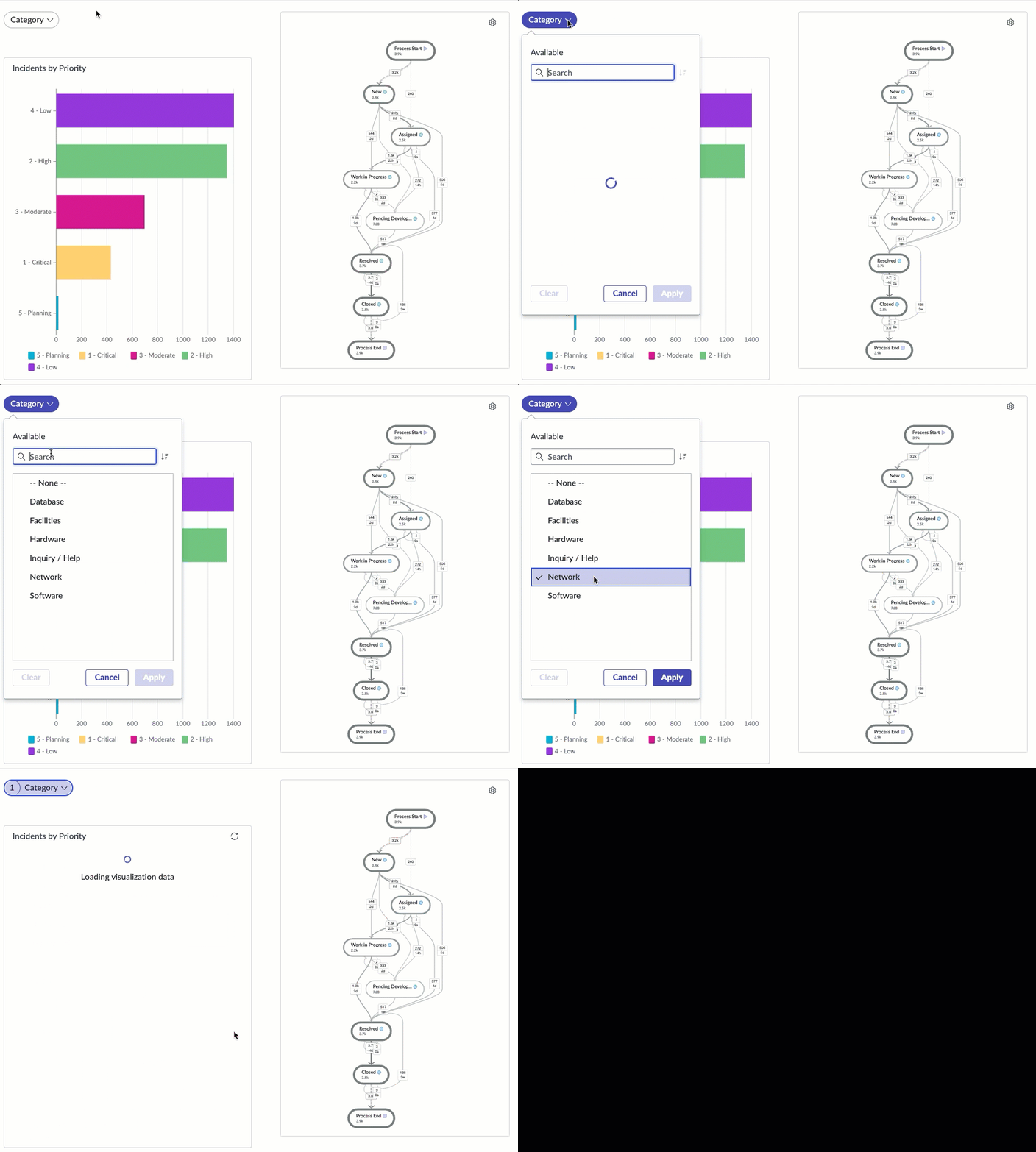
Le filtre s’applique à la
Exploration de processus carte de la même manière qu’à une visualisation à barres de la table Incident.
Filtre vrai/faux sur les Exploration de processus cartes
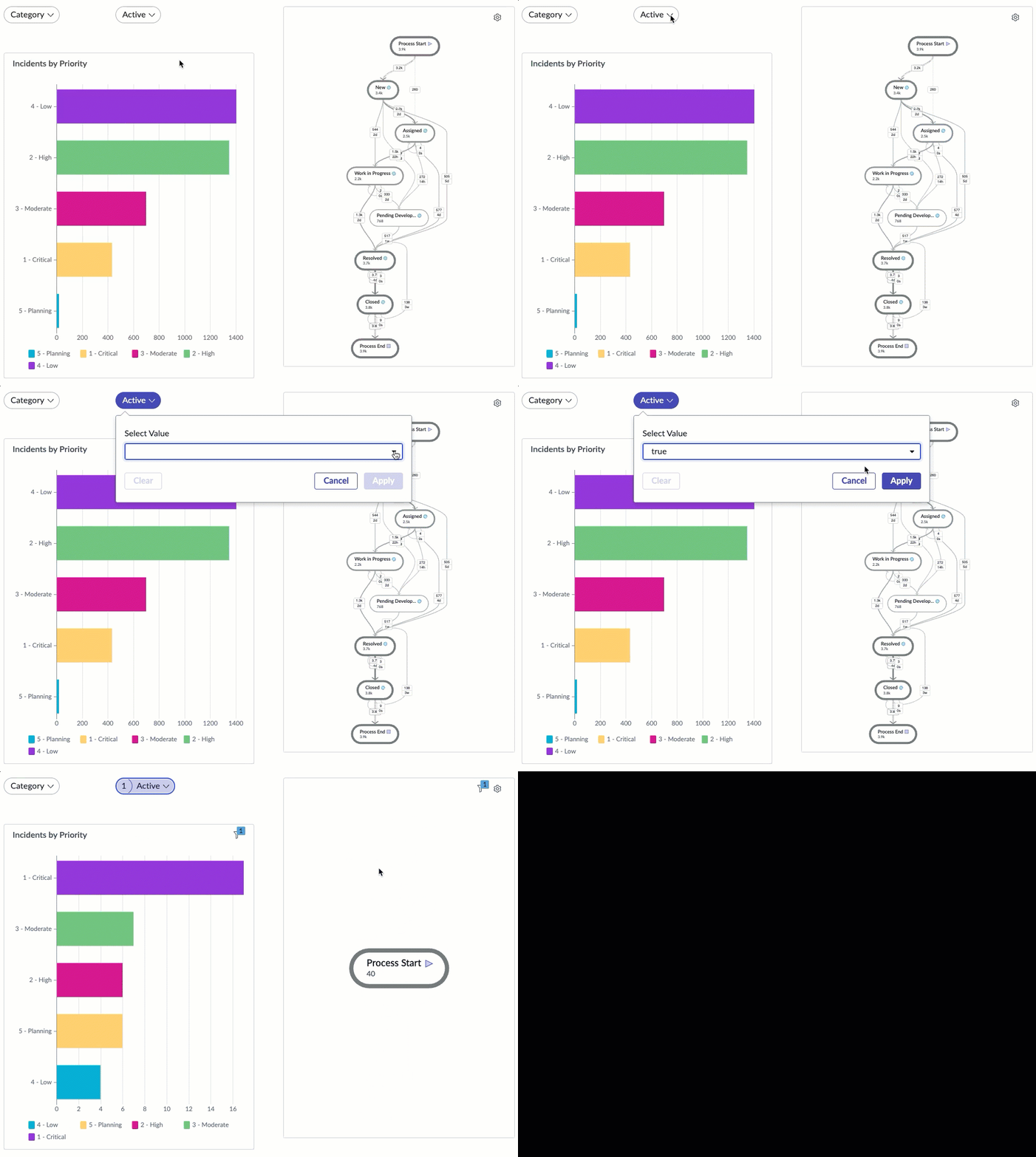
Pour un filtre vrai/faux, vous ne sélectionnez que les données à filtrer. Encore une fois, sélectionnez la table du projet de processus et un champ utilisé comme répartition. En poursuivant le projet à partir de l’exemple de filtre à sélection unique, Actif est un champ vrai/faux, ou booléen, qui est utilisé comme répartition. Par conséquent, vous pouvez définir un filtre vrai/faux pour filtrer Incident.Active, qui filtrera la
Exploration de processus carte. Pour plus d'informations, consultez
Configurer un filtre vrai/faux.

Là encore, le filtre affecte à la fois une visualisation de données et une
Exploration de processus carte sur la table Incident.